Charon: Game Data Editor
Charon is a data-driven game design plugin that enables developers and designers to efficiently manage static game data like units, items, missions, and quests through an intuitive editor interface. It eliminates manual data handling by automatically generating C# code for seamless data loading, requiring only .NET 8 and no runtime dependencies.
com.gamedevware.charon 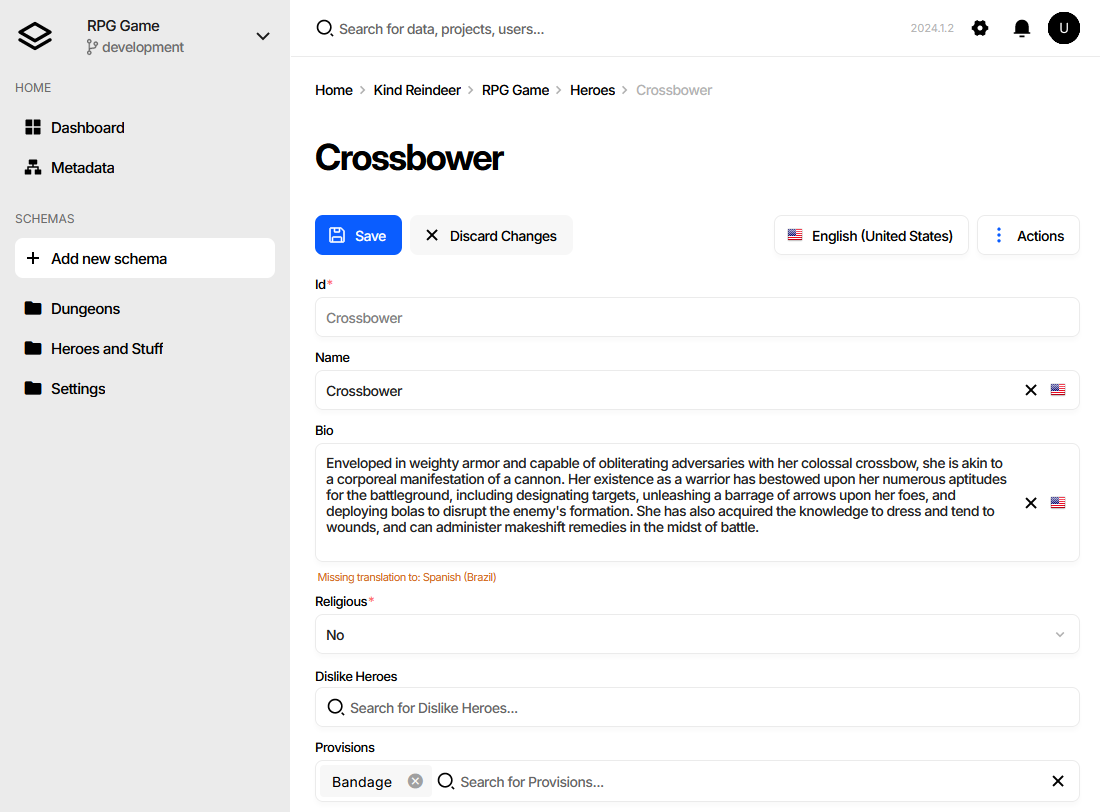
Install via UPM
Add to Unity Package Manager using this URL
https://www.pkglnk.dev/charon.git?path=src/GameDevWare.Charon.Unity/Packages/com.gamedevware.charon README Markdown
Copy this to your project's README.md

## Installation
Add **Charon: Game Data Editor** to your Unity project via Package Manager:
1. Open **Window > Package Manager**
2. Click **+** > **Add package from git URL**
3. Enter:
```
https://www.pkglnk.dev/charon.git?path=src%2FGameDevWare.Charon.Unity%2FPackages%2Fcom.gamedevware.charon
```
[](https://www.pkglnk.dev/pkg/charon)README

Introduction
Charon is a versatile plugin tailored for Unity, designed to facilitate data-driven game design by allowing both developers and game designers to efficiently manage static game data, like units, items, missions, quests, and other. It provides a user-friendly interface that requires no special skills for game designers, simplifying the process of data manipulation. For programmers, Charon streamlines development workflows by generating c# code to load game data seamlessly into the game.
Installation
Prerequisites
Unity Editor plugin uses dotnet charon tool, which is a .NET Core application built for .NET 8 and it runs wherever Unity Editor can run.
The generated code and data do not require any additional dependencies for your game's runtime.
Installation from OpenUPM (recommended)
- Install the .NET 8 SDK or later software for your operating system (Windows, MacOS, Linux).
- Ensure your Unity version is 2021.3 or later.
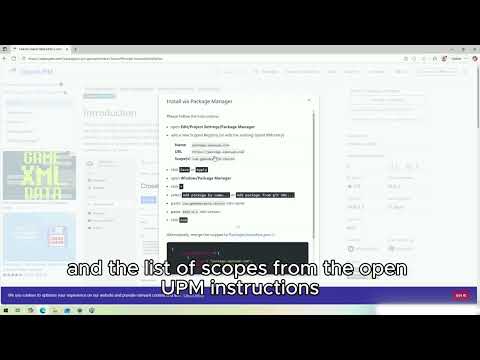
- Open the OpenUPM page for the plugin.
- Click the Manual Installation button in the upper right corner and follow the instructions.
Unity | Installing the Plugin from OpenUPM
Installation from Unity Asset Store
- Install the .NET 8 SDK or later software for your operating system (Windows, MacOS, Linux).
- Ensure your Unity version is 2021.3 or later.
- Open the Charon plugin in the Unity Asset Store.
- Click Add To My Assets.
- Open the Unity Package Manager by navigating to Window → Package Manager.
- Wait for the package manager to populate the list.
- Select My Assets from the dropdown in the top left corner.
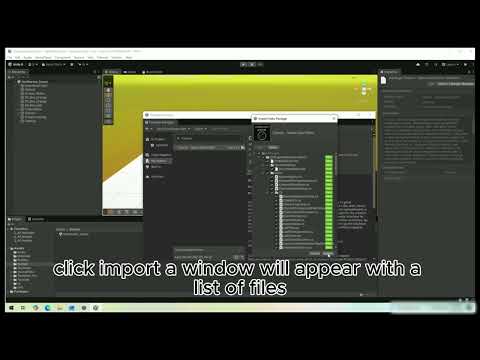
- Select Charon from the list and click Download. If it’s already downloaded, you will see an Import option.
Unity | Installing the Plugin from Asset Store
How to Use
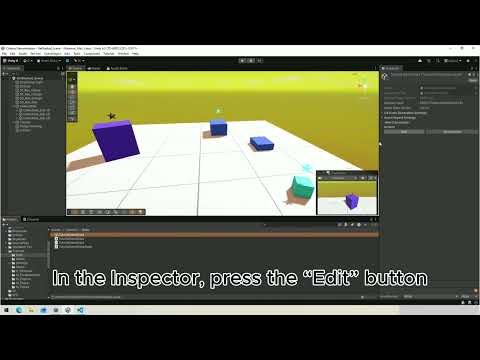
Unity | First Steps
Documentation
Charon Documentation • Unity Plugin Documentation
Examples
- Example Project
- Editor Extensions
- CharonCli -> Bulk Create Documents
- CharonCli -> Bulk Delete Documents
- CharonCli -> Find Document
- CharonCli -> Update Document
- CharonCli -> Create Document
- CharonCli -> Delete Document
- CharonCli -> Delete Document By Id
- CharonCli -> Export Documents
- CharonCli -> List All Documents
- CharonCli -> List Documents With Criteria
- CharonCli -> Validating Game Data File
- I18N -> List Translation Languages
- I18N -> Export Localizable Data
- I18N -> Add Translation Language
- I18N -> Import Localizable Data
- T4 -> Preprocess Template
- T4 -> Run Text Template
- T4 -> Run C# Code Template
Change Log
Collaboration
Discord • Plugin Issues • support@gamedevware.com
License
MIT
Comments
No comments yet. Be the first!
Sign in to join the conversation
Sign In