ER Inspector
ER Inspector is a custom Unity editor tool that enhances the Inspector view with visual elements and interactive controls through simple attributes. Organize complex components with titles, info boxes, conditional visibility, read-only fields, and asset/scene-only restrictions to create cleaner, more informative Inspector layouts and improve editor workflows.
com.edenrompas.er-inspector 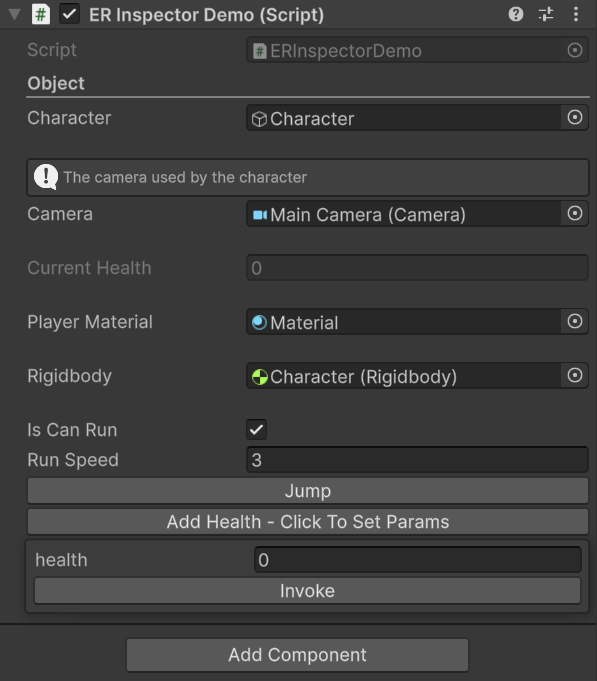
Install via UPM
Add to Unity Package Manager using this URL
https://www.pkglnk.dev/er-inspector.git README Markdown
Copy this to your project's README.md

## Installation
Add **ER Inspector** to your Unity project via Package Manager:
1. Open **Window > Package Manager**
2. Click **+** > **Add package from git URL**
3. Enter:
```
https://www.pkglnk.dev/er-inspector.git
```
[](https://www.pkglnk.dev/pkg/er-inspector)README
ER Inspector
ER Inspector is a custom Unity tool designed to help developers organize the Inspector view in a cleaner, more informative, and interactive way. With this tool, you can add visual elements such as titles, info boxes, or buttons all controllable through simple attributes within your scripts. This tool is especially useful for improving editor workflows and clarifying the structure and purpose of variables or methods in a component.


| Code Editor | Inspector Unity |
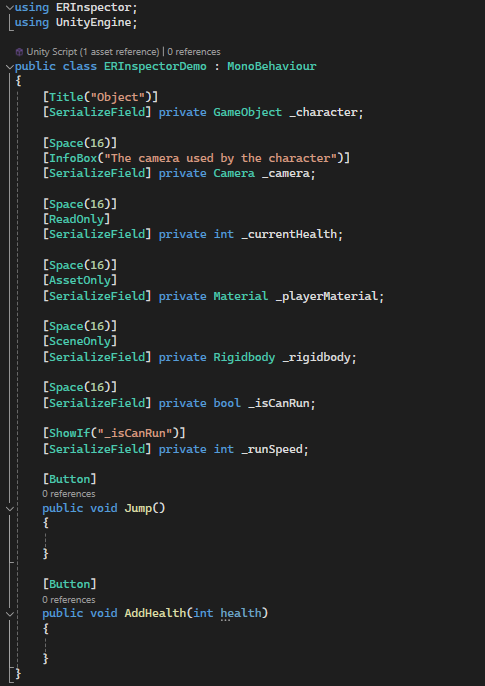
|
|
Features
- Title
Adds a text heading above a variable, useful for grouping or highlighting sections in the Inspector.
[Title("Enter the title")]
private string _title;
Displays an information box containing explanations or notes related to a serialized variable, helpful for documentation or usage guidance.
[InfoBox("Enter description")]
private int _infoBox;
Conditionally displays a variable in the Inspector only if a specific boolean value is true. This helps keep the Inspector clean and only shows relevant data when needed.
[ShowIf("Enter boolean variables")]
private int _showIf;
Makes a variable viewable but not editable in the Inspector. Ideal for displaying runtime data or values that shouldn't be modified manually.
[ReadOnly]
private int _readOnly;
Restricts variable assignment to assets only (e.g., prefabs, sprites, materials). It prevents scene objects from being assigned to the variable.
[AssetOnly]
private int _assetOnly;
Opposite of Asset Only, this limits variable references to scene objects (Hierarchy), disallowing asset assignments.
[SceneOnly]
private int _sceneOnly;
Enables calling a method directly from the Inspector using a button, great for debugging or executing editor-side functions quickly.
[Button]
public void Button() {}
Comments
No comments yet. Be the first!
Sign in to join the conversation
Sign In