Easy Internet Checker
Easy Internet Checker is a lightweight Unity plugin that verifies actual internet connectivity using multiple captive portal detection methods (Google204, Apple, MicrosoftNCSI, and more). It distinguishes between local network access and true internet connectivity, helping you detect when captive portals or connection issues block internet access. Features method fallback support, built-in caching, and straightforward async/coroutine integration for runtime checks.
com.easy-assets.ez-internet-checker 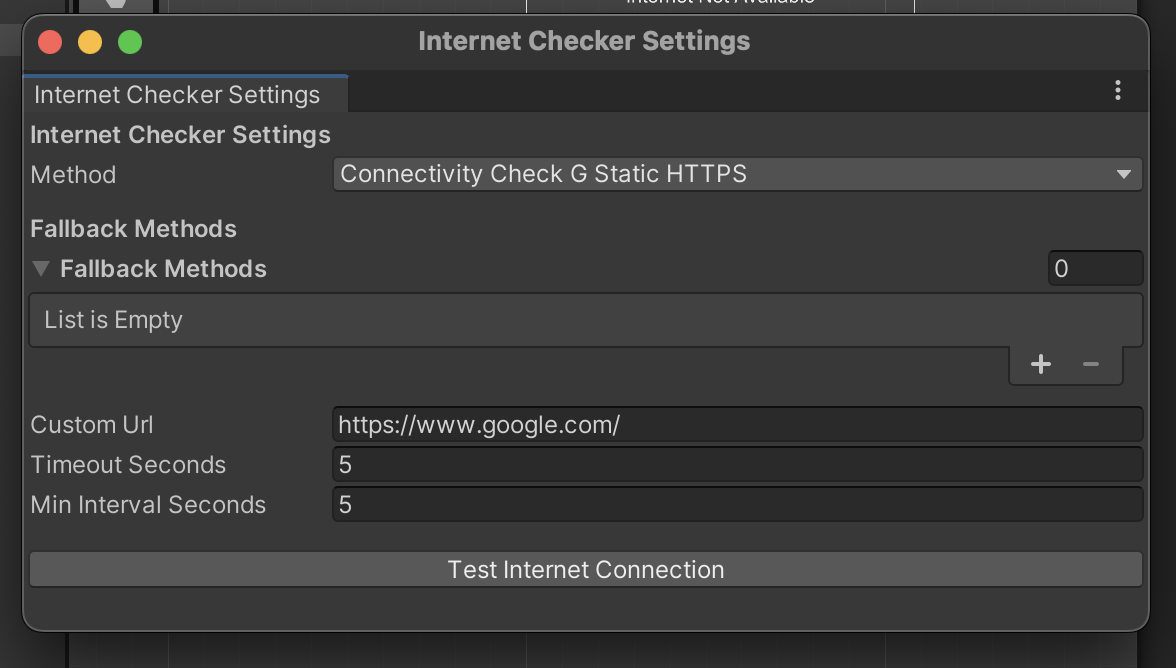
Install via UPM
Add to Unity Package Manager using this URL
https://www.pkglnk.dev/ez-internet-checker.git README Markdown
Copy this to your project's README.md

## Installation
Add **Easy Internet Checker** to your Unity project via Package Manager:
1. Open **Window > Package Manager**
2. Click **+** > **Add package from git URL**
3. Enter:
```
https://www.pkglnk.dev/ez-internet-checker.git
```
[](https://www.pkglnk.dev/pkg/ez-internet-checker)README
InternetChecker Unity Plugin
InternetChecker is a lightweight Unity plugin that allows you to verify actual internet connectivity — not just network connection — by using multiple captive portal detection methods (Google204, Apple, MicrosoftNCSI, etc.). It helps avoid false positives from local Wi-Fi and detects when a captive portal is blocking internet access.
📦 Install via Unity Package Manager
To install InternetChecker as a Git-based package, add the following line to your Packages/manifest.json file:
{
  "dependencies": {
    "ez-internet-checker": "https://github.com/easy-assets/ez-internet-checker.git#v1.0.0"
  }
}
✅ This fetches the plugin from GitHub and adds it to your Unity project automatically.
⚙️ Quick Start Guide
Step 1: Open the Settings Window
In Unity Editor, go to:
Tools → Network → Internet Checker Settings
You should see a window like this:
Step 2: Create or Load the Configuration Asset
If no configuration file exists, the plugin will automatically create one at:
Assets/Settings/Network/InternetCheckerSettings.asset
This file stores your detection method, fallbacks, and timeout settings.
Step 3: Configure Checking Options
- Select your Primary Method (e.g.,
Google204,Apple) - Add any Fallback Methods
- Customize:
Timeout (seconds)Cache Interval (seconds)Custom URL(if usingCustommethod)
Click “Test Internet Connection” in the editor to verify your setup.
🚀 Runtime Usage
The InternetCheckManager is a Singleton.
Access it from anywhere:
var manager = InternetCheckManager.Instance;
Make sure a single
InternetCheckManagerexists in your scene. You don’t need to assign the settings manually — the instance will use the configuredInternetCheckerSettings.asset.
🔁 Example: Async Check
private async void Start()
{
    bool isConnected = await InternetCheckManager.Instance.IsInternetAvailable();
    Debug.Log("Internet: " + isConnected);
}
🔄 Example: Coroutine Check
private void Start()
{
    StartCoroutine(CheckConnection());
}

private IEnumerator CheckConnection()
{
    yield return CoroutineTaskExtensions.WaitForTask(
        InternetCheckManager.Instance.IsInternetAvailable(),
        result => Debug.Log("Internet available: " + result)
    );
}
🛠 Features
- ✅ Detect real internet connectivity (not just local network)
- 🌐 Supports 16 detection methods:
- Google204 / GoogleBlank
- Apple / Apple HTTPS
- MicrosoftNCSI / ConnectTest
- Ubuntu
- Custom URLs
- 🚫 Detects captive portals (e.g., hotel login pages)
- 🔁 Method fallback support
- 🧠 Internal caching to reduce network calls
- 🎮 UnityEvent callback support (
OnInternetStatusChecked)
📁 Default Asset Location
- InternetCheckerSettings:
Assets/Settings/InternetChecker/InternetCheckerSettings.asset
Now you're ready to use InternetChecker reliably in your Unity games!
No comments yet. Be the first!