Gameplay Ingredients
Gameplay ingredients - A Collection of scripts for the editor and runtime to set-up gameplay actions and logic in your games.
net.peeweek.gameplay-ingredients 
Install via UPM
Add to Unity Package Manager using this URL
https://www.pkglnk.dev/gameplay-ingredients.git README Markdown
Copy this to your project's README.md

## Installation
Add **Gameplay Ingredients** to your Unity project via Package Manager:
1. Open **Window > Package Manager**
2. Click **+** > **Add package from git URL**
3. Enter:
```
https://www.pkglnk.dev/gameplay-ingredients.git
```
[](https://www.pkglnk.dev/pkg/gameplay-ingredients)Dependencies (3)
README

Gameplay Ingredients for your Unity Games - A collection of scripts that ease simple tasks while making games and prototypes.
You can read Documentation at this address : https://peeweek.readthedocs.io/en/latest/gameplay-ingredients/
Requirements
Unity 6000.0 for latest version
- (Older releases are still compatible with 2018.3 / 2019.1 / 2019.2 / 2019.3 / 2020.3 / 2021.3 / 2022.3)
(Optional, for older versions or development : Command-line Git installed on your system, for example Git For Windows)
Scriptable Render Pipelines : Starting with Unity 6 compatibility, Gameplay Ingredients is only compatible with standard SRPs (URP/HDRP). Built-in render pipeline is no longer supported.
How to install (6000.0 and Newer)
- In Unity, Open Project Settings Window (Edit/Project Settings) and navigate to Package Manager
- Add a new Scoped Registry that references the openupm registry:
https://package.openupm.com - Add the following scopes to the OpenUPM Scoped Registry :
com.dbrizov,net.peeweek
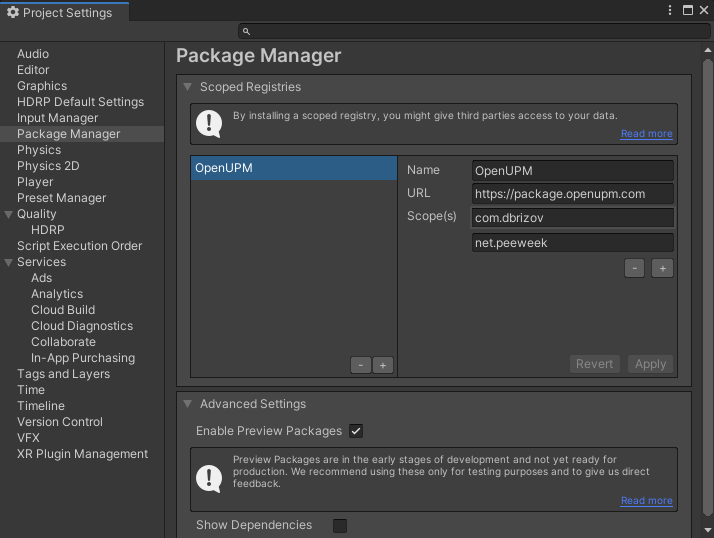
- Open the Package Manager window (Window/Package Manager) and Select Packages : My Registries in the toolbar.
- Select Gameplay Ingredients in the list, then click the Install Button
How to install as Local Package (6000 and Newer)
Clone the repository.
In Unity, Open Project Settings Window (Edit/Project Settings) and navigate to Package Manager
Add a new Scoped Registry that references the openupm registry:
https://package.openupm.comAdd the following scopes to the OpenUPM Scoped Registry :
com.dbrizov,net.peeweekOpen the Package Manager window (Window/Package Manager)
Click the plus button, select "Add Pacakge from disk" and locate the
package.jsonfile located at the root of the package.
How to install (2019.3.x and Older)
Install via OpenUPM
The package is available on the openupm registry. It's recommended to install it via openupm-cli.
openupm add net.peeweek.gameplay-ingredients
Git Reference Version
- Ensure you have a Command Line Git Installed
- With Unity 2019.3 closed, edit the
Packages/manifest.jsonwith a text editor - Append the line
"net.peeweek.gameplay-ingredients": "https://github.com/peeweek/net.peeweek.gameplay-ingredients.git#2019.3.7",underdependencies
You can check that the package was imported by looking at the project window, under Packages/ Hierarchy, there should be a Gameplay Ingredients hierarchy
Version / Tag Compatibility
Gameplay Ingredients comes at latest version with the following compatibility:
Unity 6000 + : choose the tag :
Older Versions
- Unity 2018.3 / 2018.4 : choose the tag
2018.3.0 - Unity 2019.1 / 2019.2 : choose the tag
2019.1.2 - Unity 2019.3 / 2020.1 : choose the the tag
2019.3.7 - Unity 2020.3 : choose the the tag
2020.2.11 - Unity 2021.3 : choose the the tag
2021.3.2
No comments yet. Be the first!