AI Behaviour Tree
A visual, node-based Behaviour Tree tool for Unity. Dependencies - https://github.com/MoshitinEncoded/METools.git
com.moshitin-encoded.ai.behaviourtree 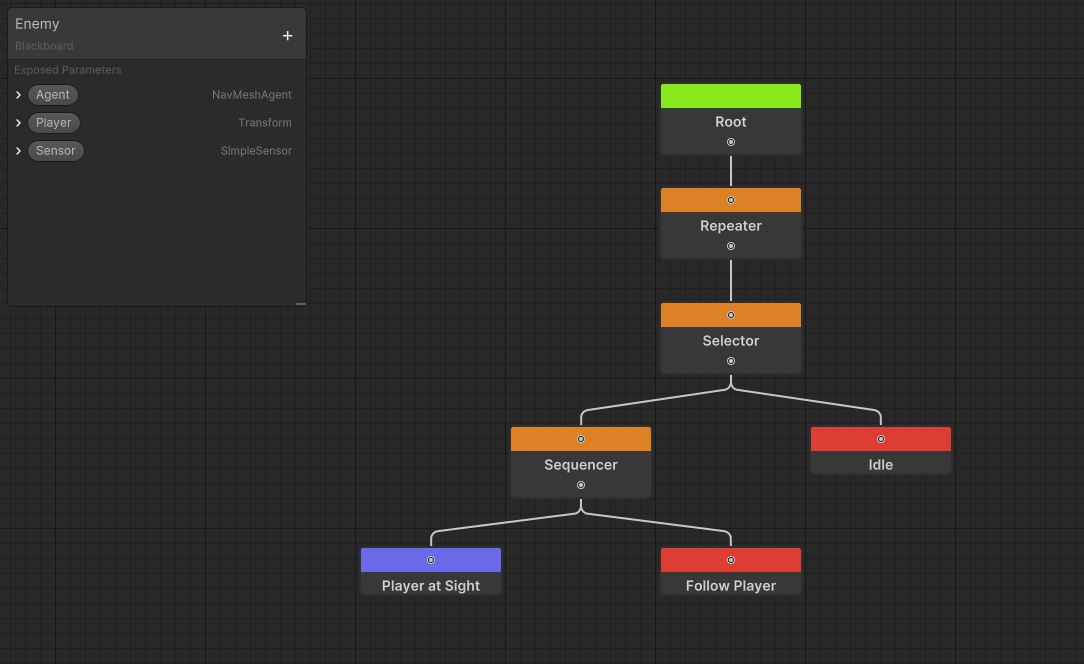
Install via UPM
Add to Unity Package Manager using this URL
https://www.pkglnk.dev/moshitinencoded-behaviourtree.git README Markdown
Copy this to your project's README.md

## Installation
Add **AI Behaviour Tree** to your Unity project via Package Manager:
1. Open **Window > Package Manager**
2. Click **+** > **Add package from git URL**
3. Enter:
```
https://www.pkglnk.dev/moshitinencoded-behaviourtree.git
```
[](https://www.pkglnk.dev/pkg/moshitinencoded-behaviourtree)Dependencies (2)
README
AI Behaviour Tree
Behaviour Trees are an amazing way of creating AIs, letting you write complex behaviours in a modular, easy and intuitive way. This project tries to deliver a simple yet complete Behaviour Tree tool for Unity with Editor and Runtime features.
This README assumes that you have some idea of what a BehaviorTree is; If you don't, I suggest you Google it first.
[!NOTE] The minimum version currently supported is Unity 2022.2
[!WARNING] This project is in an early phase of development and although it is quite stable, you may encounter bugs and is NOT recommended for use in production.
Table of Contents
Features
- Graph Node Editor
- Blackboard Editor
- Blackboard Overrides
- Runtime Debugger
Installation
[!NOTE] At the moment, you can install this package ONLY through the Package Manager using Git.
First of all, we need to install a dependency called METools.
Open your Unity project, go to Window > Package Manager and click the + dropdown on the top-left corner, then select Add package from git URL... and paste the following URL:
https://github.com/MoshitinEncoded/METools.git
[!NOTE] If you receive the error
No 'git' executable was foundyou're likely missing a git installation. You can install git from here: https://git-scm.com/download/win
Once installed, do the same with this package:
https://github.com/MoshitinEncoded/AI-Behaviour-Tree.git
Getting Started
AI Behavior Tree is mainly composed of a ScriptableObject called BehaviourTree and a MonoBehaviour called BehaviourTreeRunner.
Like Unity's Animator, the ScriptableObject contains the behavior while the MonoBehaviour is responsible for running it. Let's start by creating a BehaviourTree in our project.
- Go to your project window and right-click to open the context menu or click the
+button in the top left corner. - Select
Create > Moshitin Encoded > Behaviour Treeand choose a name. - Double click on the ScriptableObject to edit it.
You will see that a new window has appeared, arrange it to your liking and let's see what it has:
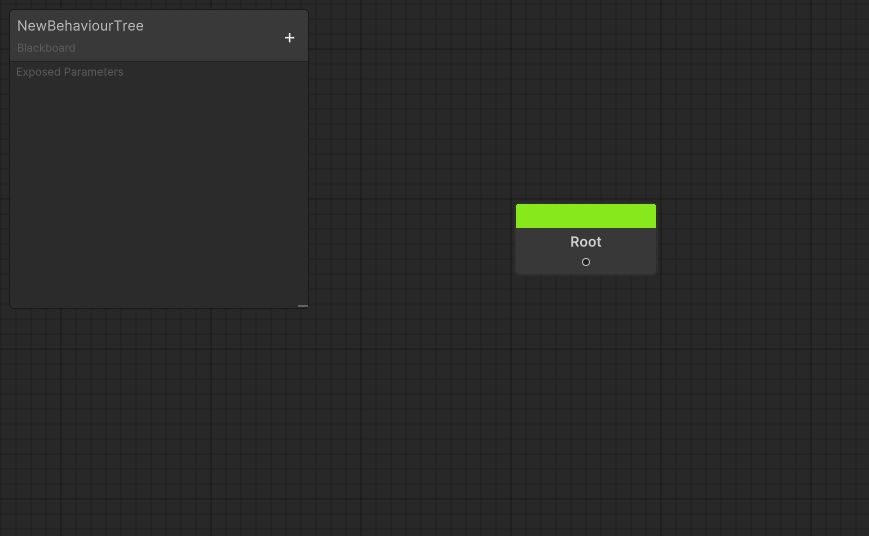
A blank BehaviourTree graph.
As you can see it is super simple, on one hand we have the Graph and on the other the Blackboard.
Graph
The Graph contains the tree of nodes and their connections. At first you will only have one default node called Root, which cannot be copied or deleted.
In each frame the tree begins its execution through the Root and then continues towards its child. When the child returns its state to the Root, it terminates the execution of the tree in that frame.
There are only 3 states that a node can return: Success, Running or Failure.
[!IMPORTANT] Note that if the
Rootreceives the statusSuccessorFailure, it will stop the tree from running completely and you will need to restart it manually.
Navigation
| Action | Control |
|---|---|
| Pan | Middle-Click + Drag |
| Zoom | Mouse wheel scroll |
| Select | Left-Click |
| Rect Select | Left-Click + Drag |
| Drag Selection | Left-Click + Drag (over node) |
| Add/Remove Selection | Ctrl + Left-Click |
| Open Contextual Menu | Right-Click |
Shortcuts
| Action | Shortcut |
|---|---|
| Delete | Del |
| Copy | Ctrl + C |
| Paste | Ctrl + V |
| Duplicate | Ctrl + D |
| Focus Selection | F |
| Focus All | A |
| Create Node | Spacebar |
Create Nodes
Right click on the Graph and select Create Node or press the Space key on your keyboard to open the search window. Here you can search for any type of node that comes by default or that you have created yourself. Selecting any of these will add it to the graph of your BehaviourTree.
Create Custom Nodes
Creating your own node is very simple, you just have to create a script that inherits from a node class and add the CreateNodeMenu attribute on top of it.
Node Classes
At the moment there are 3 node classes you can inherit from:
| Node Class | Description |
|---|---|
CompositeNode |
Has multiple childs. It is meant for flow control. |
DecoratorNode |
Has only one child. It is meant for child/flow control. |
TaskNode |
Does not have children. It is meant for logic. |
[!NOTE] If the compiler doesn't find the node classes, make sure you import these
namespacesat the start of your script:using MoshitinEncoded.AI; using MoshitinEncoded.AI.BehaviourTreeLib;
CreateNodeMenu Attribute
Once you have created your class, you may notice that the CreateNodeMenu attribute requires a path. This parameter represents the submenu in the search window where your node will appear (e.g. "Task/Follow Target").
Node Functions
There are multiple functions that you can override to implement your node logic:
| Function | Description |
|---|---|
Run |
Called every time your node runs. You have to return the new state of your node. |
OnInitialize |
Called the first time your node starts running. |
OnStart |
Called when your node starts running. |
OnStop |
Callled when your node returns Success or Failure. |
Blackboard
The Blackboard contains parameters that provide useful information to the nodes, allowing them to communicate with each other and with the components of the scene.
Add Parameters
In the editor do the following:
- Press the
+button in the upper right corner of the Blackboard. - Select the parameter type you want to add.
- Double-click or
Right-Click > Renameon the parameter to give it an appropriate name.
Get/Set Parameter Values
You can manage your parameters in your code through the BehaviourTreeRunner functions. There are several ways to get to the value of a parameter.
By BehaviourTreeRunner Functions
You can Get or Set the parameter values directly with the GetParameterValue<> and SetParameterValue<> methods.
Example
public string ParameterName;

protected override NodeState Run(BehaviourTreeRunner runner)
{
    var parameterValue = runner.GetParameterValue<int>(ParameterName);
    runner.SetParameterValue(ParameterName, 5);
}
[!WARNING] This method has an impact on the CPU since your
BehaviorTreelooks for the parameter every time you call any of the above methods. If you find yourself frequently reading and/or writing to a parameter value, it is recommended to use the following method.
By Parameter Reference
You can get a reference to the parameter that you want to use with the GetParameter<> function in your BehaviourTreeRunner and then, Get or Set his value with the Value property.
Example
public string ParameterName;

private BehaviourTreeParameter _Parameter;

protected override void OnInitialize(BehaviourTreeRunner runner)
{
    _Parameter = runner.GetParameter<int>(ParameterName);
}

protected override NodeState Run(BehaviourTreeRunner runner)
{
    var value = _Parameter.Value;
    _Parameter.Value = 5;
}
[!TIP] There is a class called
BehaviourTreeParameterRefthat does the same thing eliminating the need for a string.Example
public BehaviourTreeParameterRef Parameter;

protected override void OnInitialize(BehaviourTreeRunner runner)
{
    Parameter.Bind(runner);
}

protected override NodeState Run(BehaviourTreeRunner runner)
{
    var value = Parameter.Value;
    Parameter.Value = 5;
}
Create Custom Parameters
To create your own parameters, you have to:
- Create a new C# script.
- Inherit from
BehaviourTreeParameter. - Add the
AddParameterMenuattribute on top of your class.
AddParameterMenu Attribute
This attribute requires two parameters:
- Path: the menu path of the parameter (e.g. "Component/NavMeshAgent").
- GroupLevel (optional): determines what parameters it will be grouped with. A higher number means it will be further down his submenu.
BehaviourTreeRunner
This MonoBehaviour is responsible for running your BehaviourTree and works as an interface to interact with it.
Inspector
Here you can assign the BehaviourTree you want to run, decide how or when you want to run it and override parameters of the Blackboard.
Main Functions
| Function | Description |
|---|---|
GetParameter<> |
Returns the value of a parameter in the Blackboard. |
GetParameterByRef |
Returns a reference to the parameter in the Blackboard. |
GetParameterByRef<> |
Returns a generic reference to the parameter in the Blackboard. If the passed generic type is not correct, it returns null. |
SetParameter<> |
Sets the value of a parameter in the Blackboard. |
Attributions
The Behaviour Tree tool in this repository was expanded from the one created by TheKiwiCoder in this video, whose repository you can find here.
No comments yet. Be the first!