NaughtyAttributes-Next
NaughtyAttributes is an extension for the Unity Inspector.
com.dbrizov.naughtyattributes-x Install via UPM
Add to Unity Package Manager using this URL
https://www.pkglnk.dev/naughtyattributes-x.git?path=Assets/NaughtyAttributes README Markdown
Copy this to your project's README.md

## Installation
Add **NaughtyAttributes-Next** to your Unity project via Package Manager:
1. Open **Window > Package Manager**
2. Click **+** > **Add package from git URL**
3. Enter:
```
https://www.pkglnk.dev/naughtyattributes-x.git?path=Assets%2FNaughtyAttributes
```
[](https://www.pkglnk.dev/pkg/naughtyattributes-x)README
NaughtyAttributes



NaughtyAttributes is an extension for the Unity Inspector.
It expands the range of attributes that Unity provides so that you can create powerful inspectors without the need of custom editors or property drawers. It also provides attributes that can be applied to non-serialized fields or functions.
Most of the attributes are implemented using Unity's CustomPropertyDrawer, so they will work in your custom editors.
The attributes that won't work in your custom editors are the meta attributes and some drawer attributes such as
ReorderableList, Button, ShowNonSerializedField and ShowNativeProperty.
If you want all of the attributes to work in your custom editors, however, you must inherit from NaughtyInspector and use the NaughtyEditorGUI.PropertyField_Layout function instead of EditorGUILayout.PropertyField.
About This Extension
It's been a considerable time since the last update of NaughtyAttributes in 2022, and the original repository has remained unmaintained. During my personal use, I've added several component extensions and aesthetic improvements. I believe it's important to contribute these enhancements back to the community.
This repository is not a fork of NaughtyAttributes. It includes some modifications to the source code and can be downloaded and used as an independent package.
System Requirements
Unity 2019.4 or later versions. Don't forget to include the NaughtyAttributes namespace.
Installation
- Download
.unitypackagefrom Release Page. - Install via git url by adding this entry in your
manifest.json"com.dbrizov.naughtyattributes-x": "https://github.com/HastingsYoung/NaughtyAttributes-X.git#upm"
Documentation
Support
NaughtyAttributes is an open-source project that I am developing in my free time. If you like it you can support me by donating.
Overview
Hint
All new features and optimizations built on top of the origin plugin will marked as
(NEW)after each component section.
Class Attributes
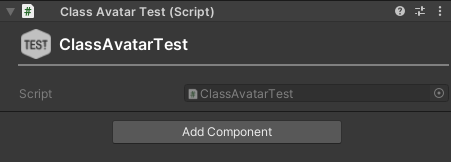
ClassAvatar (NEW)
- This component requires icons to be placed under
Editor Default Resources/Iconsfolder. - The repo has already supplied with a couple of general icons but you're free to include more by yourself.
[ClassAvatar("Icon_Editor_Test", "ClassAvatarTest")]
public class NaughtyComponent : MonoBehaviour
{
}
Special Attributes
AllowNesting
This attribute must be used in some cases when you want meta attributes to work inside serializable nested structs or classes. You can check in which cases you need to use it here.
public class NaughtyComponent : MonoBehaviour
{
    public MyStruct myStruct;
}

[System.Serializable]
public struct MyStruct
{
    public bool enableFlag;

    [EnableIf("enableFlag")]
    [AllowNesting] // Because it's nested we need to explicitly allow nesting
    public int integer;
}
Drawer Attributes
Provide special draw options to serialized fields. A field can have only one DrawerAttribute. If a field has more than one, only the bottom one will be used.
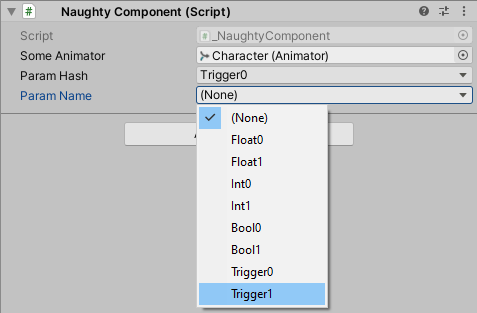
AnimatorParam
Select an Animator paramater via dropdown interface.
public class NaughtyComponent : MonoBehaviour
{
	public Animator someAnimator;

	[AnimatorParam("someAnimator")]
	public int paramHash;

	[AnimatorParam("someAnimator")]
	public string paramName;
}
Button (NEW)
A method can be marked as a button. A button appears in the inspector and executes the method if clicked. Works both with instance and static methods.
public class NaughtyComponent : MonoBehaviour
{
	[Button]
	private void MethodOne() { }

	[Button("Button Text")]
	private void MethodTwo() { }

	[ButtonEnableIfEditMode]
	private void ShortHandedMethod_EditMode() { } // NEW

	[ButtonEnableIfEditMode]
	private void ShortHandedButton_PlayMode() { } // NEW
}

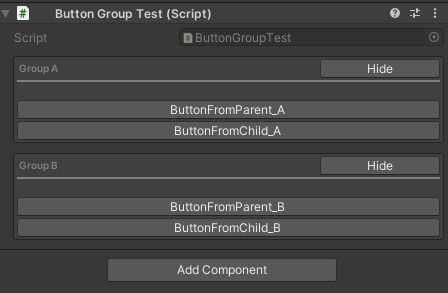
ButtonGroup (NEW)
public class NaughtyComponent : MonoBehaviour
{
	[ButtonGroup("Group A")]
	private void MethodOne() { }

	[ButtonGroup("Group A")]
	private void MethodTwo() { }

	[ButtonGroup("Group B")]
	private void MethodThree() { }

	[ButtonGroup("Group B")]
	private void MethodFour() { }
}
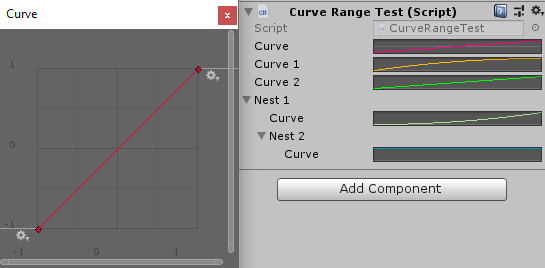
CurveRange
Set bounds and modify curve color for AnimationCurves
public class NaughtyComponent : MonoBehaviour
{
	[CurveRange(-1, -1, 1, 1)]
	public AnimationCurve curve;

	[CurveRange(EColor.Orange)]
	public AnimationCurve curve1;

	[CurveRange(0, 0, 5, 5, EColor.Red)]
	public AnimationCurve curve2;
}
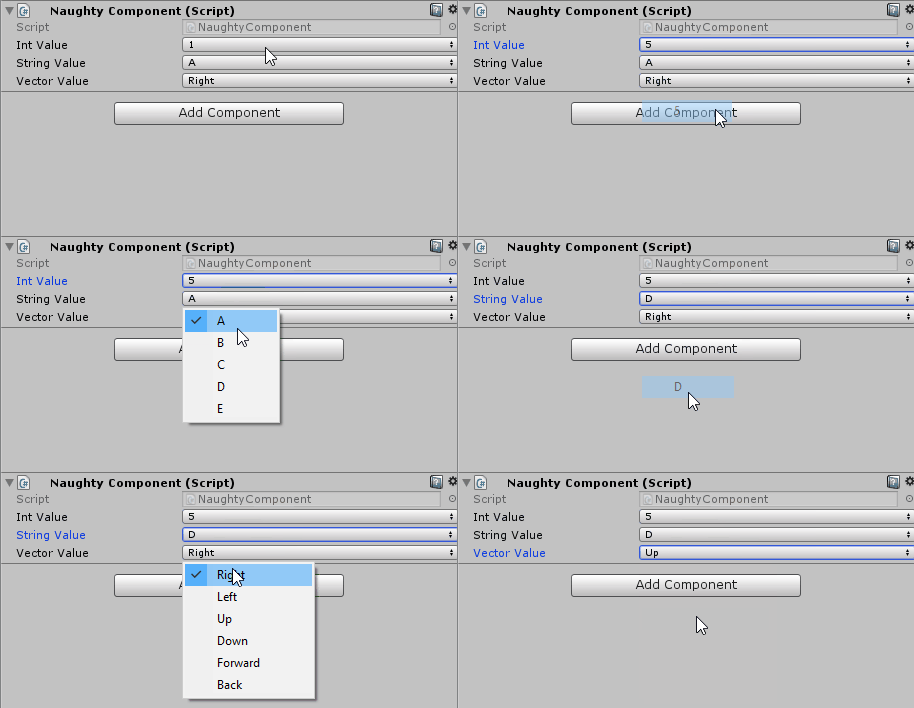
Dropdown (NEW)
Provides an interface for dropdown value selection.
public class NaughtyComponent : MonoBehaviour
{
	[Dropdown("intValues")]
	public int intValue;

	[Dropdown("StringValues")]
	public string stringValue;

	[Dropdown("GetVectorValues")]
	public Vector3 vectorValue;

    [Dropdown("GetIntIds")]
    public int IntId;

    [Dropdown("GetStrIds")]
    public string StringId;

	private int[] intValues = new int[] { 1, 2, 3, 4, 5 };

	private List<string> StringValues { get { return new List<string>() { "A", "B", "C", "D", "E" }; } }

	private DropdownList<Vector3> GetVectorValues()
	{
		return new DropdownList<Vector3>()
		{
			{ "Right",   Vector3.right },
			{ "Left",    Vector3.left },
			{ "Up",      Vector3.up },
			{ "Down",    Vector3.down },
			{ "Forward", Vector3.forward },
			{ "Back",    Vector3.back }
		};
	}

	// Now you can quickly generate DropdownList values from predefined classes
    public DropdownList<int> GetIntIds() => NaughtyIdExt.GetConstIdsInt<DropdownIdInt>();

	public DropdownList<string> GetStrIds() => NaughtyIdExt.GetConstIdsString<DropdownIdStr>();
}


public class DropdownIdInt : INaughtyDropdownId<int>
{
    public const int NORMAL = 0;
    public const int WARNING = 1;
    public const int DANGER = 2;
}

public class DropdownIdStr : INaughtyDropdownId<string>
{
    public const string AAA = "AAA";
    public const string BBB = "BBB";
    public const string CCC = "CCC";
}
EnumFlags
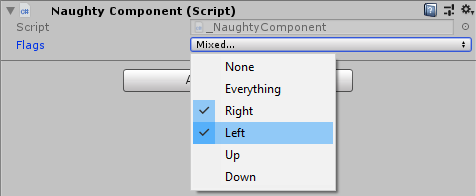
Provides dropdown interface for setting enum flags.
public enum Direction
{
	None = 0,
	Right = 1 << 0,
	Left = 1 << 1,
	Up = 1 << 2,
	Down = 1 << 3
}

public class NaughtyComponent : MonoBehaviour
{
	[EnumFlags]
	public Direction flags;
}
Expandable
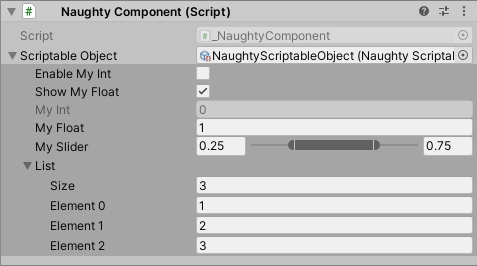
Make scriptable objects expandable.
public class NaughtyComponent : MonoBehaviour
{
	[Expandable]
	public ScriptableObject scriptableObject;
}
FilePath (NEW)
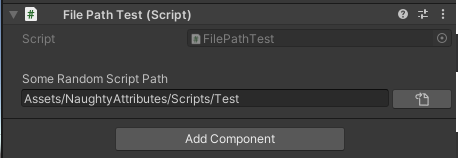
Select file path as string from editor popups.
public class NaughtyComponent : MonoBehaviour
{
	[NaughtyAttributes.FilePath("Assets/", "cs")]
	public string someRandomScriptPath;
}
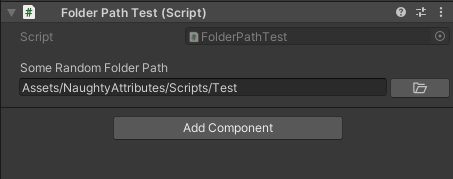
FolderPath (NEW)
Select folder path as string from editor popups.
public class NaughtyComponent : MonoBehaviour
{
	[NaughtyAttributes.FolderPath("Assets/")]
	public string someRandomFolderPath;
}
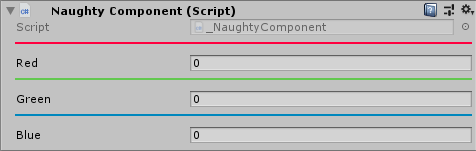
HorizontalLine
public class NaughtyComponent : MonoBehaviour
{
	[HorizontalLine(color: EColor.Red)]
	public int red;

	[HorizontalLine(color: EColor.Green)]
	public int green;

	[HorizontalLine(color: EColor.Blue)]
	public int blue;
}
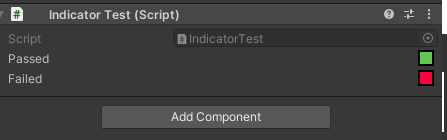
Indicator (NEW)
public class NaughtyComponent : MonoBehaviour
{
    [Indicator] public bool Passed = true;
    [Indicator] public bool Failed = false;
}
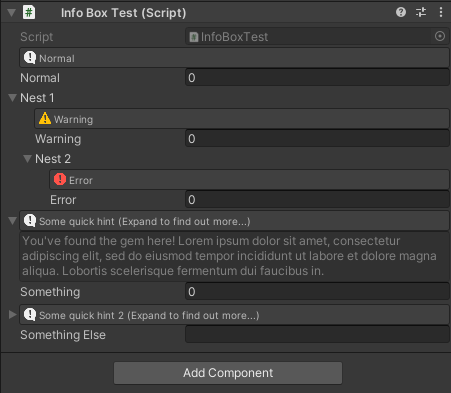
InfoBox (NEW)
Used for providing additional information.
NEW: Alternatively, use ExpandableInfoBox to show minor hints as required and expand to view full infomation when it get clicked.
public class NaughtyComponent : MonoBehaviour
{
	[InfoBox("This is my int", EInfoBoxType.Normal)]
	public int myInt;

	[InfoBox("This is my float", EInfoBoxType.Warning)]
	public float myFloat;

	[InfoBox("This is my vector", EInfoBoxType.Error)]
	public Vector3 myVector;

    [ExpandableInfoBox("Some quick hint (Expand to find out more...)",
            "You've found the gem here! Lorem ipsum dolor sit amet, consectetur adipiscing elit, " +
            "sed do eiusmod tempor incididunt ut labore et dolore magna aliqua. Lobortis scelerisque fermentum dui faucibus in. ",
            EInfoBoxType.Normal)]
    public int something;

    [ExpandableInfoBox("Some quick hint 2 (Expand to find out more...)",
            "You've found the gem here! Lorem ipsum dolor sit amet, consectetur adipiscing elit, " +
            "sed do eiusmod tempor incididunt ut labore et dolore magna aliqua. Lobortis scelerisque fermentum dui faucibus in. ",
            EInfoBoxType.Normal)]
    public string somethingElse;
}
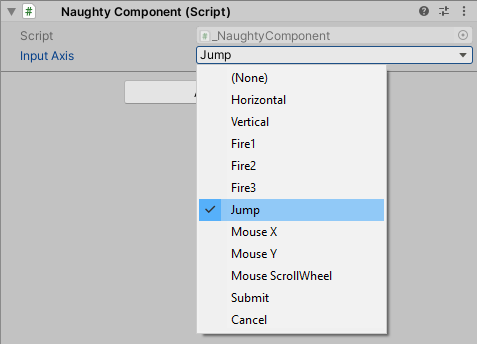
InputAxis
Select an input axis via dropdown interface.
public class NaughtyComponent : MonoBehaviour
{
	[InputAxis]
	public string inputAxis;
}
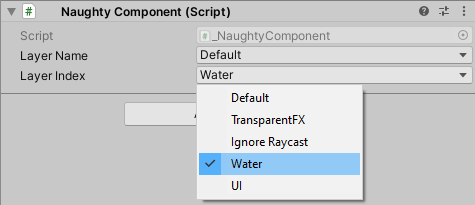
Layer
Select a layer via dropdown interface.
public class NaughtyComponent : MonoBehaviour
{
	[Layer]
	public string layerName;

	[Layer]
	public int layerIndex;
}
MinMaxSlider
A double slider. The min value is saved to the X property, and the max value is saved to the Y property of a Vector2 field.
public class NaughtyComponent : MonoBehaviour
{
	[MinMaxSlider(0.0f, 100.0f)]
	public Vector2 minMaxSlider;
}

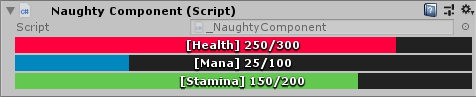
ProgressBar
public class NaughtyComponent : MonoBehaviour
{
	[ProgressBar("Health", 300, EColor.Red)]
	public int health = 250;

	[ProgressBar("Mana", 100, EColor.Blue)]
	public int mana = 25;

	[ProgressBar("Stamina", 200, EColor.Green)]
	public int stamina = 150;
}
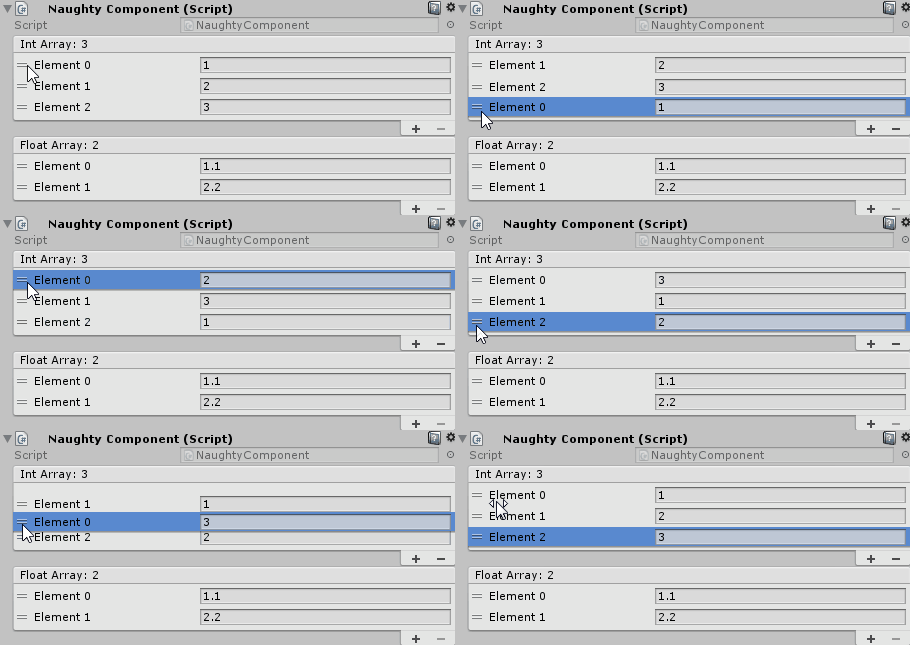
ReorderableList
Provides array type fields with an interface for easy reordering of elements.
public class NaughtyComponent : MonoBehaviour
{
	[ReorderableList]
	public int[] intArray;

	[ReorderableList]
	public List<float> floatArray;
}
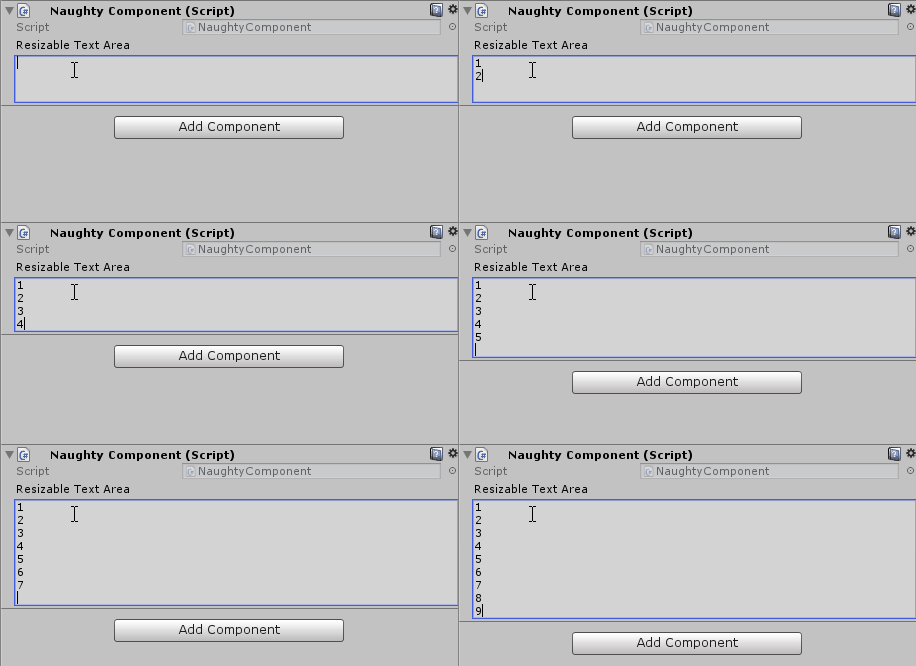
ResizableTextArea
A resizable text area where you can see the whole text. Unlike Unity's Multiline and TextArea attributes where you can see only 3 rows of a given text, and in order to see it or modify it you have to manually scroll down to the desired row.
public class NaughtyComponent : MonoBehaviour
{
	[ResizableTextArea]
	public string resizableTextArea;
}
Scene
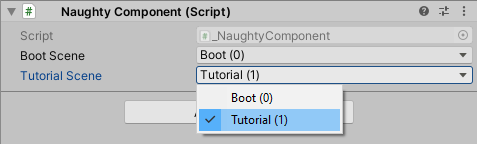
Select a scene from the build settings via dropdown interface.
public class NaughtyComponent : MonoBehaviour
{
	[Scene]
	public string bootScene; // scene name

	[Scene]
	public int tutorialScene; // scene index
}
SerializedCollection (NEW)
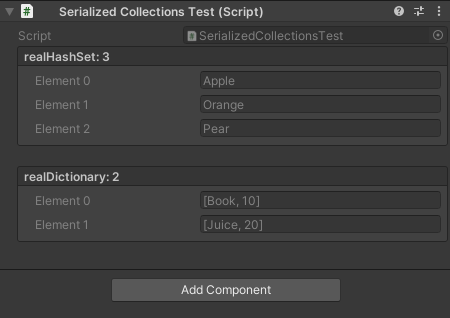
Shows HashSet<> and Dictionary<> on the inspector in realtime.
public class NaughtyComponent : MonoBehaviour
{
    [SerializedCollection("realHashSet")] public List<string> strSet;

    [SerializedCollection("realDictionary")]
    public List<string> strDict;

    private HashSet<string> realHashSet = new HashSet<string>()
    {
        "Apple",
        "Orange",
        "Pear"
    };

    private Dictionary<string, int> realDictionary = new Dictionary<string, int>()
    {
        ["Book"] = 10,
        ["Juice"] = 20
    };
}
ShowAssetPreview (NEW)
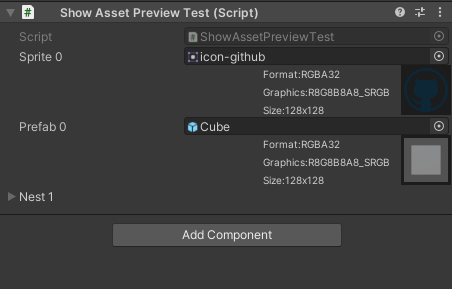
Shows the texture preview of a given asset (Sprite, Prefab...).
New: Rearrange the GUI to the right side of inspector with more meta information displayed.
public class NaughtyComponent : MonoBehaviour
{
	[ShowAssetPreview]
	public Sprite sprite;

	[ShowAssetPreview(128, 128)]
	public GameObject prefab;
}
ShowNativeProperty
Shows native C# properties in the inspector. All native properties are displayed at the bottom of the inspector after the non-serialized fields and before the method buttons. It supports only certain types (bool, int, long, float, double, string, Vector2, Vector3, Vector4, Color, Bounds, Rect, UnityEngine.Object).
public class NaughtyComponent : MonoBehaviour
{
	public List<Transform> transforms;

	[ShowNativeProperty]
	public int TransformsCount => transforms.Count;
}
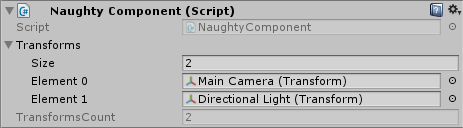
ShowNonSerializedField
Shows non-serialized fields in the inspector. All non-serialized fields are displayed at the bottom of the inspector before the method buttons. Keep in mind that if you change a non-static non-serialized field in the code - the value in the inspector will be updated after you press Play in the editor. There is no such issue with static non-serialized fields because their values are updated at compile time. It supports only certain types (bool, int, long, float, double, string, Vector2, Vector3, Vector4, Color, Bounds, Rect, UnityEngine.Object).
public class NaughtyComponent : MonoBehaviour
{
	[ShowNonSerializedField]
	private int myInt = 10;

	[ShowNonSerializedField]
	private const float PI = 3.14159f;

	[ShowNonSerializedField]
	private static readonly Vector3 CONST_VECTOR = Vector3.one;
}

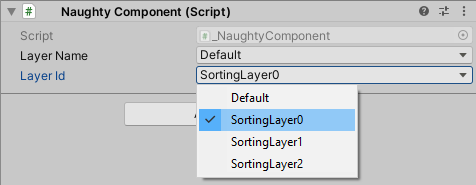
SortingLayer
Select a sorting layer via dropdown interface.
public class NaughtyComponent : MonoBehaviour
{
	[SortingLayer]
	public string layerName;

	[SortingLayer]
	public int layerId;
}
Tag
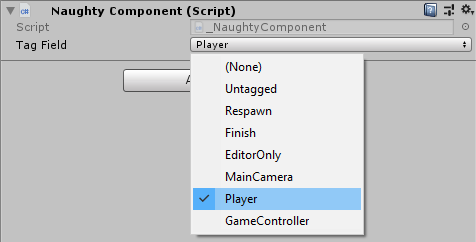
Select a tag via dropdown interface.
public class NaughtyComponent : MonoBehaviour
{
	[Tag]
	public string tagField;
}
Meta Attributes
Give the fields meta data. A field can have more than one meta attributes.
BoxGroup (NEW)
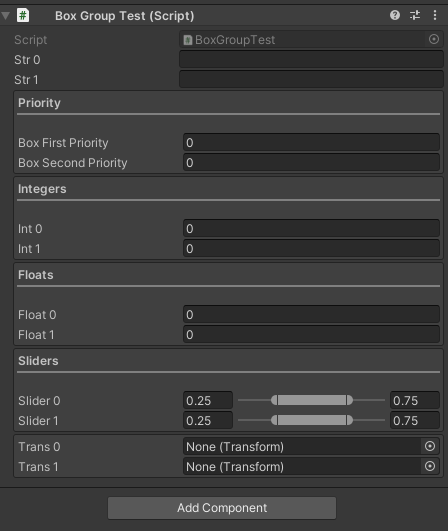
Surrounds grouped fields with a box.
public class NaughtyComponent : MonoBehaviour
{
	[BoxGroup("Integers")]
	public int firstInt;
	[BoxGroup("Integers")]
	public int secondInt;

	[BoxGroup("Floats")]
	public float firstFloat;
	[BoxGroup("Floats")]
	public float secondFloat;

	// NEW: Add sortOrder to specify the display order of fields on the inspector.
	// This is useful when you have multiple fields from different sub-classes
	[BoxGroup("Priority", 10)]
	public int boxFirstPriority;
	[BoxGroup("Priority", 5)]
	public int boxSecondPriority;
}
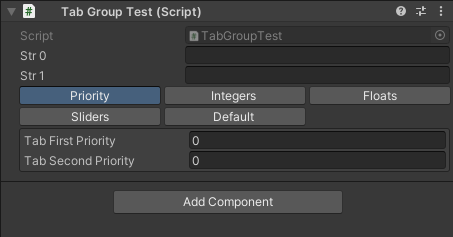
TabGroup (NEW)
Display contents only when the tab is active.
public class NaughtyComponent : MonoBehaviour
{
    [TabGroup("Sliders")] [MinMaxSlider(0, 1)]
    public Vector2 slider0;

    [TabGroup("Sliders")] [MinMaxSlider(0, 1)]
    public Vector2 slider1;

    public string str0;
    public string str1;

    [TabGroup] public Transform trans0;
    [TabGroup] public Transform trans1;

	// NEW: Add sortOrder to specify the display order of fields on the inspector.
	// This is useful when you have multiple fields from different sub-classes
    [TabGroup("Priority", 10)]
    public int tabFirstPriority;
    [TabGroup("Priority", 5)]
    public int tabSecondPriority;
}
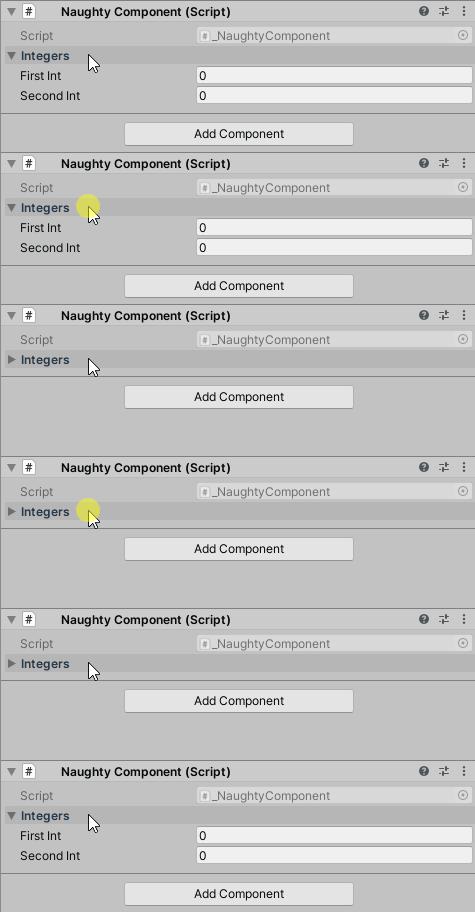
Foldout (NEW)
Makes a foldout group.
public class NaughtyComponent : MonoBehaviour
{
	[Foldout("Integers")]
	public int firstInt;
	[Foldout("Integers")]
	public int secondInt;

	// NEW: Add sortOrder to specify the display order of fields on the inspector.
	// This is useful when you have multiple fields from different sub-classes
    [Foldout("First Priority", 10)] public int firstPriority;
    [Foldout("Second Priority", 5)] public int secondPriority;
}
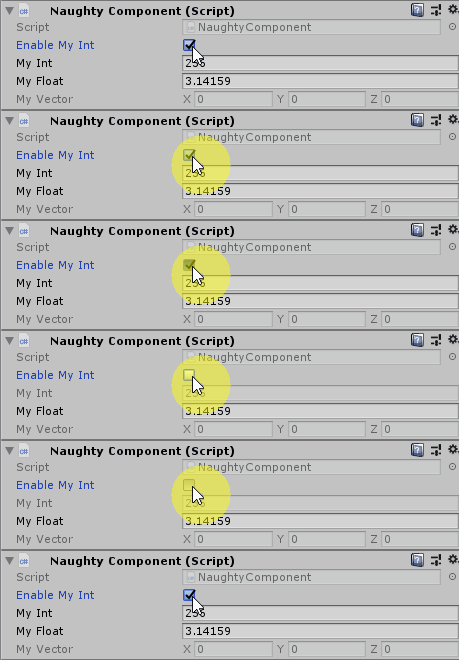
EnableIf / DisableIf
public class NaughtyComponent : MonoBehaviour
{
	public bool enableMyInt;

	[EnableIf("enableMyInt")]
	public int myInt;

	[EnableIf("Enabled")]
	public float myFloat;

	[EnableIf("NotEnabled")]
	public Vector3 myVector;

	public bool Enabled() { return true; }

	public bool NotEnabled => false;
}
You can have more than one condition.
public class NaughtyComponent : MonoBehaviour
{
	public bool flag0;
	public bool flag1;

	[EnableIf(EConditionOperator.And, "flag0", "flag1")]
	public int enabledIfAll;

	[EnableIf(EConditionOperator.Or, "flag0", "flag1")]
	public int enabledIfAny;
}
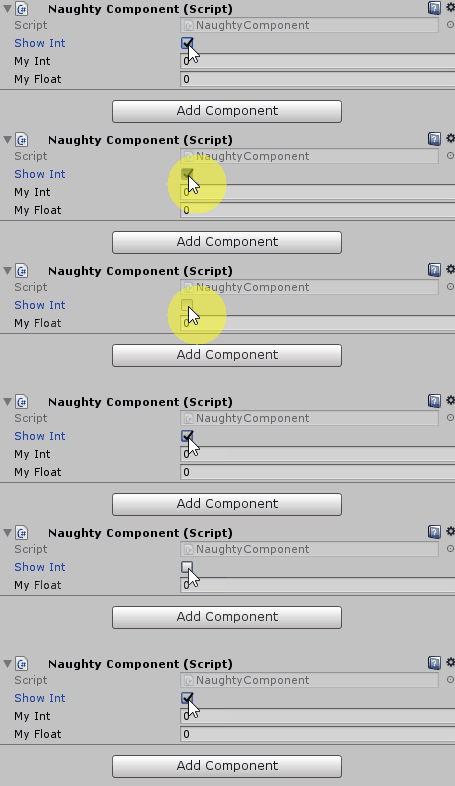
ShowIf / HideIf
public class NaughtyComponent : MonoBehaviour
{
	public bool showInt;

	[ShowIf("showInt")]
	public int myInt;

	[ShowIf("AlwaysShow")]
	public float myFloat;

	[ShowIf("NeverShow")]
	public Vector3 myVector;

	public bool AlwaysShow() { return true; }

	public bool NeverShow => false;
}
You can have more than one condition.
public class NaughtyComponent : MonoBehaviour
{
	public bool flag0;
	public bool flag1;

	[ShowIf(EConditionOperator.And, "flag0", "flag1")]
	public int showIfAll;

	[ShowIf(EConditionOperator.Or, "flag0", "flag1")]
	public int showIfAny;
}
Label
Override default field label.
public class NaughtyComponent : MonoBehaviour
{
	[Label("Short Name")]
	public string veryVeryLongName;

	[Label("RGB")]
	public Vector3 vectorXYZ;
}

OnValueChanged
Detects a value change and executes a callback. Keep in mind that the event is detected only when the value is changed from the inspector. If you want a runtime event, you should probably use an event/delegate and subscribe to it.
public class NaughtyComponent : MonoBehaviour
{
	[OnValueChanged("OnValueChangedCallback")]
	public int myInt;

	private void OnValueChangedCallback()
	{
		Debug.Log(myInt);
	}
}
ReadOnly
Make a field read only.
public class NaughtyComponent : MonoBehaviour
{
	[ReadOnly]
	public Vector3 forwardVector = Vector3.forward;
}

Validator Attributes
Used for validating the fields. A field can have infinite number of validator attributes.
MinValue / MaxValue
Clamps integer and float fields.
public class NaughtyComponent : MonoBehaviour
{
	[MinValue(0), MaxValue(10)]
	public int myInt;

	[MinValue(0.0f)]
	public float myFloat;
}

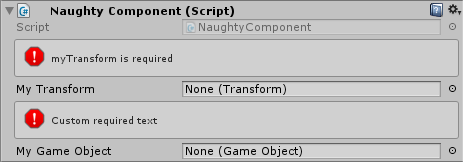
Required
Used to remind the developer that a given reference type field is required.
public class NaughtyComponent : MonoBehaviour
{
	[Required]
	public Transform myTransform;

	[Required("Custom required text")]
	public GameObject myGameObject;
}
ValidateInput
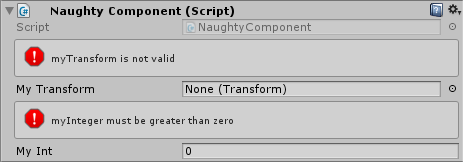
The most powerful ValidatorAttribute.
public class _NaughtyComponent : MonoBehaviour
{
	[ValidateInput("IsNotNull")]
	public Transform myTransform;

	[ValidateInput("IsGreaterThanZero", "myInteger must be greater than zero")]
	public int myInt;

	private bool IsNotNull(Transform tr)
	{
		return tr != null;
	}

	private bool IsGreaterThanZero(int value)
	{
		return value > 0;
	}
}
Comments
No comments yet. Be the first!
Sign in to join the conversation
Sign In