SPluginRemoteConsole
SPluginRemoteConsole is a powerful tool to supports debugging.
com.splugin.remoteconsole 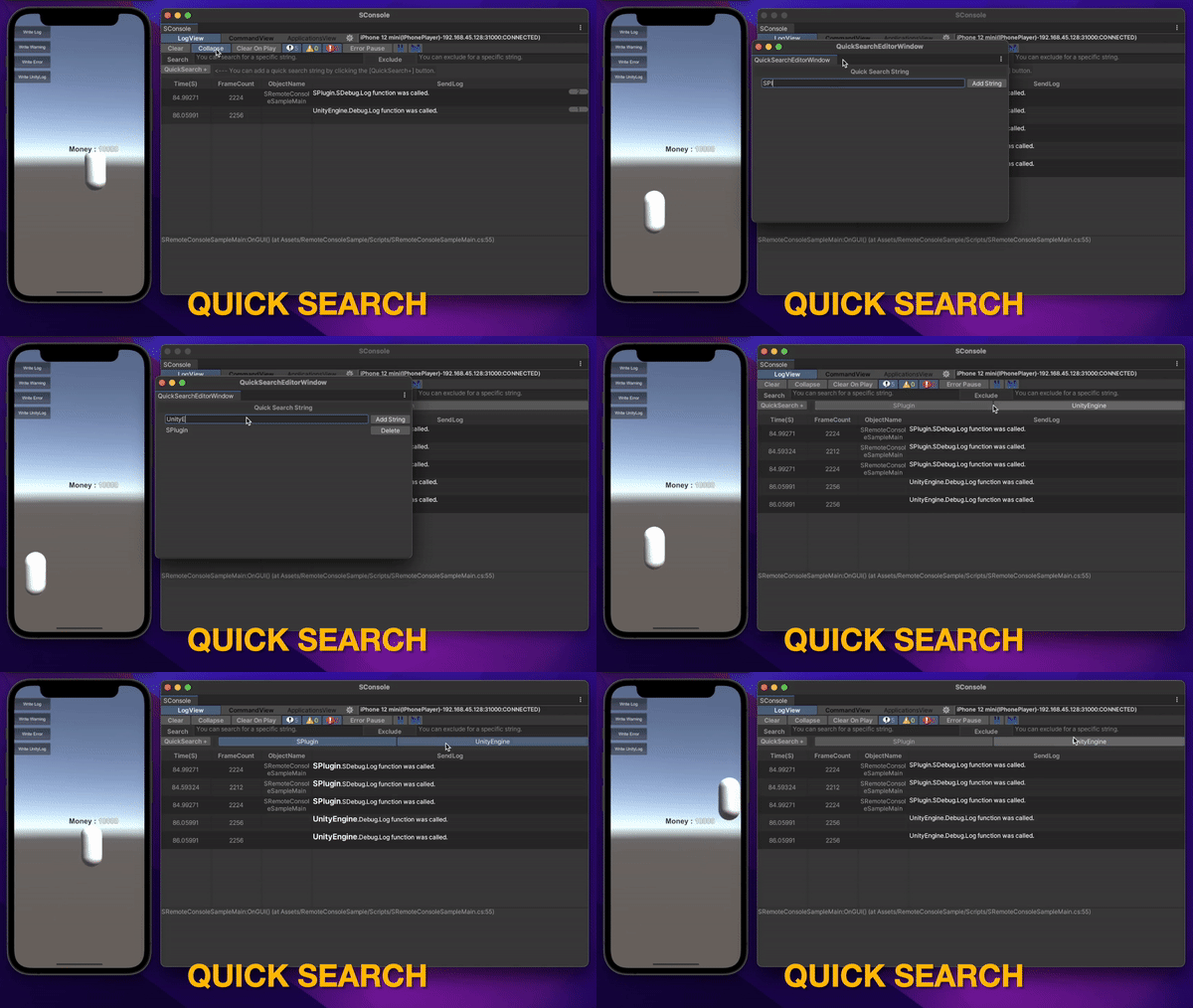
Install via UPM
Add to Unity Package Manager using this URL
https://www.pkglnk.dev/remoteconsole.git README Markdown
Copy this to your project's README.md

## Installation
Add **SPluginRemoteConsole** to your Unity project via Package Manager:
1. Open **Window > Package Manager**
2. Click **+** > **Add package from git URL**
3. Enter:
```
https://www.pkglnk.dev/remoteconsole.git
```
[](https://www.pkglnk.dev/pkg/remoteconsole)README
SPlugin Remote Console for Unity
Table of contents
Introduction
- Supports all features of the Unity native console
- Connects remotely to the built app to execute customized commands
- Connects remotely to built apps to show their logs
- Remotely connected app can be executed frame by frame by using the Pause, Step feature
- You can easily show the time, frame count, and object at the time of log generation
- Provides a convenient log filter feature
- System information and simple profile information (FPS, UsedHeap) of connected apps can be viewed
- Ping the GameObject or SourceCode where the log was created
Features
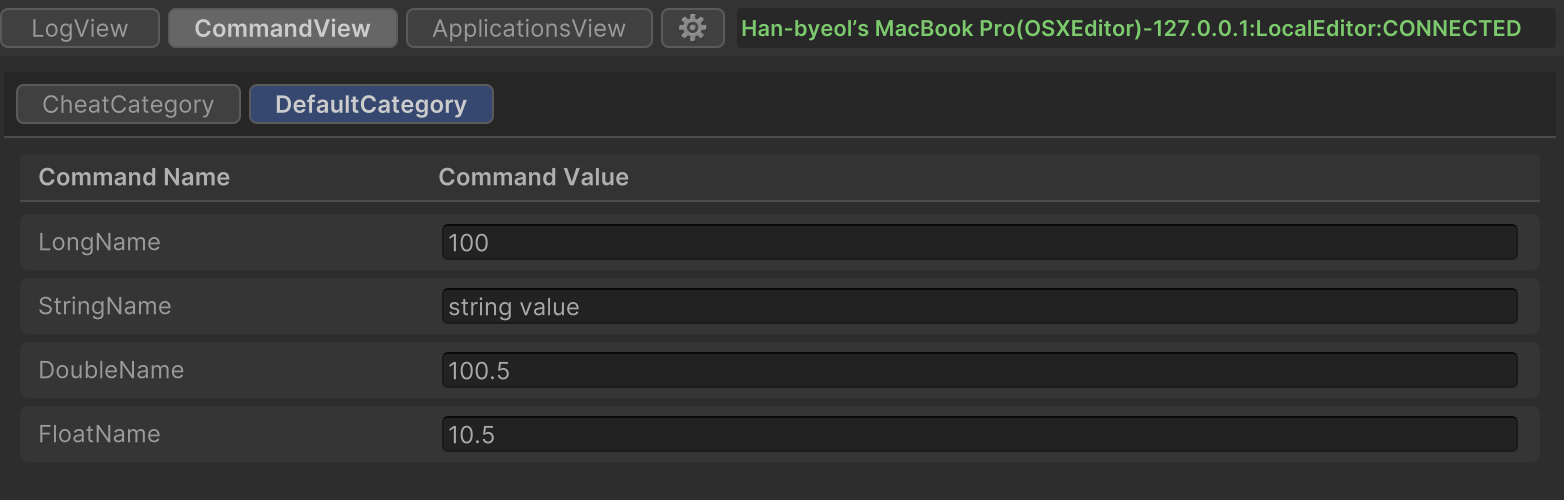
Custom commands
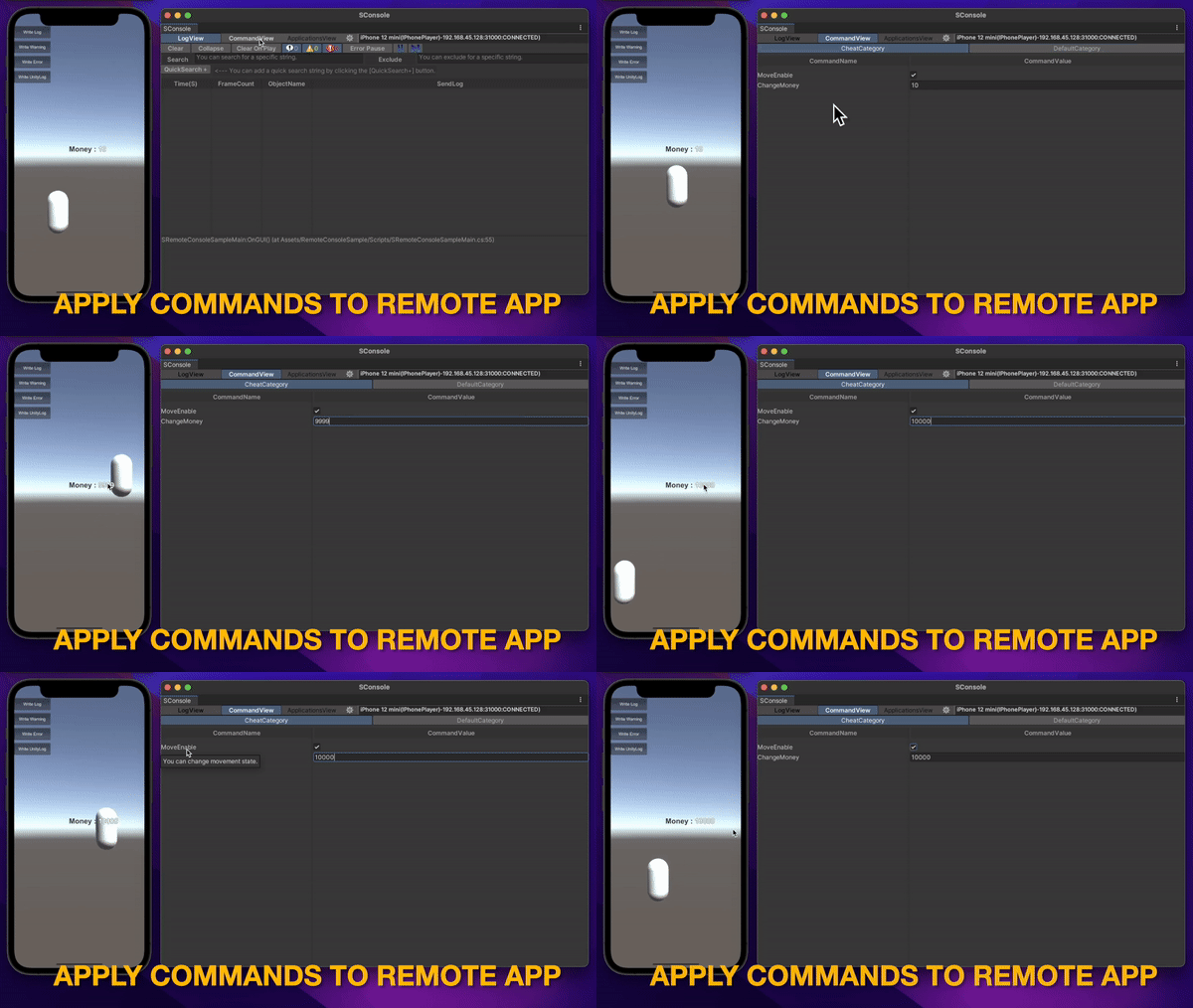
Custom command values can be change during play and are useful for testing and debugging
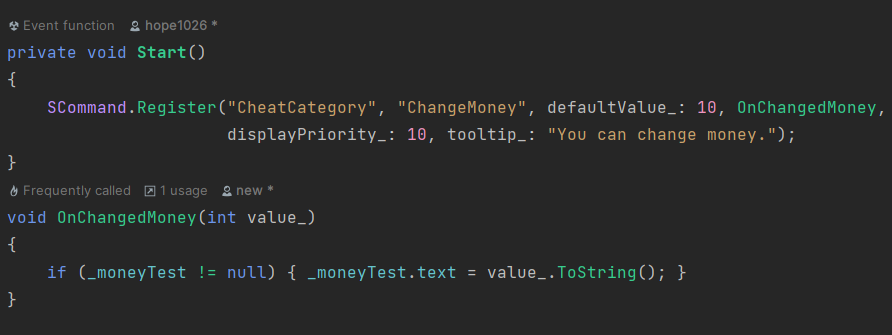
- Use the SPlugin.SCommand.Register function in your script to register the custom command
- You can find registered commands in CommandView of SConsoleEditor
- Change the value of the custom command
Log
- Using UnityEngine.Debug
- Use the UnityEngine.Debug.Log function in your script to write a log
- Enable
ShowUnityDebLogin SConsoleEditor's preferences - You can view the logs in SConsoleEditor's LogView
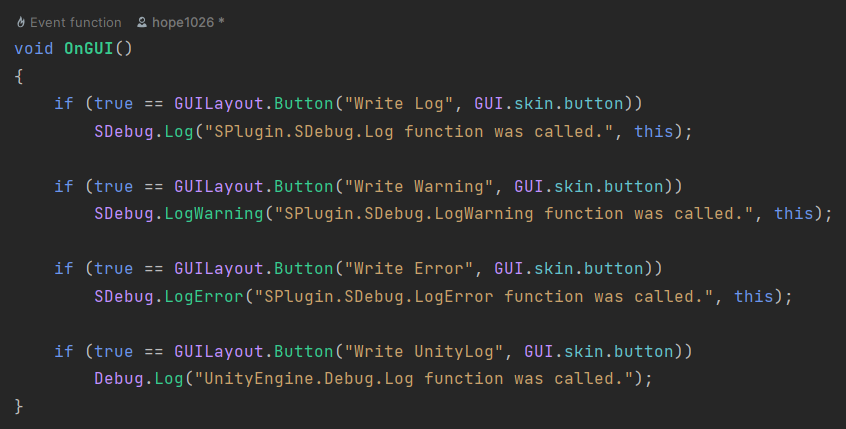
- Using SPlugin.SDebug
- Use the SPlugin.SDebug.Log function in your script to write a log
- You can view the logs in SConsoleEditor's LogView
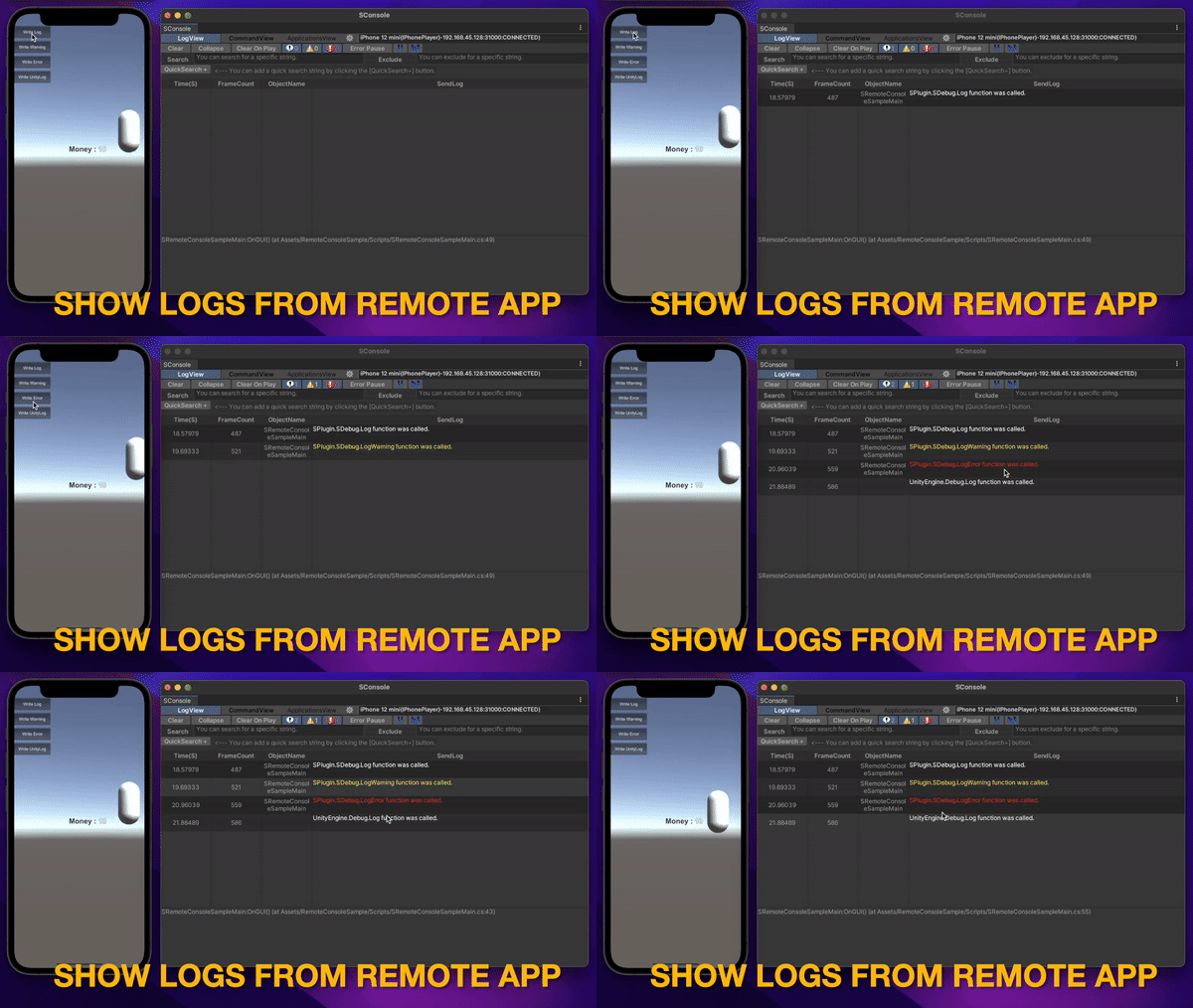
Convenient filter features
- Find logs using SearchField
- Exclude logs using search ExcludeField
- Find logs using QuickSearch feature
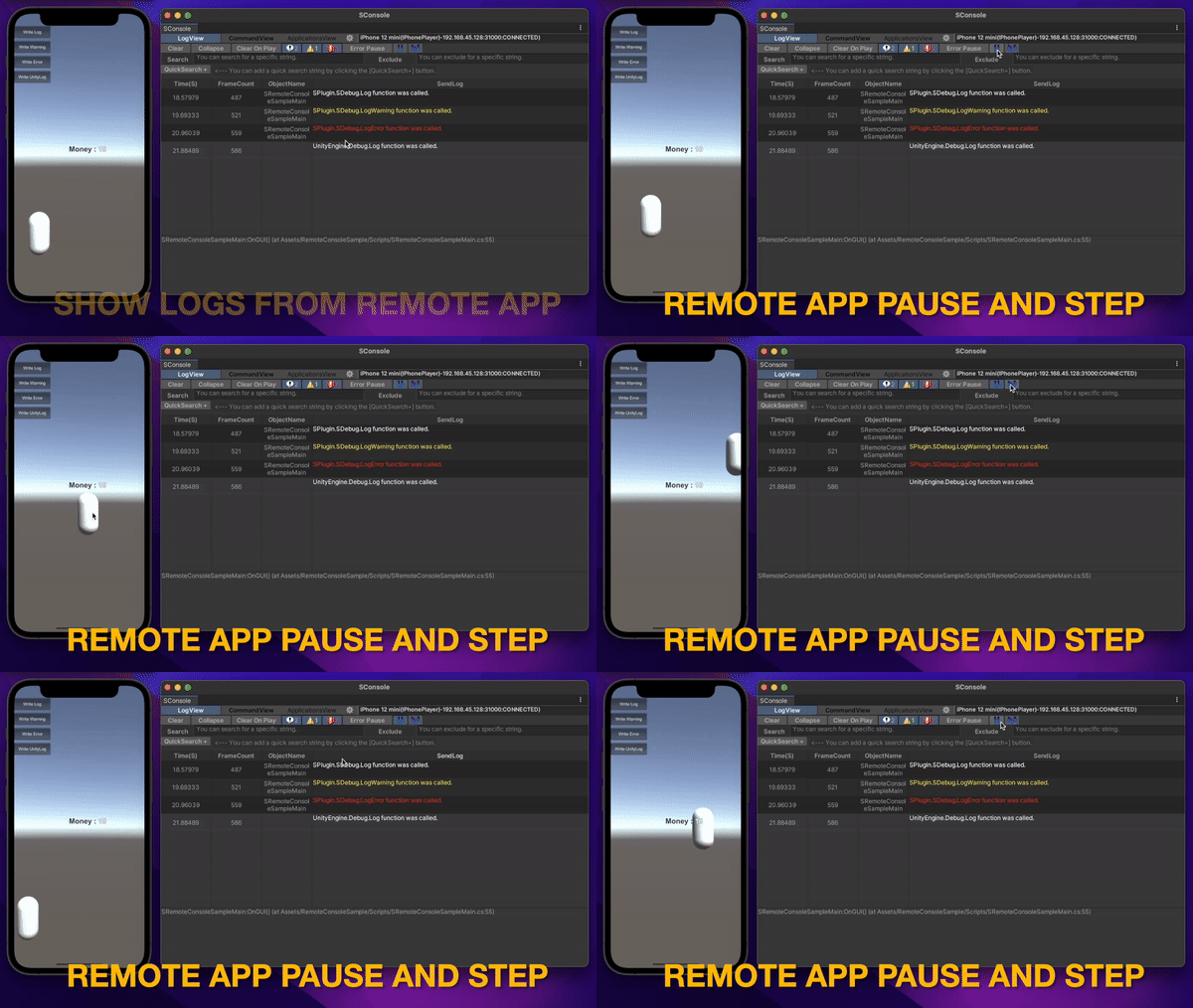
Pause, Step
Frame-by-frame play and pause are possible in remotely connected apps, which helps with debugging
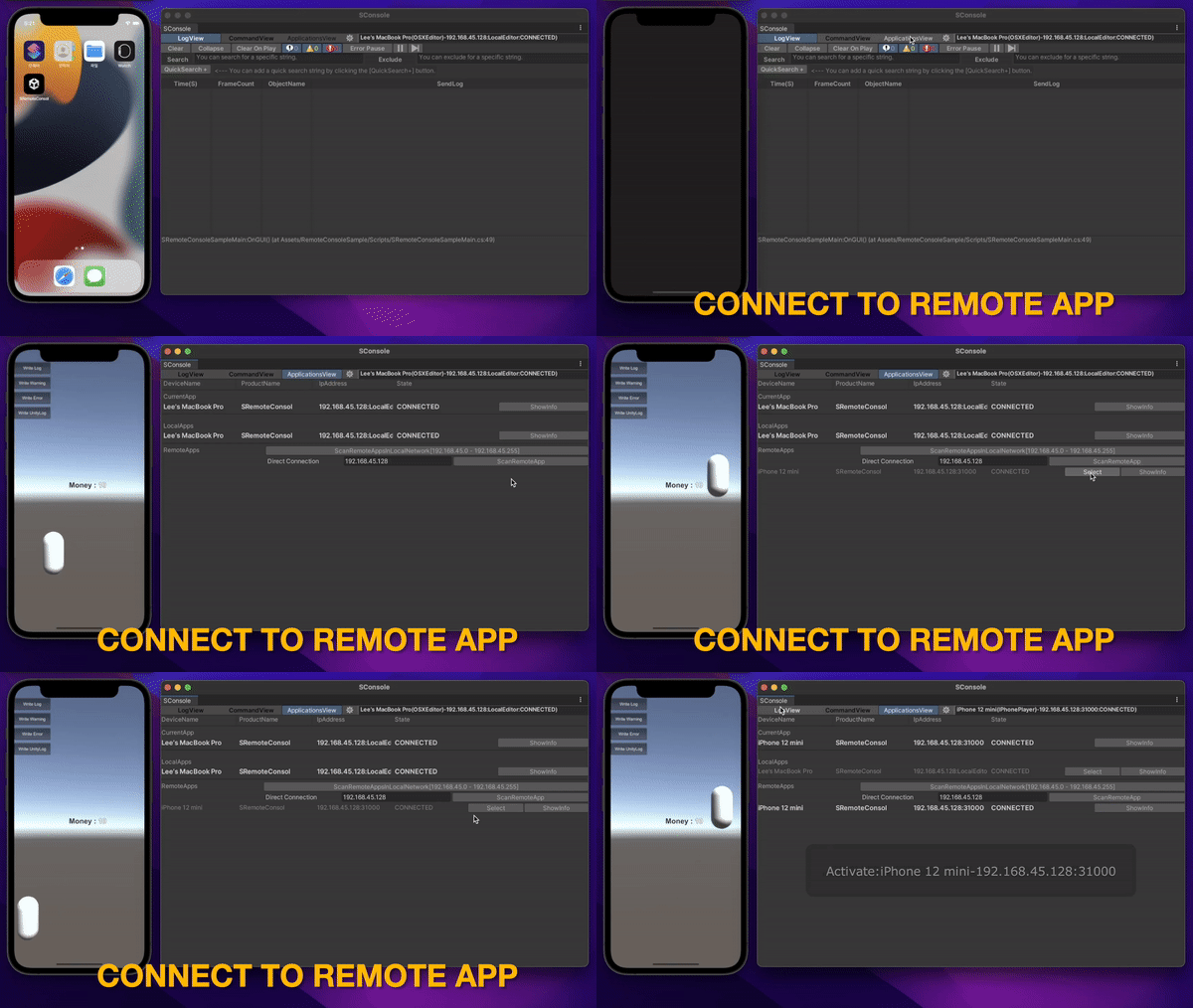
Remote Connections
- Find and connect to an accessible app on your local network
- In the ApplicationView of the SConsoleEditor, look for apps that can be connected
- If an app is available, it will be registered in the list
- Select an app
- Connect the app using a private IP or public IP on the local network
- Enter the public IP or private IP of the local network in ApplicationView of the SConsoleEditor
- Click the Connect button to connect
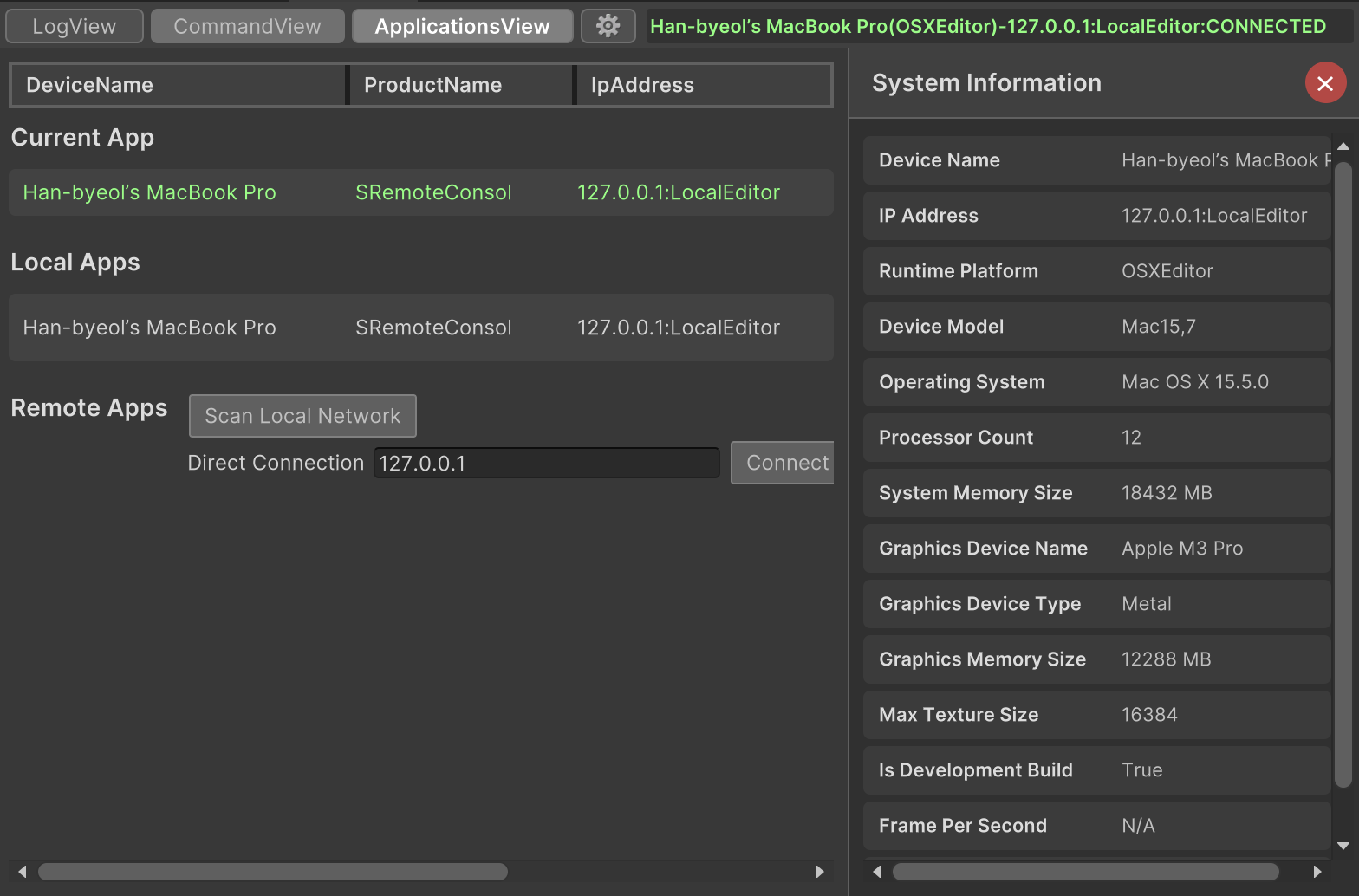
SystemInfo
- Look at the app list in ApplicationView of SConsoleEditor
- Click the Info button to view system and profile information
Runtime Console
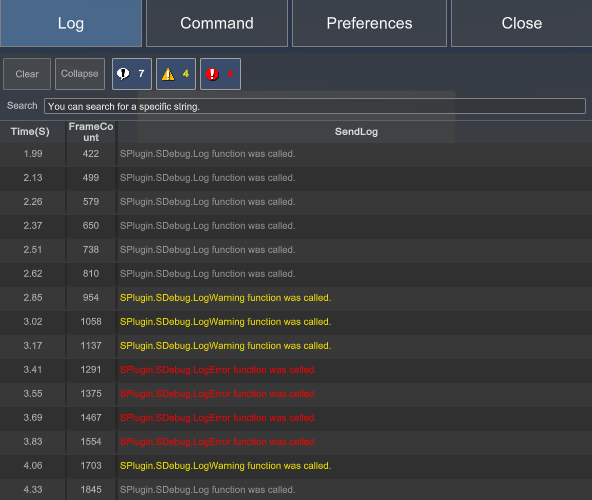
Getting started
Install the SRemoteConsole package
Select
Window/PackageManager in the menu bar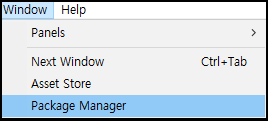
Click
+button at the top left of the window, and selectAdd package from git URL...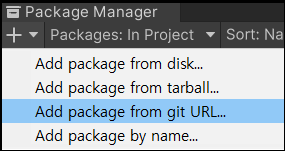
Enter the string below to the input field
https://github.com/hope1026/unity_s_remote_console_package.gitClick
Addbutton, and will start install the package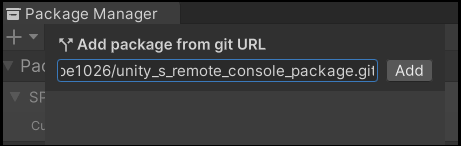
Run SRemoteConsole
Select
Window/SPlugin/SConsolein the menu bar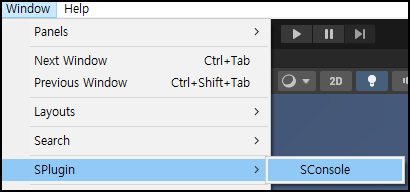
Write logs to the script
- SPlugin.SDebug.Log("log");
Find the log in SConsoleEditor
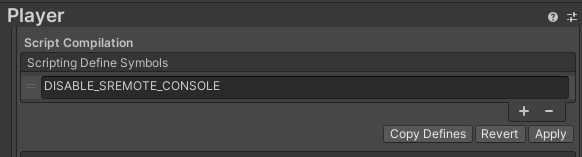
Disable SRemoteConsole
You can disable it by adding DISABLE_SREMOTE_CONSOLE to Project Settings -> Player -> Scripting Define Symbols
- SRemoteConsole runs in the editor, but does not run in runtime, so it can be useful when distributing a release
UIToolkit Implementation Screenshots
Application View
Command View
Log List
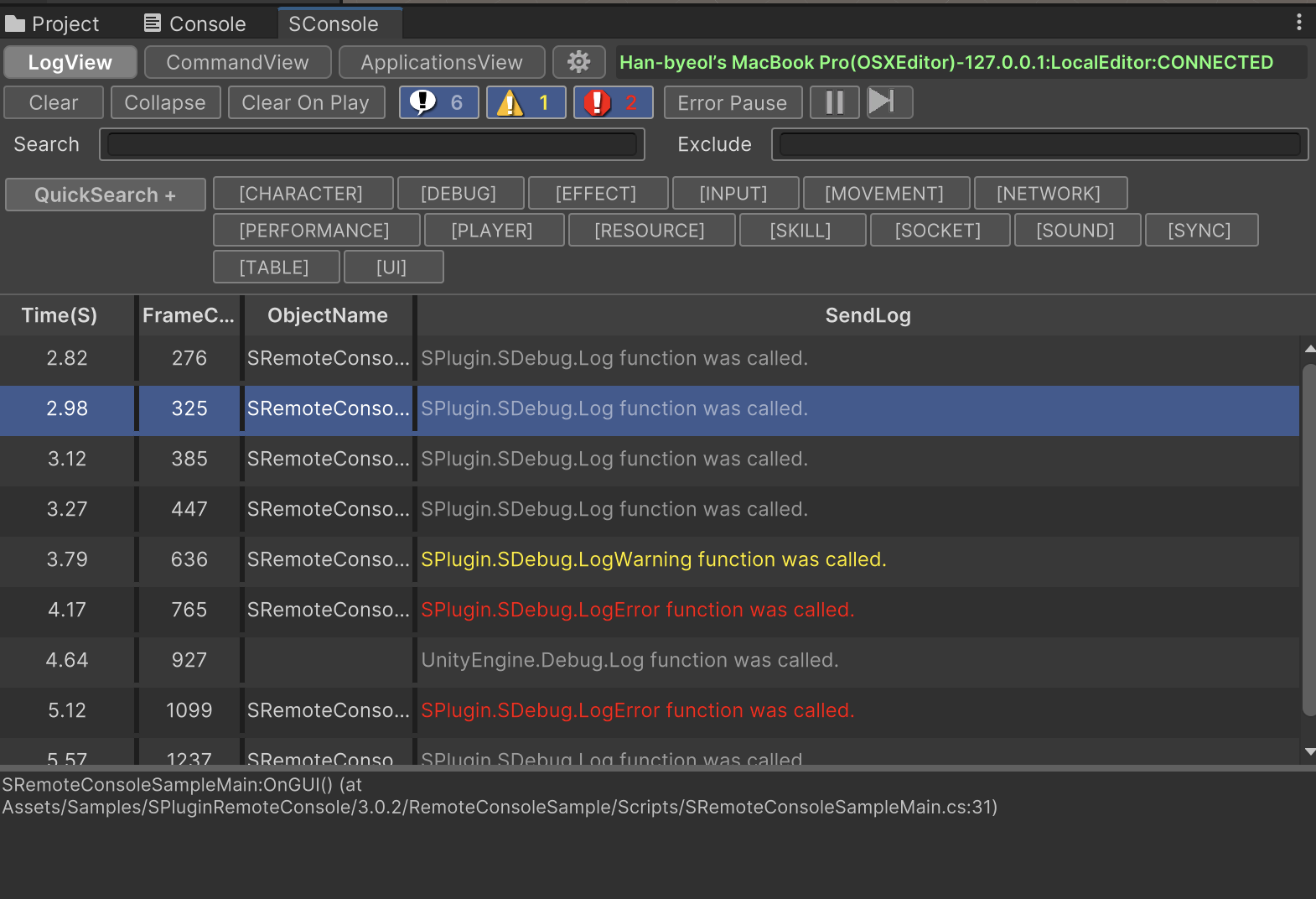
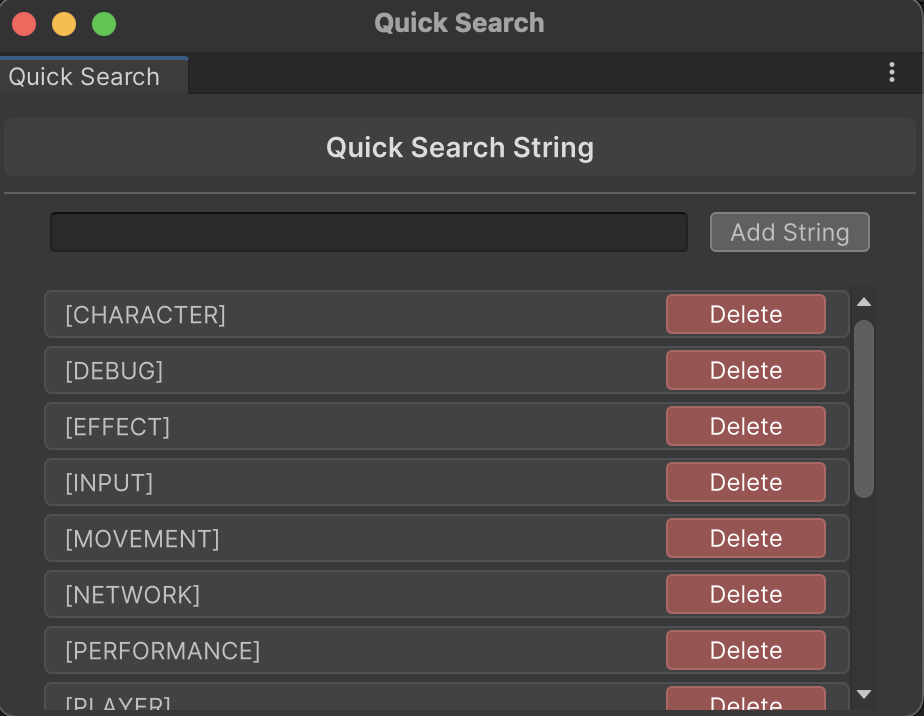
Quick Search
Runtime Console
No comments yet. Be the first!