Simple Inventory
Lightweight inventory system for Unity built around simple identifiers and instance-based storage. Features an extendable architecture with clean APIs for adding, removing, and querying items, plus event callbacks for inventory changes. Includes a ready-to-use prefab and works seamlessly with ScriptableObjects for item definitions.
com.moodylib.simpleinventory 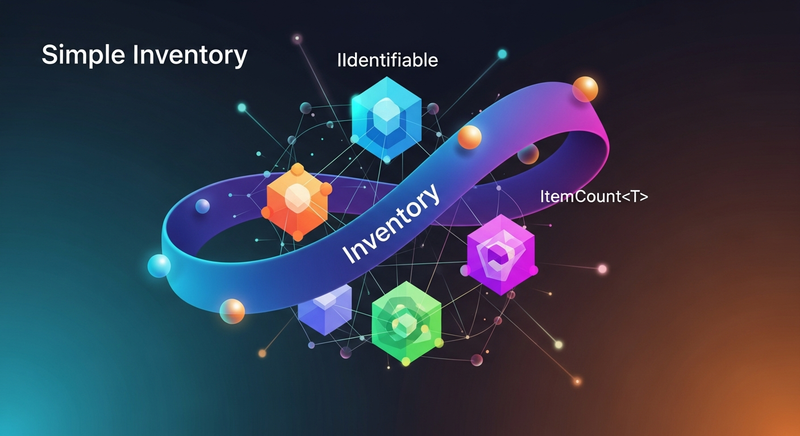
Install via UPM
Add to Unity Package Manager using this URL
https://www.pkglnk.dev/simpleinventory.git README Markdown
Copy this to your project's README.md

## Installation
Add **Simple Inventory** to your Unity project via Package Manager:
1. Open **Window > Package Manager**
2. Click **+** > **Add package from git URL**
3. Enter:
```
https://www.pkglnk.dev/simpleinventory.git
```
[](https://www.pkglnk.dev/pkg/simpleinventory)README
MoodyLib.SimpleInventory
A lightweight and flexible inventory system for Unity.
Designed around simple identifiers, instance-based inventories, and clean data aggregation.
Contents
- IIdentifiable – Base interface used for item identification.
- Inventory – Component that stores, adds, removes and lists items.
- ItemCount
– Immutable struct representing grouped item summaries. - Inventory Prefab – A preconfigured GameObject containing an
Inventorycomponent, ready to be dropped into the scene.
Install via Git URL
In Unity, open Window > Package Manager.
Click the + button in the top-left corner.
Select Add package from Git URL…
Paste the following URL and click Add:
https://github.com/fapoli/MoodyLib.SimpleInventory.git
Unity will download and install the package. After installation, it will appear under the Packages folder.
Using the Inventory Prefab
The package includes a prefab located in:
Runtime/Prefabs/Inventory.prefab
This prefab contains a fully configured Inventory component and is the recommended way to add an inventory to your scene or player object.
To use it:
- Drag Inventory.prefab into your scene.
- Assign it to your player, container, or any GameObject.
- Access it through:
or via tag, or via serialized references.var inventory = FindObjectOfType<Inventory>();
If you need multiple inventories (players, chests, vendors), simply duplicate the prefab or add additional Inventory components.
How to use
1. Define an identifiable item
public class Apple : IIdentifiable {
    public string ID => "apple";
}
✔ Recommendation: Use ScriptableObjects for items
While any class can implement IIdentifiable, using ScriptableObjects is highly recommended:
- Easy to edit in the Unity Inspector
- Persistent and stable asset-based data
- Lightweight and efficient (no runtime instantiation needed)
- Perfect for building item catalogs
- IDs remain consistent across play sessions
Example:
[CreateAssetMenu(menuName = "Inventory/Item")]
public class ItemDefinition : ScriptableObject, IIdentifiable {
    public string ID => name;

    public string label;
    public GameObject prefab;
    public Texture2D icon;
}
Add it to the inventory:
inventory.AddItem(someItemDefinition);
2. Add an Inventory component or use the prefab
[SerializeField] private Inventory _inventory;
Or find it by tag:
var inventory = GameObject.FindGameObjectWithTag("Player").GetComponent<Inventory>();
3. Add and remove items
inventory.AddItem(new Apple());
inventory.RemoveItem("apple");
4. Listen for events
inventory.OnItemAdded += item => Debug.Log("Added: " + item.ID);
inventory.OnItemRemoved += item => Debug.Log("Removed: " + item.ID);
5. List items
var items = inventory.ListItems<ItemDefinition>();

foreach (var entry in items) {
    Debug.Log($"{entry.item.ID} x {entry.count}");
}
Returns aggregated counts using ItemCount<T>.
Best Practices
✔ Use simple, stable item IDs
Keep IDs consistent and never change them at runtime.
✔ Prefer ScriptableObjects for item definitions
They are asset-based, stable, efficient, and ideal for item catalogs.
✔ Keep inventories instance-based
Attach Inventory wherever needed (players, chests, shops, etc.).
✔ Avoid heavy logic inside items
Treat items as lightweight data containers unless extended intentionally.
API Reference
Inventory.AddItem(IIdentifiable item)
Adds an item and triggers OnItemAdded.
Inventory.RemoveItem(string itemId)
Removes the first matching item and triggers OnItemRemoved.
Inventory.RemoveAllItems(string itemId)
Removes all matching items.
Inventory.HasItem(string itemId)
Checks existence by ID.
Inventory.Clear(bool triggerEvents = true)
Empties the inventory. By default it will trigger a remove item event for each item removed, unless false is specified as the first parameter.
Inventory.ListItems<T>()
List inventory items, where T is the type of items you are storing in the inventory (The scriptable object). The response will be a list of ItemCount
Comments
No comments yet. Be the first!
Sign in to join the conversation
Sign In