TwiiK Sprite Animator
For doing sprite based 2D animation without the overhead of Mecanim.
com.twiik.spriteanimator 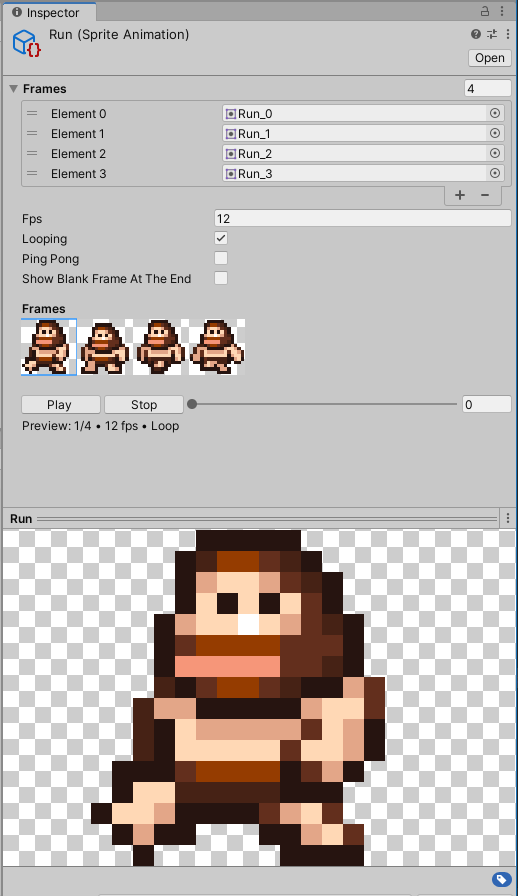
Install via UPM
Add to Unity Package Manager using this URL
https://www.pkglnk.dev/spriteanimator.git README Markdown
Copy this to your project's README.md

## Installation
Add **TwiiK Sprite Animator** to your Unity project via Package Manager:
1. Open **Window > Package Manager**
2. Click **+** > **Add package from git URL**
3. Enter:
```
https://www.pkglnk.dev/spriteanimator.git
```
[](https://www.pkglnk.dev/pkg/spriteanimator)README
TwiiK Sprite Animator
A lightweight sprite animation system for Unity, designed as an alternative to Mecanim for simple 2D sprite-based animations. I'm trying to use it in 3 projects currently and I'm adding to is as I go.
Features
- ScriptableObject-based animation assets
- No Mecanim state machine spaghetti - direct sprite animation playback
- Supports looping, ping-pong, and one-shot animations
- Variable playback speed
- Custom editor with frame thumbnails, animation preview and playback controls
Quick Start
1. Create a SpriteAnimation Asset
Right-click in the Project window and select Create > Sprite Animation.
Configure the asset:
- Frames: Array of sprites for the animation
- FPS: Playback speed in frames per second
- Looping: Whether the animation loops
- Ping Pong: Play forwards then backwards
- Show Blank Frame At The End: Display nothing after the last frame (useful for explosions)
Note: All these properties can be set at runtime through the SpriteAnimator component as well to have for example a movement animation that depends on the character speed.
2. Add the SpriteAnimator Component
Add SpriteAnimator to a GameObject with a SpriteRenderer component.
Assign your SpriteAnimation assets to the Animations array.
3. Play Animations
SpriteAnimator animator = GetComponent<SpriteAnimator>();

// Play an animation by name
animator.Play("Walk");

// Play at half speed
animator.Play("Walk", 0.5f);

// Play in reverse
animator.Play("Walk", -1f);

// Play at double speed, don't reset if already playing
animator.Play("Run", 2f, reset: false);
API Reference
SpriteAnimator
Properties
| Property | Type | Description |
|---|---|---|
animations |
SpriteAnimation[] |
Array of available animations |
currentAnimation |
SpriteAnimation |
Currently playing animation |
currentFrame |
int |
Current frame index |
fps |
int |
Current playback FPS (can override animation default) |
looping |
bool |
Whether current animation loops |
pingPong |
bool |
Whether current animation ping-pongs |
reverse |
bool |
Whether playing in reverse |
Methods
// Play animation by name
void Play(string name, float speed = 1, bool reset = true)

// Play animation that cannot be interrupted by other Play() calls
void PlayOnceUninterrupted(string name)

// Get animation duration in seconds
float GetAnimationLength(string name)

// Check if animation reached its end
bool ReachedEndOfAnimation()

// Stop playback
void Stop()
Events
// Fired when animation reaches its end
UnityEvent OnAnimationEndEvent
SpriteAnimation (ScriptableObject)
| Field | Type | Description |
|---|---|---|
frames |
Sprite[] |
Animation frames |
fps |
int |
Default playback speed |
looping |
bool |
Loop continuously |
pingPong |
bool |
Play forwards then backwards |
showBlankFrameAtTheEnd |
bool |
Show blank sprite after last frame |
Editor Features
The custom inspector provides:
- Frame Thumbnails: Visual grid of all animation frames
- Playback Controls: Play/Pause/Stop buttons with frame slider
- Animated Preview: Real-time preview in the inspector preview panel
Note: The built-in array inspector for the animation frames allows you to easily reorder animation frames and duplicate frames to extend parts of the animation.
Usage Examples
Listen for Animation End
void Start() {
    animator.OnAnimationEndEvent.AddListener(OnAnimationEnd);
}

void OnAnimationEnd() {
    Debug.Log("Animation finished!");
}
Manual Frame Control
// Pause animation and control frame manually
animator.fps = 0;
animator.currentFrame = 3;
Uninterruptible Attack Animation
void Attack() {
    // This will play to completion even if Play() is called
    animator.PlayOnceUninterrupted("Attack");
}

void Update() {
    // These calls won't interrupt the attack animation
    if (isMoving) {
        animator.Play("Walk");
    } else {
        animator.Play("Idle");
    }
}
License
MIT License
Comments
No comments yet. Be the first!
Sign in to join the conversation
Sign In