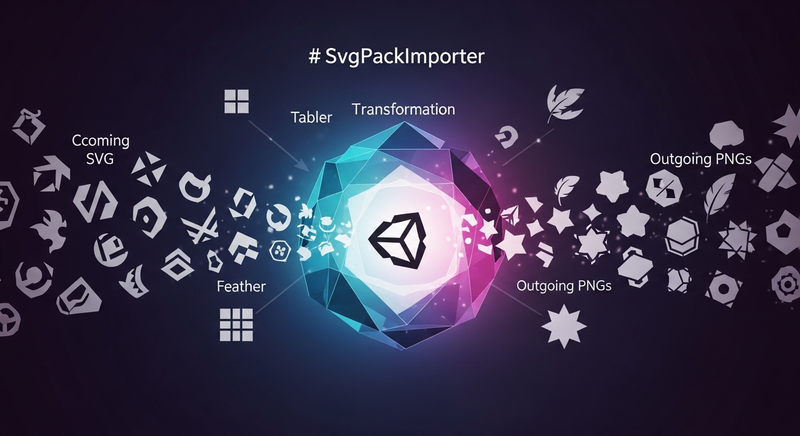

Import SVG icon packs into Unity and convert them to PNG sprites ready for UI use. SvgPackImporter provides visual management tools and built-in providers for Tabler, Feather, Heroicons, Iconoir, css.gg, and Simple Icons, while supporting custom local folders or GitHub repositories. Configure size, color, and stroke width once, then embed icons as subassets in your project for instant UI integration.
Add to Unity Package Manager
Paste this URL into Unity's Window › Package Manager › + › Add package from git URL,
or click Install.
https://www.pkglnk.dev/svgpackimporter.git README
Rendered from GitHubSvgPackImporter
Bring SVG icon packs into Unity, manage them visually, and render them as PNG sprites ready for UI. SvgPackImporter ships with built-in providers for Tabler, Feather, Heroicons, Iconoir, css.gg, and Simple Icons, and supports your own local SVG folders or custom GitHub-hosted repos.
Install Package from Git URL: https://github.com/DaveRune/SvgPackImporter.git
Overview
SvgPackImporter has three pieces. Providers know where SVGs come from. Built-in providers point at a GitHub repo and download on demand. Local providers point at any folder on your disk.
Icon Packs pick a subset of icons from one or more providers and embed them as PNG subassets at a chosen size, color, and stroke width. Drag the resulting sprite or texture onto a UI Image.
The Icon Manager window is where you browse a provider's full catalogue, search by name or alias, and toggle which icons are included in a pack.
Conversion uses ImageMagick under the hood, so it's a one-time install on your machine.
Usage
1. Run First-Time Setup
Open Tools > SvgPackImporter > Setup. The wizard auto-detects ImageMagick (or links you to the download), then offers to add the built-in providers to your project.
2. Download a Provider's Icons
Select a provider asset (e.g. Tabler Icons) and click Download and Setup. The repository is downloaded and SVGs are extracted to an IconProviders folder at your project root, alongside Assets.
3. Create an Icon Pack
Right-click in the Project window and choose Create > SvgPackImporter > Icon Pack. Drag one or more providers onto the pack's Providers list, then set size, color, and stroke width.
4. Pick Icons and Update
Click Manage Icons on the pack. Search, filter by variant, and click icons to mark them for inclusion. Click Update to convert to PNGs and embed them as subassets on the pack.
Example
Setting up a pack of outline icons for your UI:
- Open
Tools > SvgPackImporter > Setupand add the Tabler provider. - Select
Tabler Iconsin the Project window and clickDownload and Setup. - Right-click in
Assets/and chooseCreate > SvgPackImporter > Icon Pack. Name itUI Icons. - Set Icon Color to your UI accent, Stroke Width to
1.5, and Icon Size to32. - Drag
Tabler Iconsinto the pack'sProviderslist. - Click
Manage Icons, enable theOutlinevariant, search for the icons you need, click each one, then clickUpdate. - Drag the resulting sprite subassets onto your UI Image components.
To swap providers later, add another (say Feather) to the pack's Providers list and pick its icons via Manage Icons. The conversion settings apply across every provider in the pack.
Versions 0
No versions tracked yet.
Dependencies 0
No dependencies.
Changelog 0 releases
No changelog entries yet. Run the admin Changelog & Version Scanner to pull from the repository's CHANGELOG.md.
README Markdown
Copy this to your project's README.md

## Installation
Add **SvgPackImporter** to your Unity project via Package Manager:
1. Open **Window > Package Manager**
2. Click **+** > **Add package from git URL**
3. Enter:
```
https://www.pkglnk.dev/svgpackimporter.git
```
[](https://www.pkglnk.dev/pkg/svgpackimporter)Embed badge README snippet
[](https://www.pkglnk.dev/pkg/svgpackimporter)<a href="https://www.pkglnk.dev/pkg/svgpackimporter"><img src="https://www.pkglnk.dev/badge/svgpackimporter.svg" alt="pkglnk installs"></a>https://www.pkglnk.dev/badge/svgpackimporter.svgComments
No comments yet. Be the first!
Sign in to join the conversation
Sign In