Unity SVG Editor
Unity editor package for inspecting, previewing, editing, validating, and saving SVG assets with local UI Toolkit controls.
com.maemi.unity-svg-editor 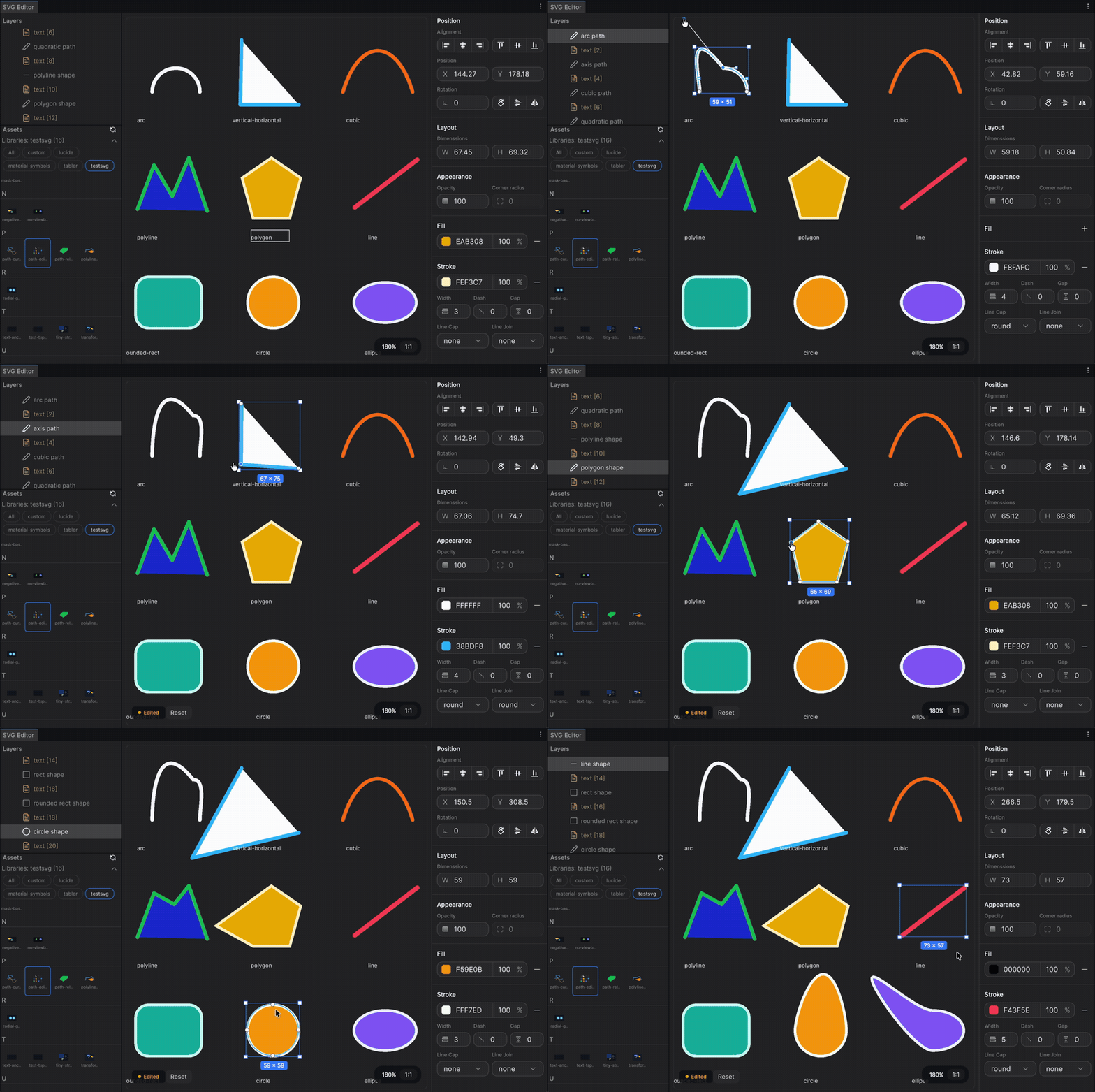
Install via UPM
Add to Unity Package Manager using this URL
https://www.pkglnk.dev/unity-svg-editor.git README Markdown
Copy this to your project's README.md

## Installation
Add **Unity SVG Editor** to your Unity project via Package Manager:
1. Open **Window > Package Manager**
2. Click **+** > **Add package from git URL**
3. Enter:
```
https://www.pkglnk.dev/unity-svg-editor.git
```
[](https://www.pkglnk.dev/pkg/unity-svg-editor)README
Unity SVG Editor
Inspect SVG assets, edit supported properties and path anchors directly in Unity, and save changes back to SVG.



Unity SVG Editor is an editor package for teams that need to inspect existing SVG files, edit supported shapes visually, adjust path anchors and handles on canvas, and write the result back to SVG XML.
- Package name:
com.maemi.unity-svg-editor - Namespace:
SvgEditor.Editor - Menu:
Window/Tools/SVG Editor
Installation
Option 1: Git URL
https://github.com/NewMassMedia/unity-svg-editor.git
Package Manager → + → Add package from git URL...
Highlights
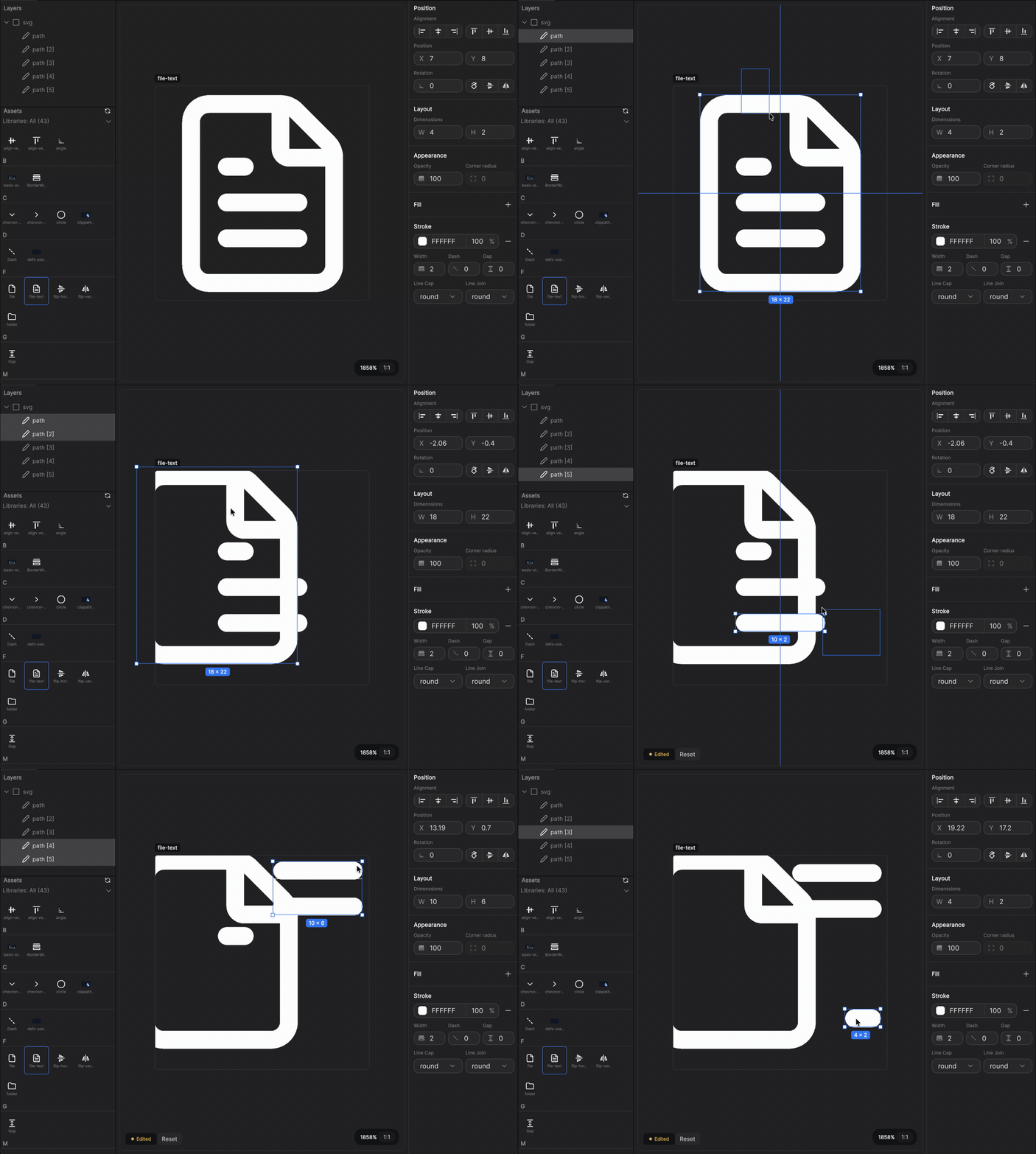
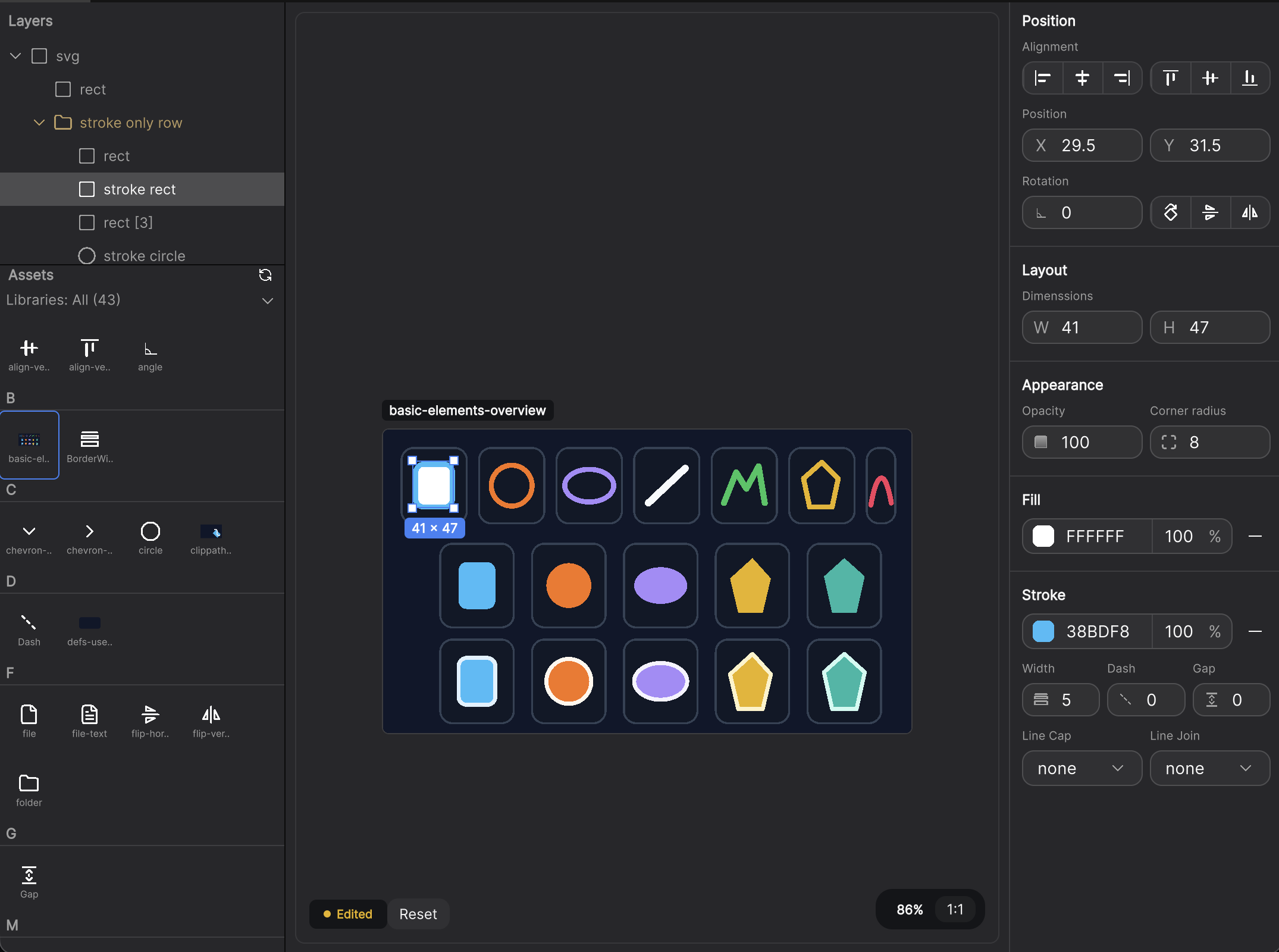
- Inspect SVG hierarchy and preview imported geometry inside the Unity Editor
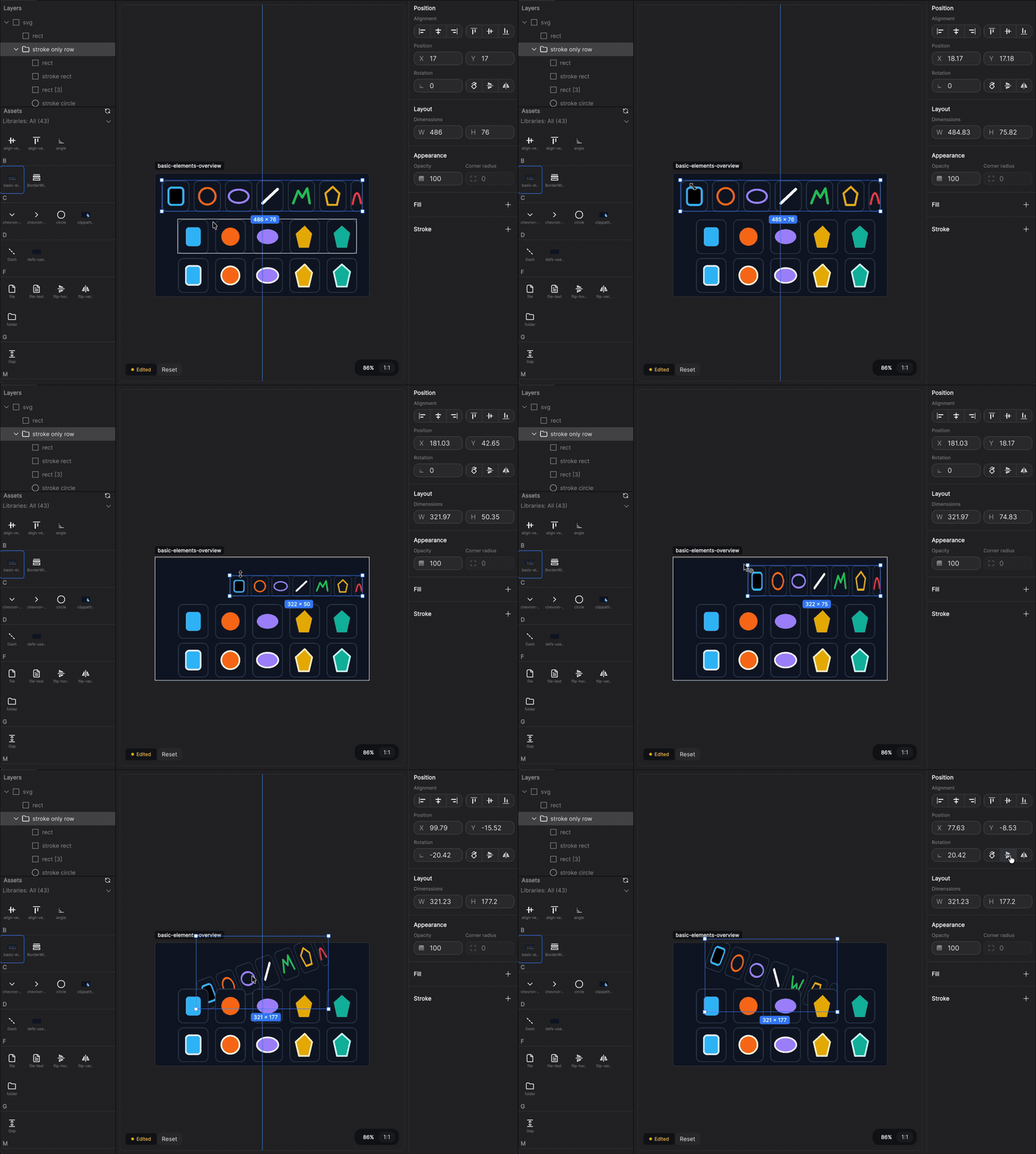
- Select, move, resize, and rotate supported elements directly on the canvas
- Enter path edit mode to adjust anchors and handles for supported shapes
- Save changes back to SVG source and trigger immediate reimport
- Surface unsupported SVG features and importer fallback states instead of hiding them
Demo
| Demo 1 | Demo 2 |
|---|---|
 |
 |
| Screenshot 1 | Screenshot 2 |
|---|---|
 |
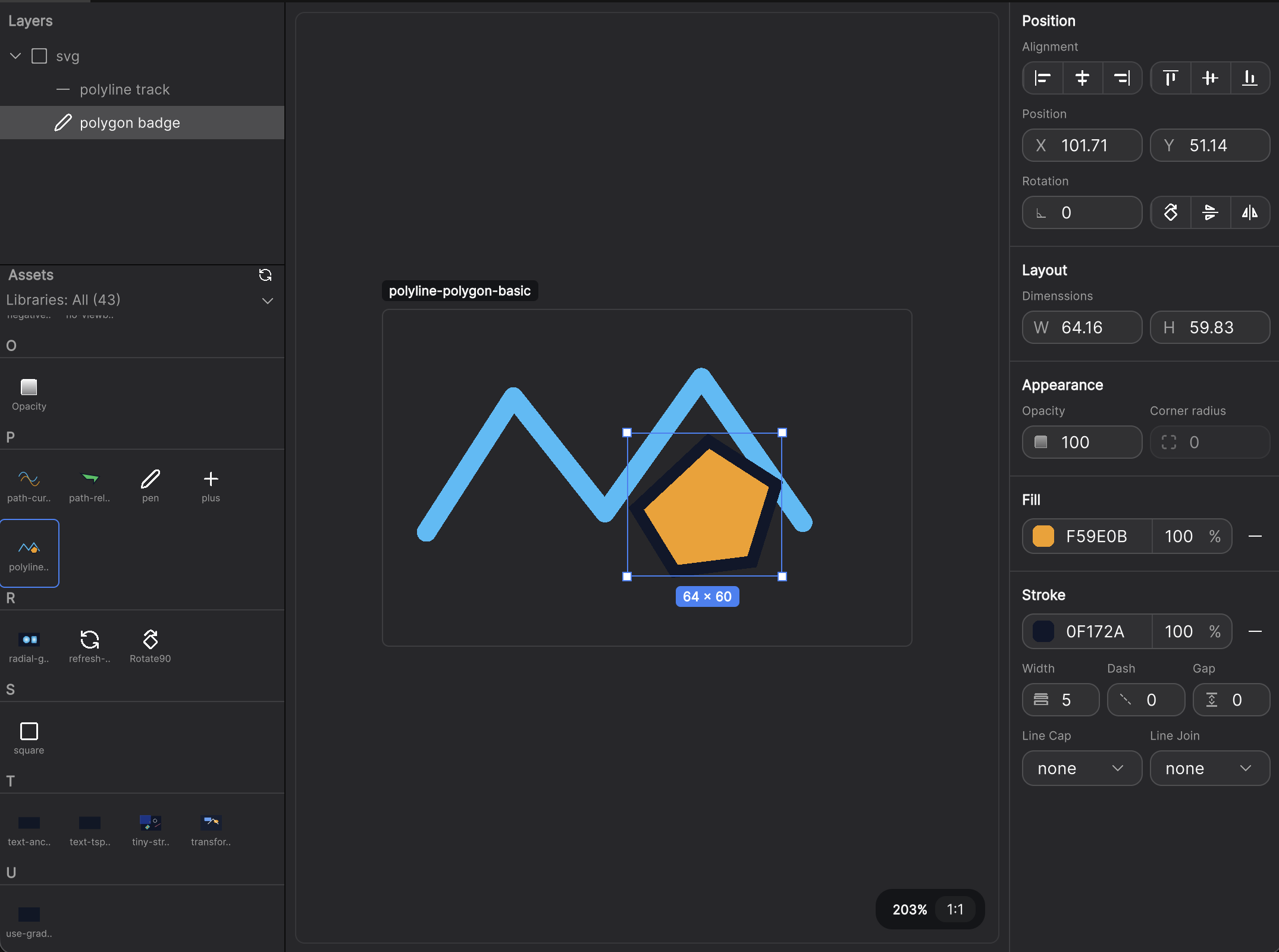 |
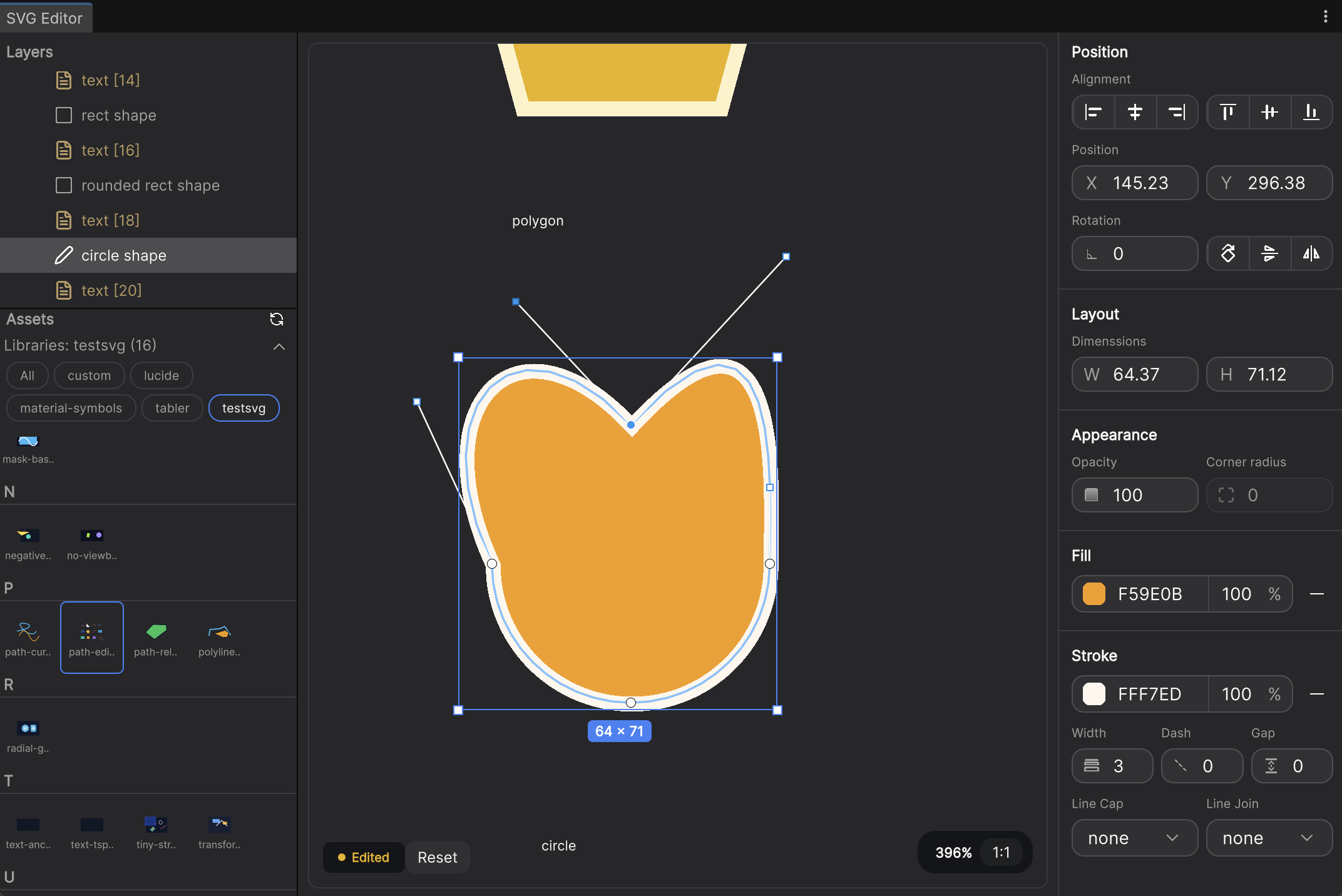
Path Edit
| Path Edit Demo | Path Edit Screenshot |
|---|---|
|
 |
Quick Start
Open Window > Tools > SVG Editor, then:
- Select an SVG asset from the project browser inside the tool
- Review the structure tree and current preview
- Select elements on the canvas or in the tree
- Adjust properties in the inspector or enter path edit mode for supported shapes
- Save and let Unity reimport the asset immediately
- Review warnings if the document contains unsupported features or fallback rendering cases
What You Can Do
Structure And Selection
- Browse SVG
VectorImageassets inside the project - Inspect SVG document structure with selection sync
- Select elements on canvas, in the hierarchy, or by marquee
Transform Editing
- Move, resize, and rotate supported elements on the canvas
- Use snapping, axis locking, center resize, and keyboard nudging
- Commit edits back to SVG source with undo / redo support
Path Editing
- Double-click supported shapes to enter path edit mode
- Select anchors and handles directly on the canvas
- Drag anchors and handles and commit the result back to SVG
- Edit relative and curved path commands including
C,S,Q, andT
Supported Elements
Current support is strongest in preview, structure inspection, transform editing, and path editing for common SVG primitives.
Editable and previewed elements include:
rectcircleellipselinepolylinepolygonpathuselinearGradientradialGradientclipPath- basic
mask text
Path edit mode currently supports:
pathlinerectcircleellipsepolylinepolygon
Interaction Guide
The editor supports a small set of focused canvas and keyboard interactions. The list below documents the controls that are currently implemented.
Selection
| Action | Control | Notes |
|---|---|---|
| Select element on canvas | Click |
On canvas, plain click prefers a containing group when one is under the pointer. |
| Select direct leaf element | Ctrl/Cmd + Click |
Bypasses group selection and targets the directly hit element. |
| Toggle canvas selection | Shift + Click |
Adds or removes the clicked canvas element from the current selection. |
| Add with marquee selection | Shift + Drag on empty canvas |
Adds overlapped elements to the current selection. |
| Replace with marquee selection | Drag on empty canvas |
Replaces the current selection with the marquee result. |
| Select in hierarchy | Click |
Selects a single row. |
| Toggle in hierarchy | Ctrl/Cmd + Click |
Adds or removes the clicked hierarchy row. |
| Range select in hierarchy | Shift + Click |
Selects a range from the current anchor row. |
Transform Editing
| Action | Control | Notes |
|---|---|---|
| Move selection | Drag selection |
Drag the selected element or multi-selection bounds. |
| Nudge selection | Arrow Keys |
Moves the current element selection by 1 unit per key press. |
| Large nudge | Shift + Arrow Keys |
Moves the current element selection by 10 units. |
| Constrain move axis | Shift + Drag |
Locks movement to a dominant axis while dragging. |
| Snap move | Ctrl/Cmd + Drag |
Enables move snapping while dragging. |
| Uniform resize | Shift + Drag resize handle |
Keeps proportional scaling during resize. |
| Resize from center | Alt + Drag resize handle |
Resizes symmetrically from the center. |
| Snap resize | Ctrl/Cmd + Drag resize handle |
Enables resize snapping while dragging. |
| Snap rotation | Shift + Drag rotate handle |
Enables snapped rotation while rotating. |
| Cancel active drag | Esc |
Cancels the current drag preview. |
Path Edit Mode
| Action | Control | Notes |
|---|---|---|
| Enter path edit | Double Click on an editable shape |
Supported for path, line, rect, circle, ellipse, polyline, and polygon when editable path data can be built. |
| Enter path edit on direct leaf | Ctrl/Cmd + Double Click |
Useful when a group would otherwise be selected first. |
| Select path node or handle | Click |
Selects the clicked node or handle inside path edit mode. |
| Clear path node/handle selection | Click empty space in path edit mode |
Clears the active path sub-selection. |
| Move path node or handle | Drag |
Commits back to SVG source when the drag completes successfully. |
| Exit path edit | Esc |
Exits path edit mode when no path drag is active. |
| Cancel active path drag | Esc during path drag |
Restores the path edit session to its pre-drag state. |
Path edit is not entered when the target shape cannot be converted to editable path data, or when the path contains unsupported or malformed commands. In those cases the editor stays in read-only preview mode and shows a status message.
Document Shortcuts
| Action | Control | Notes |
|---|---|---|
| Save | Ctrl/Cmd + S |
Saves the current SVG and triggers reimport. |
| Undo | Ctrl/Cmd + Z |
Reverts the last document edit. |
| Redo | Ctrl/Cmd + Shift + Z |
Reapplies the last undone edit. |
| Delete selection | Delete or Backspace |
Deletes selected elements when a text field is not being edited. |
Limits
These areas are intentionally unsupported or currently limited:
- Full SVG authoring parity with Illustrator, Figma, or other vector design tools
- Full XML source editing or code-inspector style workflows
- direct gradient editing
filterimagestyle- direct
textPathediting - per-
tspandetailed editing - advanced SVG cases that do not map cleanly to Unity
VectorImage
Limited support:
textandtspan- overlay preview and basic selection work, but detailed text authoring is limited
textPath- preview may import, but it is not a direct editing target
linearGradientandradialGradient- preview and import behavior may work, but direct gradient editing is not supported yet
- combined advanced cases such as
use + gradient + clipPath- preview can work, but editing precision still depends on Unity import behavior
What Depends On Unity
This package follows Unity's SVG and VectorImage boundaries instead of inventing a separate rendering standard.
In practice, that means:
- Best results come from shapes, paths, gradients, clip paths, and common transforms supported by Unity's SVG importer
- Some SVG features may import with partial rendering, fallback rendering, or no direct editing target
textin this package should be treated as an editor-assisted overlay workflow, not as native UnityVectorImagetext authoring support- If Unity falls back internally, the editor exposes that state rather than pretending the feature is fully supported
Requirements
- Unity
6000.0or later - SVG import pipeline available in the Unity project
License
MIT
No comments yet. Be the first!