UnityEditor Dark Mode
Applies a dark mode theme to the Unity Editor on Windows, styling the title bar, menu bar, context menus, and UI elements. Supports Windows 10 1903+ and Windows 11 across Unity versions 2019-6, with easy installation via UPM and optional local activation to avoid affecting other project collaborators.
com.0x7c13.unityeditor-darkmode 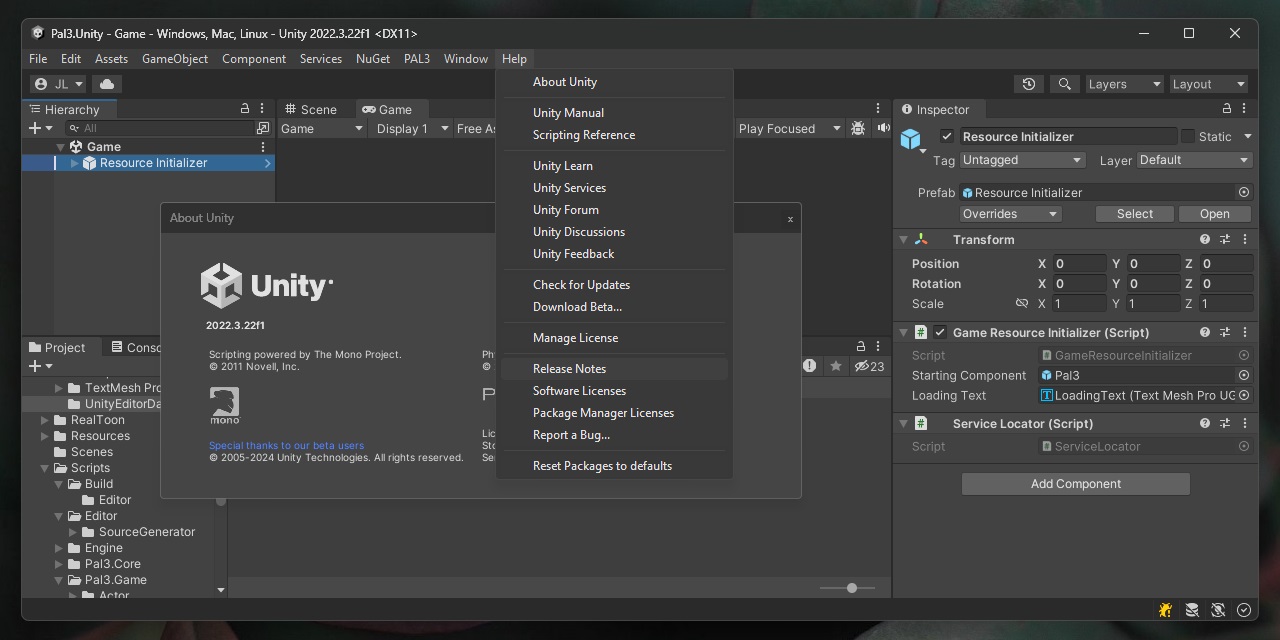
Install via UPM
Add to Unity Package Manager using this URL
https://www.pkglnk.dev/unityeditor-darkmode.git?path=upm-package README Markdown
Copy this to your project's README.md

## Installation
Add **UnityEditor Dark Mode** to your Unity project via Package Manager:
1. Open **Window > Package Manager**
2. Click **+** > **Add package from git URL**
3. Enter:
```
https://www.pkglnk.dev/unityeditor-darkmode.git?path=upm-package
```
[](https://www.pkglnk.dev/pkg/unityeditor-darkmode)README
DarkMode Mod for Unity Editor on Windows
A fully working runtime dark mode mod for Unity Editor on Windows with:
- Dark title bar
- Dark menu bar
- Dark context menu
- And more...
This runtime mod works on Windows 11 and Windows 10 1903+. Tested on Unity 2019, 2020, 2021, 2022, 2023 and Unity 6.
Easy installation guide
UPM installation
- Open Package Manager in Unity Editor and click on the
+button on the top left corner. - Select
Add package from git URL...and paste below URL:https://github.com/laicasaane/UnityEditor-DarkMode.git?path=/upm-package#6000.0.3NOTE: For Unity 2022.3, replace the tag version
6000.0.3with2022.3.0 - Click on the
Addbutton and you are done!
⚠️ A word of caution
If you feel uncomfortable downloading a malicious Package from a stranger like me, then you should not :) Take a look at later sections to see how it works and how to build it yourself if you prefer.
Please do your own homework and make your own judgement. I offer this approach as aconvenience only.
Usage guide
Since verion 6000.0.1, this mod won't be enabled after the package is installed or updated.
It is intentional to avoid unwanted activation of the mod for everyone else who attempts to open the project.
Enable Dark Mode
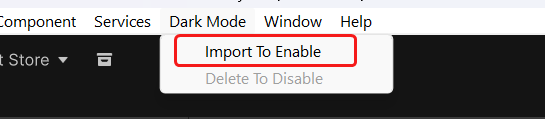
To enable it locally, you need to use the menu item Dark Mode > Import To Enable.
The DLL will be imported into Assets/Plugins/com.0x7c13.unityeditor-darkmode.
Ignore the plugin folder
You should want to configure your version control system (i.e. git) to ignore the folder
Assets/Plugins/com.0x7c13.unityeditor-darkmode. Otherwise it will take unwanted effect on other machines.
Here is an example for .gitignore:
[Aa]ssets/[Pp]lugins/com.0x7c13.unityeditor-darkmode
[Aa]ssets/[Pp]lugins/com.0x7c13.unityeditor-darkmode.meta
Disable Dark Mode
Because the DLL is hooked into the Unity Editor process, it cannot be deleted while the editor is running.
To disable it, first exit Unity Editor, then manually delete the folder
Assets/Plugins/com.0x7c13.unityeditor-darkmode.
Finally reopen Unity Editor.
What if you don't want to add the DLL to your project?
There are few options:
- You could inject the DLL into the Unity Editor process yourself using your preferred approach.
- Use
withdll.exefrom Detours. Create a batch script or PowerShell script to run the Unity Editor with the DLL attached like below:.\withdll.exe /d:UnityEditorDarkMode.dll ^ "C:\Program Files\Unity\Hub\Editor\2022.3.22f1\Editor\Unity.exe" ^ -projectPath "C:\<Path>\<To>\<Your>\<UnityProjectFolder>" - Put the DLL outside of your project and add a Unity Editor script to your project like below:
#if UNITY_EDITOR_WIN // Windows only, obviously
namespace Editor.Theme // Change this to your own namespace you like or simply remove it
{
    using System.Runtime.InteropServices;
    using UnityEditor;

    public static class UnityEditorDarkMode
    {
        // Change below path to the path of the downloaded dll
        [DllImport(@"C:\Users\<...>\Desktop\UnityEditorDarkMode.dll", EntryPoint = "DllMain")]
        private static extern void _();

        [InitializeOnLoadMethod]
        private static void __()
        {
            #if !UNITY_2021_1_OR_NEWER
            // [InitializeOnLoadMethod] is getting called before the editor
            // main window is created on earlier versions of Unity, so we
            // need to wait a bit here before attaching the dll.
            System.Threading.Thread.Sleep(100);
            #endif
            _(); // Attach the dll to the Unity Editor
        }
    }
}
#endif
How to change the theme?
After first launch, a UnityEditorDarkMode.dll.ini file will be created in the same directory as the dll.
You can modify the values in this file to change the theme (Restart the editor after changing the values).
Default values are given below:
menubar_textcolor = 200,200,200
menubar_textcolor_disabled = 160,160,160
menubar_bgcolor = 48,48,48
menubaritem_bgcolor = 48,48,48
menubaritem_bgcolor_hot = 62,62,62
menubaritem_bgcolor_selected = 62,62,62
How to remove it?
Remove the DLL from your project and restart Unity Editor (You need to close the editor before deleting the DLL).
How to build it?
Make sure latest
CMake,Visual StudioandMSVC toolchainare installed on your system. Then run below command in the project directory:cmake -B build && cmake --build build --config ReleaseNOTE: You may need to add
cmaketo your system path if you haven't already.The
UnityEditorDarkMode.dllwill be created under thebuild\Releasedirectory after the build finishes successfully.
How it works?
This project is basically a stripped down version of ReaperThemeHackDll
made by jjYBdx4IL with some minor modifications.
If you like this project, please consider giving a star to the ReaperThemeHackDll project as well.
Actually, his code with some minor modifications can be used to theme any legacy Windows applications
that uses the Win32 title bar, menu bar, context menu, etc.
Ok, so what I have done on top of ReaperThemeHackDll is:
Remove all the unnecessary dependencies of Reaper framework and plugin code since we don't need them for Unity Editor hack.
Instead of checking the window class name of
REAPERwndwhen doing the sub-classing usingSetWindowSubclassAPI, I useUnityContainerWndClassinstead, which is the window class name of Unity Editor main window. You can get this window class name by using below Win32 API:[DllImport("user32.dll", SetLastError = true, CharSet = CharSet.Unicode)] private static extern int GetClassName(IntPtr hWnd, char[] lpClassName, int nMaxCount);I have verified that the window class name is consistent across different Unity Editor versions (2019, 2020, 2021, 2022, 2023, Unity 6) so it should work on most versions. If not, you should probably make further modifications to the code to use the C++
GetClassNameWin32 API to get the window class name dynamically at runtime.NOTE: If you do this, it basically means this hack can be used for any Windows application that uses the default white Win32 title bar, menu bar, context menu, etc.
A different color preset is given by default which I think looks better with Unity Editor.
Some inrelevent code is also removed and some minor modifications are made to make it more performant and clean. You don't have to do it tho so I am not going to explain them here.
The built dll is a standard Win32 DLL with a DllMain entry point, meaning it can be side-loaded using Detours
withdll.exe. This has been explained in theReaperThemeHackDllrepository as well. However, one caveat is that if you run below command:.\withdll.exe /d:UnityEditorDarkMode.dll ^ "C:\Program Files\Unity\Hub\Editor\2022.3.22f1\Editor\Unity.exe"It will NOT work because invoking Unity.exe directly will launch the Unity Hub first. After you open the project from Unity Hub, it will launch the Unity Editor. But the context is getting lost from here. So instead of running above command, you should always give your project path as an argument to Unity.exe like below if you wish to use
withdll.exeinstead of the editor script approach:.\withdll.exe /d:UnityEditorDarkMode.dll ^ "C:\Program Files\Unity\Hub\Editor\2022.3.22f1\Editor\Unity.exe" ^ -projectPath "C:\<Path>\<To>\<Your>\<UnityProjectFolder>"
Manual Installation
Build the DLL from the
srcfolder.Copy the DLL into your Unity project and apply below settings to the DLL in the Unity Editor inspector:
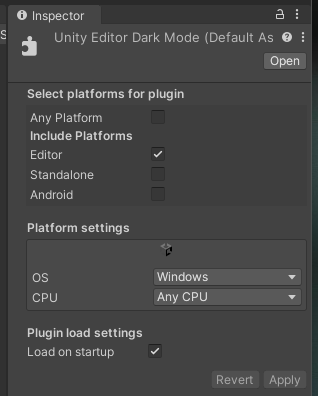
Make sure
Load on startupis checked which will make the DLL to be loaded on Unity Editor startup.Make sure
OSis set toWindowswhich will make the DLL to be loaded only on Windows OS.Make sure only
Editoris checked which will make the DLL to be loaded only in the Unity Editor.
Known issues
I haven't found any major issues so far. Please let me know if you find any issues by creating an issue in this repository.
No comments yet. Be the first!