Wave Function Collapse
Procedural tilemap generation using the Wave Function Collapse algorithm.
com.magusstudios.wavefunctioncollapse 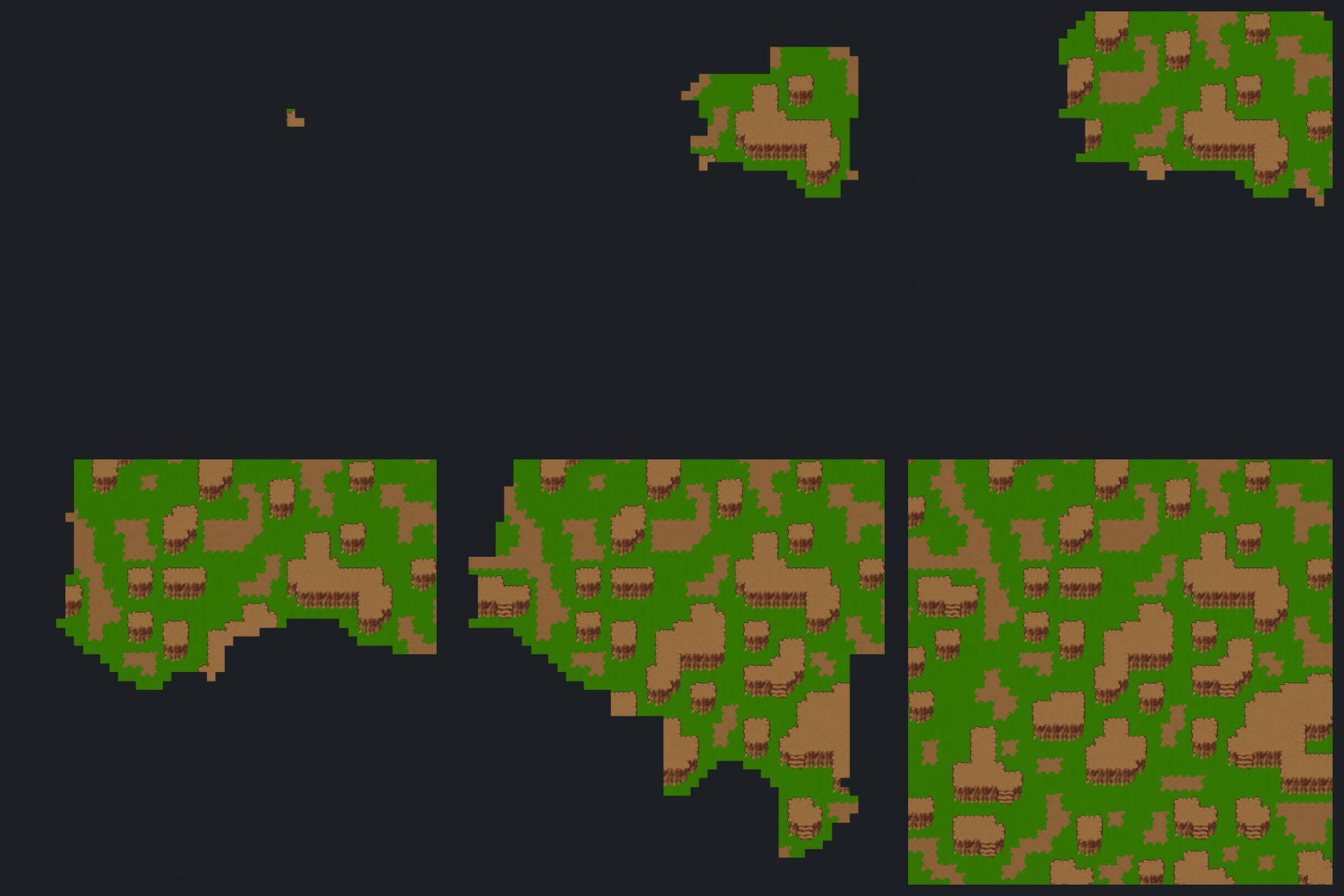
Install via UPM
Add to Unity Package Manager using this URL
https://www.pkglnk.dev/wavefunctioncollapse.git README Markdown
Copy this to your project's README.md

## Installation
Add **Wave Function Collapse** to your Unity project via Package Manager:
1. Open **Window > Package Manager**
2. Click **+** > **Add package from git URL**
3. Enter:
```
https://www.pkglnk.dev/wavefunctioncollapse.git
```
[](https://www.pkglnk.dev/pkg/wavefunctioncollapse)Dependencies (1)
README
Wave Function Collapse for 2D Tilemaps
This package provides a performant implementation of Wave Function Collapse (WFC) procedural generation for Unity2D along with a suite of editor tools to create and edit templates and module sets seamlessly with Unity’s Tilemap Editor. Generation uses the simple-tiled method for module creation and lowest-entropy cell selection. For larger maps generated in chunks (or, more accurately, blocks), the system uses an approach suggested by Boris the Brave called Layered Block Evaluation, which completes the map in 4 passes. Blocks in each pass are generated in parallel, and the number of threads/cores that can be utilized scales with the map size.
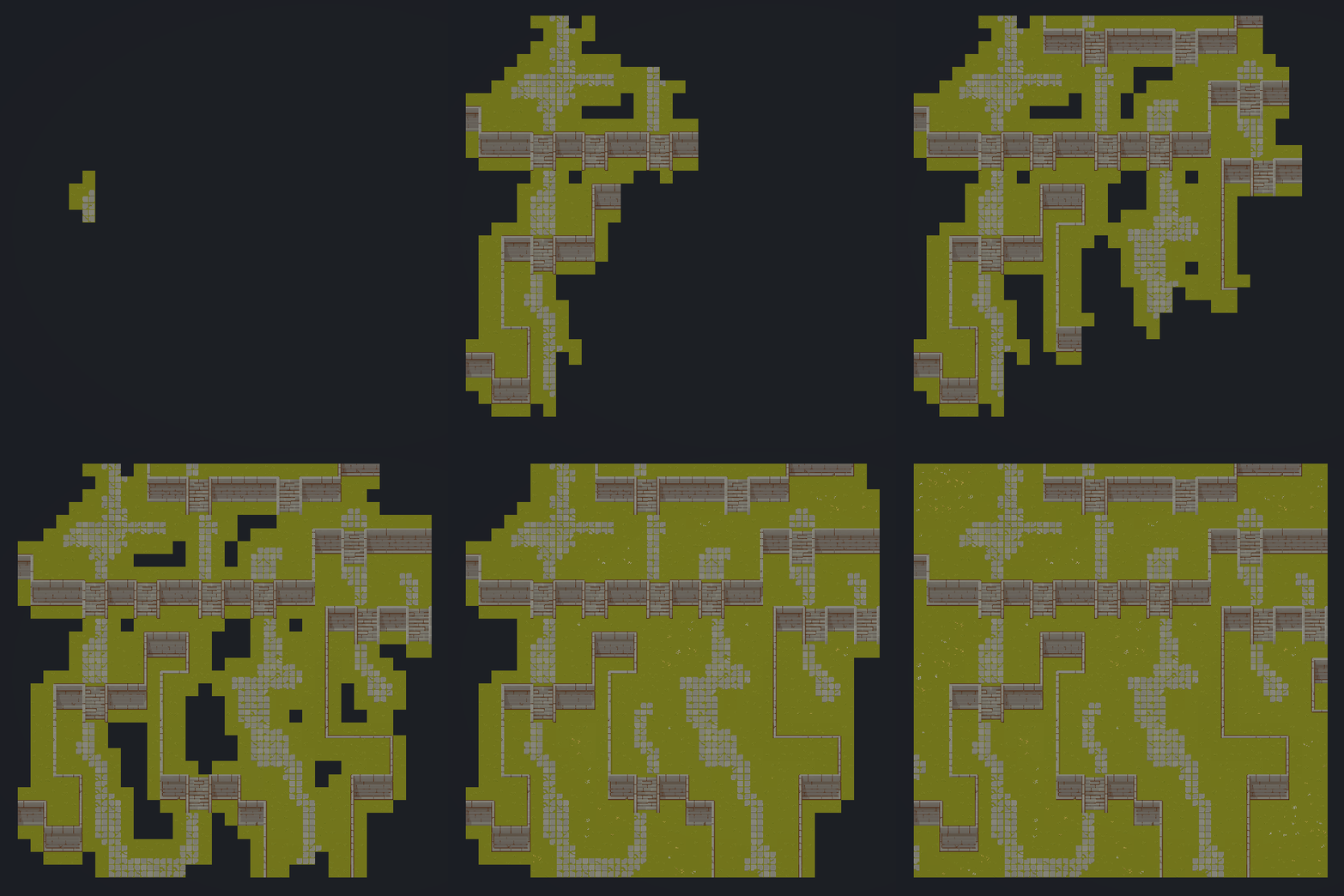
Install via Unity Package Manager
Recommended Unity Version: 6000.0.60f1 +
- Open Unity and go to Window → Package Manager.
- Click the + button and choose Add package from git URL….
- Enter the following URL: https://github.com/dfaruqi/WaveFunctionCollapse.git
Getting Started
Try the included sample scene:Samples~/WFC Generation and Module Editing
Import and open the sample scene from Window > Package Manager > In Project > Wave Function Collapse > Samples.
Press Play.
Select the "WFC" GameObject in the Hierarchy.
In the Inspector, locate the Wave Function Collapse component.
Adjust any parameters you’d like, then press Generate. The system will generate a map from the module set and apply it to the first active tilemap in the scene.
To watch the map generate in real time, use the Wave Function Collapse Naive component instead. This implementation is slow and should not be used in a production setting, but is great for visualizing lowest-entropy cell selection for demonstration.
Creating Custom Tilesets and Modules
1. Draw a New Template
Use the built-in Unity Tile Palette (Window > 2D > Tile Palette) to draw a new template (like the examples in the sample scene) on a tilemap. The template should include all adjacency allowances (up, down, left, or right) desired in the output. You can enable or disable specific tilemap grids in the hierarchy to edit different templates.
2. Create a Tile Database
A tile database is just a mapping of integer -> Tile and is the basis for all WFC operations.
- Go to Assets → Create → Databases → TileDatabase.
- In the newly created database, click “Overwrite from Tilemap”.
- This populates the database with the tiles from the first active tilemap in the scene.
3. Create a Module Set
A module set depends on a Tile Database and represents the allowed neighbors and weights of any subset of tiles from that database. Databases can be swapped out to "reskin" an existing module set.
- Go to Assets → Create → Wave Function Collapse → WfcModuleSet.
- In the new module set:
- Drag in the tile database you just created.
- Click “Scan Tilemap and Overwrite” again.
- This automatically generates adjacency rules based on the template.
4. Adjust Weights and Assign
- Set the weights in the module set to your desired values.
- Drag and drop the module set into a WaveFunctionCollapse script to use it for generation.
Example module sets can be found in:
Runtime/Modules/
Comments
No comments yet. Be the first!
Sign in to join the conversation
Sign In