XiGameTool
XiGameTool is a art content management for Unity.
com.hww.xigametool 
Install via UPM
Add to Unity Package Manager using this URL
https://www.pkglnk.dev/xigametool.git#upm README Markdown
Copy this to your project's README.md

## Installation
Add **XiGameTool** to your Unity project via Package Manager:
1. Open **Window > Package Manager**
2. Click **+** > **Add package from git URL**
3. Enter:
```
https://www.pkglnk.dev/xigametool.git#upm
```
[](https://www.pkglnk.dev/pkg/xigametool)README
XiGameTool The game data tool for Unity 3D




Simple Unity editor extension for managing visibility of layers and categories of objects, created by hww
Introduction
The scene editor in Unity 3D has enough features to work with small scenes. But when I need to edit scenes with lots of play zones, I sometimes miss the control system for selective categories, layers or sets. This very simple plugin lets you add three additional panels to the level editor. The tool controls the visibility and color for any debug information rendering such as gizmos, splines, colliders etc. The layers managing tool has simple for layer locking
- Visibility and color management of Unity layers For managing the primitives related on Unity Layers.
- Manage the visibility of object categories For managing scene data by gtoups (camera, gameplay, battle etc) and by categories (spawner, traversal, splines etc).
- Manage the visibility of object set _For managing the objects sets such as scrpable, target pointes, etc.
It is easy to modify tool to have your custom lists of categories, subcategories and selection-sets.
In addition to management, the panels display the object's statistics. As a result of the results of the use of this extension has shown high efficiency on large commercial projects.
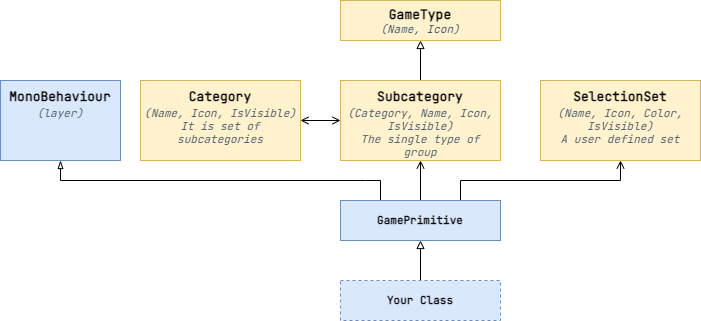
The class-diagram below.
Install
The package is available on the openupm registry. You can install it via openupm-cli.
openupm add com.hww.xigametool
You can also install via git url by adding this entry in your manifest.json
"com.hww.xigametool": "https://github.com/hww/XiGameTool.git#upm"
TODO
- Basic functionality
- Configurabe and safe (no enum) the objects tagging
- Update documentation
- The performance optimization
- Better redraw screen for Unity
GamePrimitive Class
The example of primitive class below. This class associate the game object with one of selection sets and categories.
public class GamePrimitive : MonoBehaviour
{
    public string subcategoryName;            // Select the art group of this object
    public string selectionSetName;           // Select the art category of this object

    public Subcategory Subcategory => ...     // Get the game-type in this category
    public SelectionSet SelectionSet => ...   // Get selection-set for this primitive
    public GameLayer Layer => ...             // Get the layer of this primitive
}
The strings in the field will be associated (the references cached) with first access to a property. The editor will generate the drop down selection menu for each field. Or values could be set as text with inspector's developing mode.
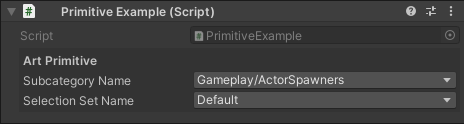
In case when the configuration will be changed, the string will keep previous config value. The drop down menu will indicate it.
:boom: It is easy to make the validation or migrations tools. So the solution is very safe for large project and team.
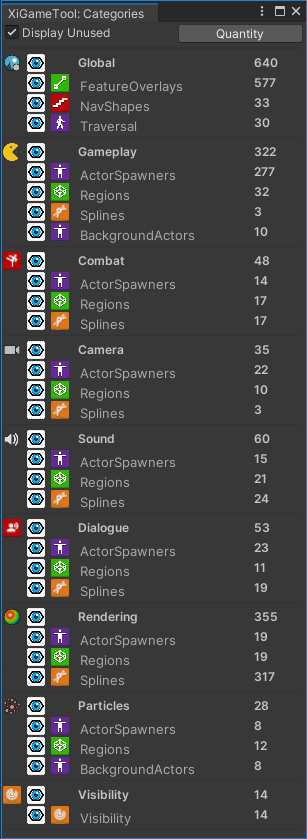
Game Categories Window
To control the visibility and displaying statistics for categories and subcategories of the objects.
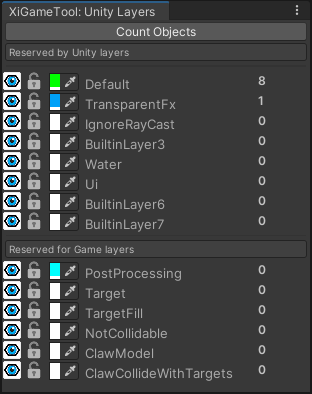
Unity Layers Window
Allows makes visible or invisible the Unity layers, also it can set a layer protected or not. Additionally it allow to change layer's color. And finally it displays a statistics per layer.
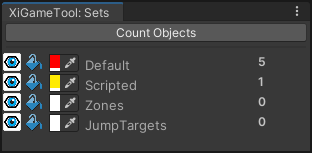
Selection Sets Window
The panel allows to makes visible or invisible the objects in selection-set. Additionally, it displays metrics per category.
Example of using
The example of drawing gizmos for your game object below.
void OnDrawGizmos()
{
    if (SelectionSet.IsVisible && Subcategory.IsVisible)
    {
        Gizmos.color = SelectionSet.Color;
        Gizmos.DrawWireSphere(transform.position, 1f);
        UnityEditor.Handles.Label(transform.position, gameObject.name);
    }
}
For a physical colliders (or other layer's depended things) there is different way in the game tool.
BoxCollider _boxCollider;
BoxCollider BoxCollider => _boxCollider ??= GetComponent<BoxCollider>();

void OnDrawGizmos()
{
    if (SelectionSet.IsVisible && Subcategory.IsVisible)
    {
        Gizmos.color = GameTool.Layers.GetColor(gameObject.layer);
        Gizmos.DrawWireCube(transform.position, BoxCollider.size);
        UnityEditor.Handles.Label(transform.position, gameObject.name);
        Gizmos.DrawIcon(transform.position, "your gizmo icon");
    }
}
Per Project Settings
There is GameToolSettings asset with configuration of the tool (see below).
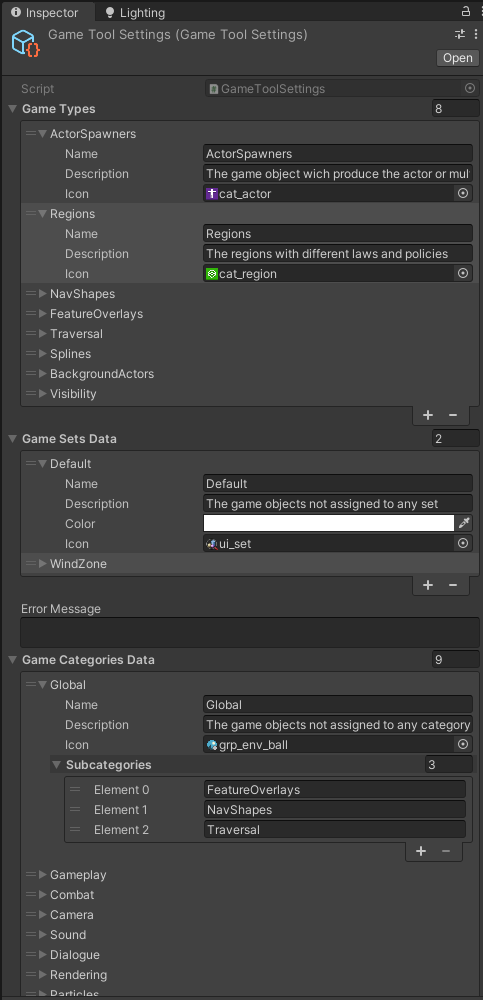
With this tool is possible to configure the next options:
- Declare the list names and icons for your game types
- Declare the list of categories. Each will have name, icon and list of game types
- Declare the list of selection sets with name and icor for each
Per Scene Settings
Alternatively, it is possible to place GameToolSettingsBehaviour on the Scene and point to one of other GameToolSettings assets.
No comments yet. Be the first!