Schema Unity
A Unity package for integrating the Schema config system
com.devzappy.schema.unity-tests 
Install via UPM
Add to Unity Package Manager using this URL
https://www.pkglnk.dev/zappy-dev-unity.git?path=SchemaPlayground/Packages/com.devzappy.schema.unity-tests README Markdown
Copy this to your project's README.md

## Installation
Add **Schema Unity** to your Unity project via Package Manager:
1. Open **Window > Package Manager**
2. Click **+** > **Add package from git URL**
3. Enter:
```
https://www.pkglnk.dev/zappy-dev-unity.git?path=SchemaPlayground%2FPackages%2Fcom.devzappy.schema.unity-tests
```
[](https://www.pkglnk.dev/pkg/zappy-dev-unity)Dependencies (4)
README
Schema-Unity



Schema-Unity provides Unity integrations for the Schema content management tool, enabling robust, flexible, and maintainable management of game design data within Unity projects.
Overview

Click to watch overview video
Highlights
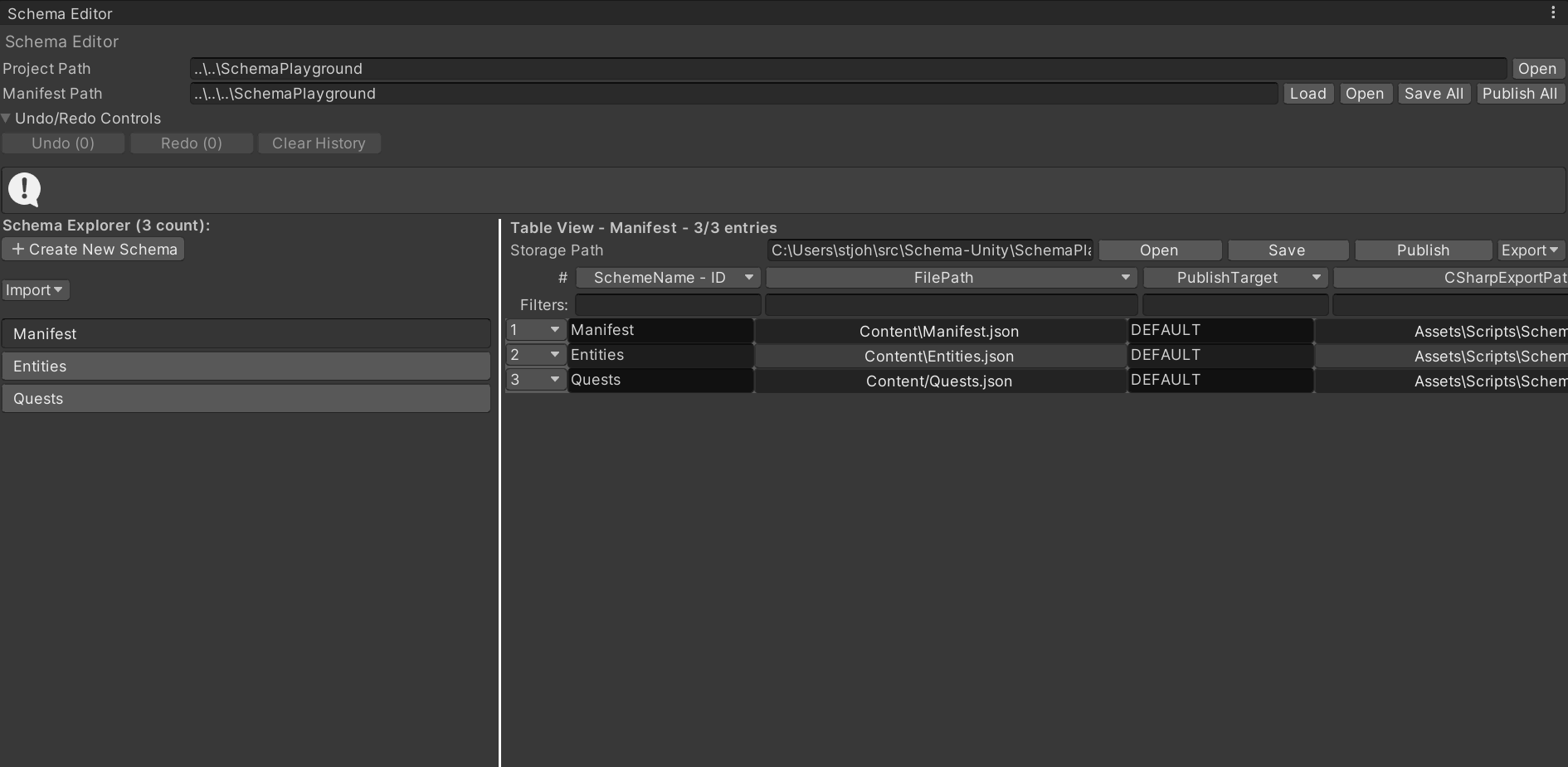
Table editor with fast, virtualized grid and publishing
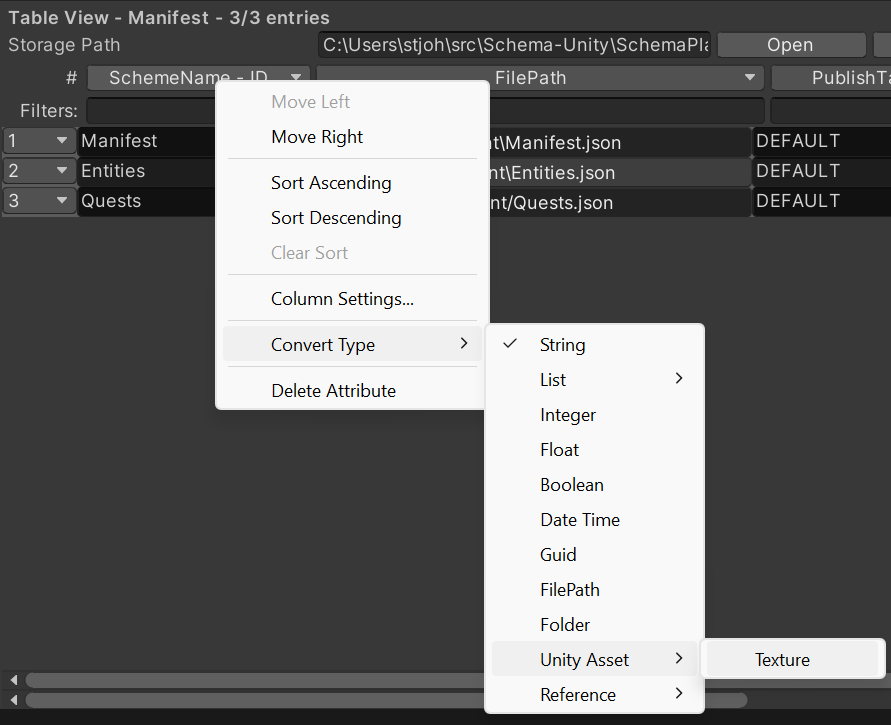
Rich attribute type system
Code Generation for Runtime usage
public partial class ProfilesEntry : EntryWrapper
{
        /// <summary>
        /// Represents a single entry (row) in the 'Profiles' data scheme.
        /// </summary>
        public ProfilesEntry(DataScheme dataScheme, DataEntry entry) : base(dataScheme, entry) {}


        /// <summary>
        /// Gets the value of 'ID'.
        /// </summary>

        public string ID => DataEntry.GetDataAsString("ID");

        /// <summary>
        /// Gets the value of 'Personality Notes'.
        /// </summary>

        public string PersonalityNotes => DataEntry.GetDataAsString("Personality Notes");

        /// <summary>
        /// Gets the value of 'InitialPlayerConnection'.
        /// </summary>

        public bool InitialPlayerConnection => DataEntry.GetDataAsBool("InitialPlayerConnection");

        /// <summary>
        /// Gets the value of 'Profile Picture'.
        /// </summary>

        public string ProfilePicture => DataEntry.GetDataAsString("Profile Picture");

    }
Documentation
- Start here: docs/Overview
- Quickstart: docs/Quickstart
- Key Concepts: docs/KeyConcepts
- Unity Editor Guide: docs/EditorGuide
- Runtime Integration: docs/RuntimeGuide
- FAQ & Troubleshooting: docs/FAQ
Features
- Schema Core: C# library for defining, loading, and validating data schemas.
- Unity Integration: Custom Unity editor tools for managing schema-based data.
- Sample Content: Example JSON and CSV files for rapid prototyping and testing.
- Extensible: Easily add new data types, serialization formats, and editor extensions.
Getting Started
See the full Quickstart.
1) Quick Start: Integrate into an existing project (Unity Package Manager)
Install via OpenUPM
- Open Edit/Project Settings/Package Manager
- Add a new Scoped Registry (or edit the existing OpenUPM entry)
- Name:
package.openupm.com - URL:
https://package.openupm.com - Scope(s):
com.devzappy.schema.unity
- Name:
- Click Save or Apply
- Open Window/Package Manager
- Click
+ - Select
Add package by name...orAdd package from git URL... - Paste
com.devzappy.schema.unityinto name - Paste
0.3.1into version - Click Add
- Click
Alternatively, merge the snippet to Packages/manifest.json
{
    "scopedRegistries": [
        {
            "name": "package.openupm.com",
            "url": "https://package.openupm.com",
            "scopes": [
                "com.devzappy.schema.unity"
            ]
        }
    ],
    "dependencies": {
        "com.devzappy.schema.unity": "0.3.1"
    }
}
Install via Git URL (no download required):
Open your Unity project
Open
Window > Package ManagerClick
+and selectAdd package from git URL...Paste:
https://github.com/zappy-dev/Schema-Unity.git?path=/SchemaPlayground/Packages/com.devzappy.schema.unity#mainAfter install, open
Tools > Schema Editor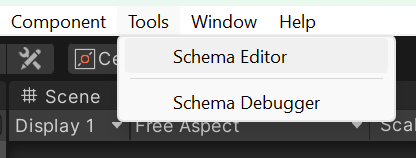
Try it quickly (optional):
- Create a simple scheme and entries, then publish and generate C#.
- Initialize at runtime with
Schema.Runtime.SchemaRuntime.Initialize().
2) Local Setup (clone the repo)
Prerequisites:
- Unity (2021.3+ recommended)
- .NET SDK 8 (for building and testing core libraries)
Steps:
- Clone:
git clone https://github.com/zappy-dev/Schema-Unity.git cd Schema-Unity - Open
SchemaPlayground/in Unity - Try it now:
- Load
Assets/Scenes/SampleScene.unity - Open
Tools > Schema Editorand exploreManifest,Entities,Quests - Press Play to see the
Player2DControllersample
- Load
- Build core libraries (optional):
- Open
Schema/Schema.slnin Visual Studio or Rider and build
- Open
- Run tests (optional):
dotnet test Schema/Schema.Core.Tests/Schema.Core.Tests.csproj
Add as local package from disk (optional):
Window > Package Manager- Click
+>Add package from disk... - Select
SchemaPlayground/Packages/com.devzappy.schema.unity/package.json
Usage
- Use the Unity Editor tools (under
Tools > Schema Editor) to import, edit, and validate schema-based data. - Place your JSON/CSV data files in
SchemaPlayground/Content/. - Extend or customize schema definitions in
SchemaPlayground/Packages/com.devzappy.schema.unity/Core/Data/.
Project Structure
Schema-Unity/
  Schema/                  # Core C# library and tests
    Schema.Core/
    Schema.Core.Tests/
  SchemaPlayground/        # Unity project with sample content and editor extensions
    Content/
    Packages/
      com.devzappy.schema.unity/
        Core/
        Editor/
  docs/                    # Guides and reference documentation
Contributing
Contributions are welcome! See docs/Contributing.
Support
For help, email support@devzappy.com.
If you find Schema-Unity helpful and want to support ongoing development:
- GitHub Sponsors: https://github.com/sponsors/zappy-dev
- Ko‑fi: https://ko-fi.com/devzappy
License
This project is licensed under the MIT License. See the LICENSE file for details.
Comments
No comments yet. Be the first!
Sign in to join the conversation
Sign In