Javanese TextMeshPro

>-
com.adityarahmanda.javanese-textmeshpro Install via UPM
Add to Unity Package Manager using this URL
https://www.pkglnk.dev/adityarahmanda-javanese-textmeshpro.git README Markdown
Copy this to your project's README.md

## Installation
Add **Javanese TextMeshPro** to your Unity project via Package Manager:
1. Open **Window > Package Manager**
2. Click **+** > **Add package from git URL**
3. Enter:
```
https://www.pkglnk.dev/adityarahmanda-javanese-textmeshpro.git
```
[](https://www.pkglnk.dev/pkg/adityarahmanda-javanese-textmeshpro)README
Summary
Javanese TextMeshPro extends Unity's TextMeshPro capabilities to supports Javanese script text processing.

Features
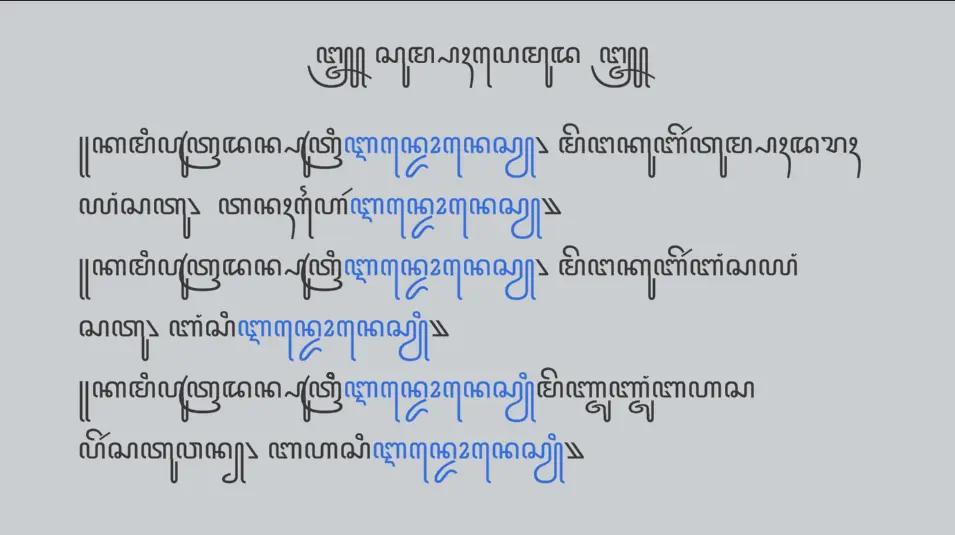
Javanese Text
A text element used to display Javanese script text.
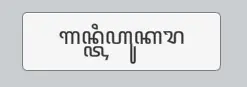
Javanese Button
A UI button element that contains a Javanese Text (UI) element inside it.
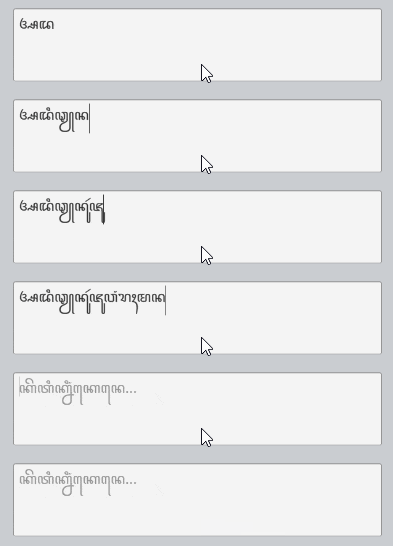
Javanese Input Field
A UI input field capable of receiving Javanese script text input.
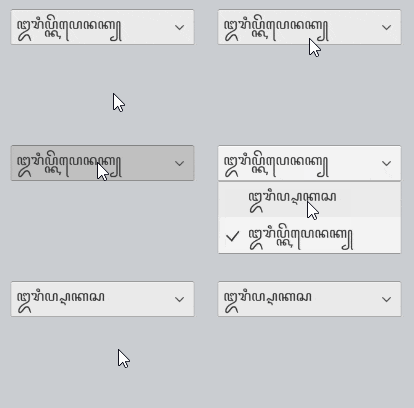
Javanese Dropdown
A dropdown UI element capable of presenting a list of options written in Javanese script.
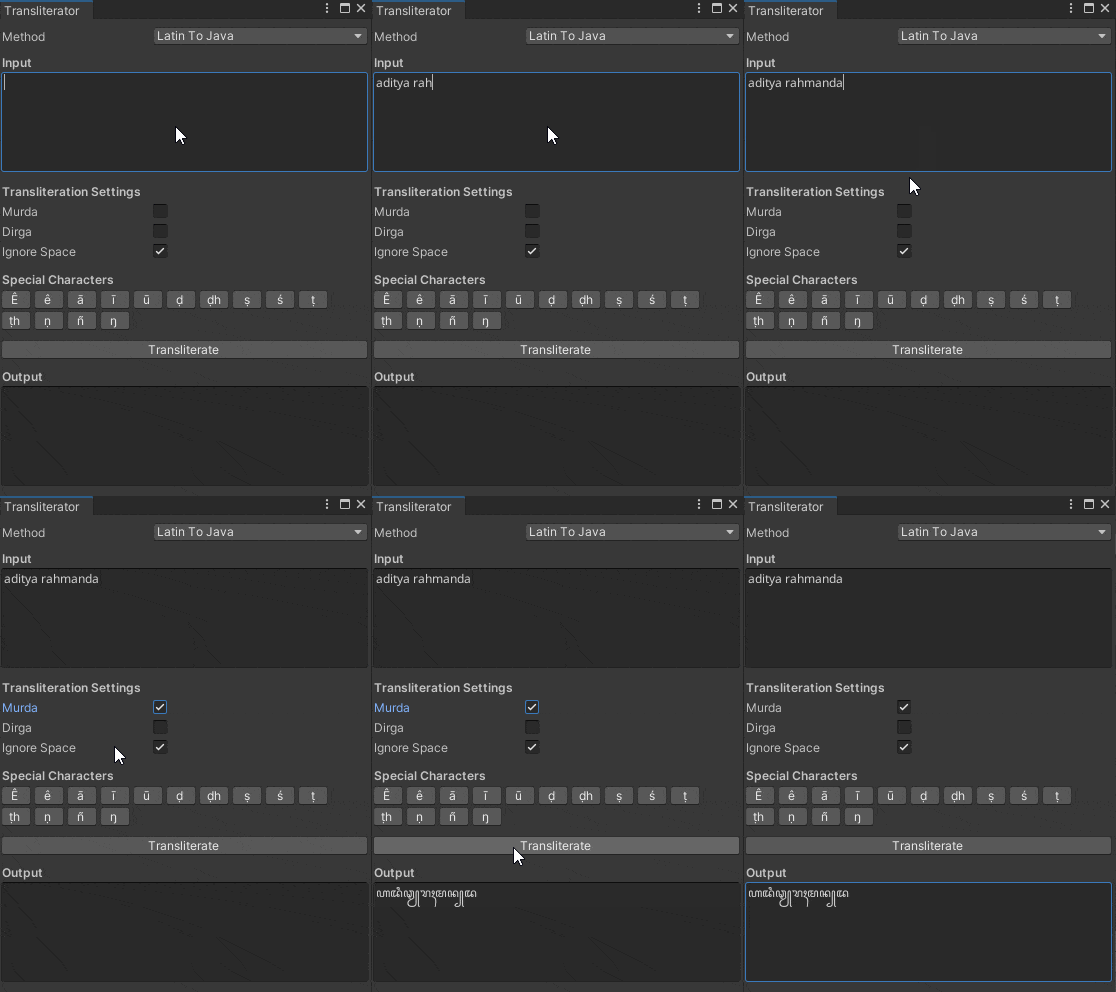
Transliterator Window
A window used to transliterate Latin-Javanese or Javanese-Latin text in the Unity Editor.
Requirements
| Minimum Requirement | Details |
|---|---|
| Unity 2021.2.0f1 | To use this plugin optimally, Unity 2021.2.0f1 is required because this version introduced support for typing Javanese Unicode text in the Unity Editor. |
| TextMeshPro | TextMeshPro must already be installed in your Unity project because this plugin depends on it. It can be installed via the Package Manager. |
Limitations
TextMeshPro TextMeshPro does not read glyph positioning and substitution (GPOS and GSUB)🡕 from Javanese script fonts, so it cannot render Javanese script correctly.
The Javanese TextMeshPro plugin solves this by processing a special Javanese font that contains additional glyphs in the Unicode blocks U+E000-U+E09F and U+E100-U+E11D. These ranges are intentionally chosen because they belong to the Private Use Area (PUA). The glyph positioning in this custom font follows the layout used by the Ngayogyan font.
Therefore, the plugin currently supports only a limited set of fonts: Ngayogyan, Ngayogyan Jejeg dan Noto Sans (Custom). All of these fonts are already included in the plugin package.
Installation
Install via Clone
Clone this project using this command line
git clone https://github.com/adityarahmanda/unity-javanese-textmeshpro.git
Install via Git Url
Open Unity Package Manager
Click
+Select
Add package from git URL...Paste this URL
https://github.com/adityarahmanda/unity-javanese-textmeshpro.git?path=/Packages/com.adityarahmanda.javanese-textmeshpro
- Click Add
Install via Tarball Releases
Go to Releases page
Download
.tgzfrom the latest releaseIn Unity, open Window/Package Manager
- Click
+ - Select
Add package by tarball... - Select the downloaded file to import it
- Click
Install via Scoped Registry
In Unity, Open
Edit -> Project Settings -> Package ManagerAdd a new Scoped Registry (or edit the existing OpenUPM entry)
Label Value Name Aditya Rahmanda URL https://package.openupm.com Scope(s) com.adityarahmanda Click
SaveorApplyOpen Window/Package Manager
There are several ways to add the package
- Go to My Registries section,
- Find
Aditya Rahmanda'sJavanese TextMeshPropackage - Click
InstallButton
or
- Click
+ - Select
Add package by name... - Paste
com.adityarahmanda.javanese-textmeshprointo name - Click Add
Essential and Example Resources
To use Javanese TextMeshPro, the package JVTMP Essential Resources must be imported first. The import window will appear automatically after installing the plugin or you can import it manually by going to Tools -> Javanese TextMeshPro -> Import JVTMP Essential Resources in the Unity Editor.
You can also import The JVTMP Example Resources to learn how the library is used in real scenes.
Comments
No comments yet. Be the first!
Sign in to join the conversation
Sign In