
Install via UPM
Add to Unity Package Manager using this URL
https://www.pkglnk.dev/calendar-ui.git README Markdown
Copy this to your project's README.md

## Installation
Add **Calendar UI** to your Unity project via Package Manager:
1. Open **Window > Package Manager**
2. Click **+** > **Add package from git URL**
3. Enter:
```
https://www.pkglnk.dev/calendar-ui.git
```
[](https://www.pkglnk.dev/pkg/calendar-ui)README
Calendar UI (Unity Package)

Summary
A lightweight, customizable Unity calendar UI for displaying and managing dates, with Google Calendar holiday integration.
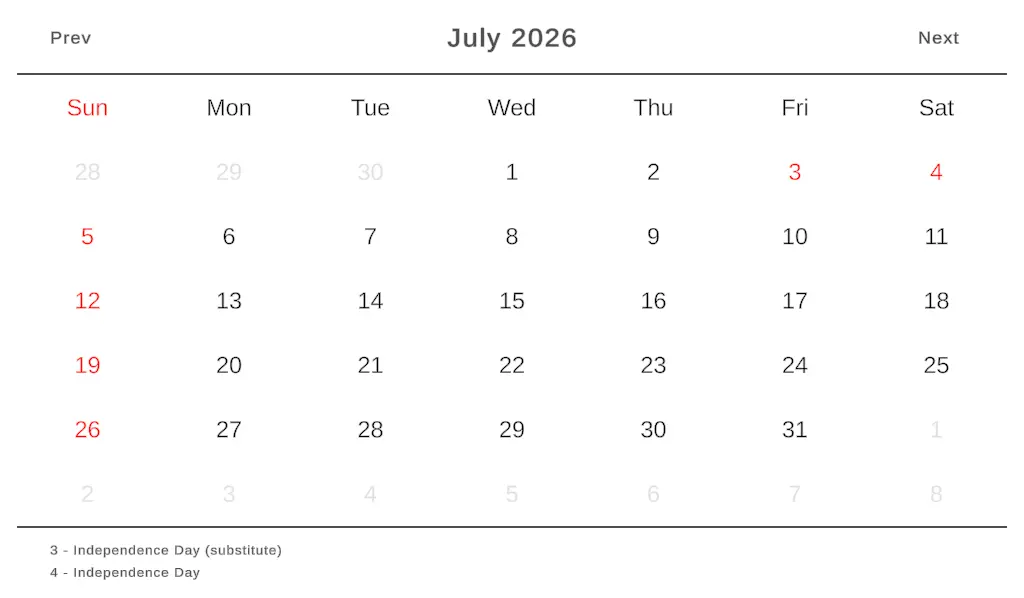
Features
Calendar Display - Shows year, month, day and holiday infomation views for date navigation.
Current Date Indicator - Marks the current date for quick reference.
Clickable Days - Each day can trigger custom functions or events.
UI Customization - The appearance can be adjusted to fit your project.
Holiday Database - Supports importing public holiday data from Google Calendar.
Holiday Database
This package includes two holiday database ScriptableObjects by default:
US Public Holidays
Indonesian Public Holidays
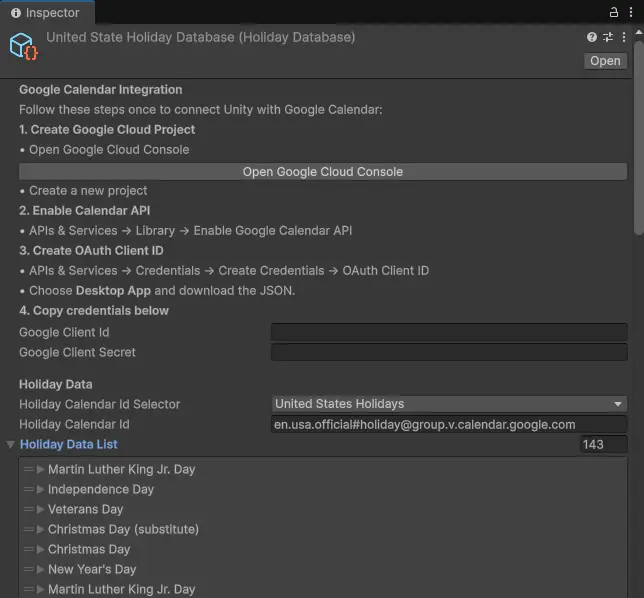
The data was last retrieved in 2026. To keep the holiday data up to date, you can connect the package to Google Calendar using your own Google OAuth credentials. A setup tutorial is available in the Inspector.
You can also create your own Holiday Database via: Create → Calendar UI → Holiday Database
Installation
Install via Clone
Clone this project using this command line
git clone https://github.com/adityarahmanda/unity-calendar-ui.git
Install via Git Url
Open Unity Package Manager
Click
+Select
Add package from git URL...Paste this URL
https://github.com/adityarahmanda/unity-calendar-ui.git?path=/Packages/com.adityarahmanda.calendar-ui
- Click Add
Install via Tarball Releases
Go to Releases page
Download
.tgzfrom the latest releaseIn Unity, open Window/Package Manager
- Click
+ - Select
Add package by tarball... - Select the downloaded file to import it
- Click
Install via Scoped Registry
In Unity, Open
Edit -> Project Settings -> Package ManagerAdd a new Scoped Registry (or edit the existing OpenUPM entry)
Label Value Name Aditya Rahmanda URL https://package.openupm.com Scope(s) com.adityarahmanda Click
SaveorApplyOpen Window/Package Manager
There are several ways to add the package
- Go to My Registries section,
- Find
Aditya Rahmanda'sCalendar UIpackage - Click
InstallButton
or
- Click
+ - Select
Add package by name... - Paste
com.adityarahmanda.calendar-uiinto name - Click Add
Comments
No comments yet. Be the first!
Sign in to join the conversation
Sign In