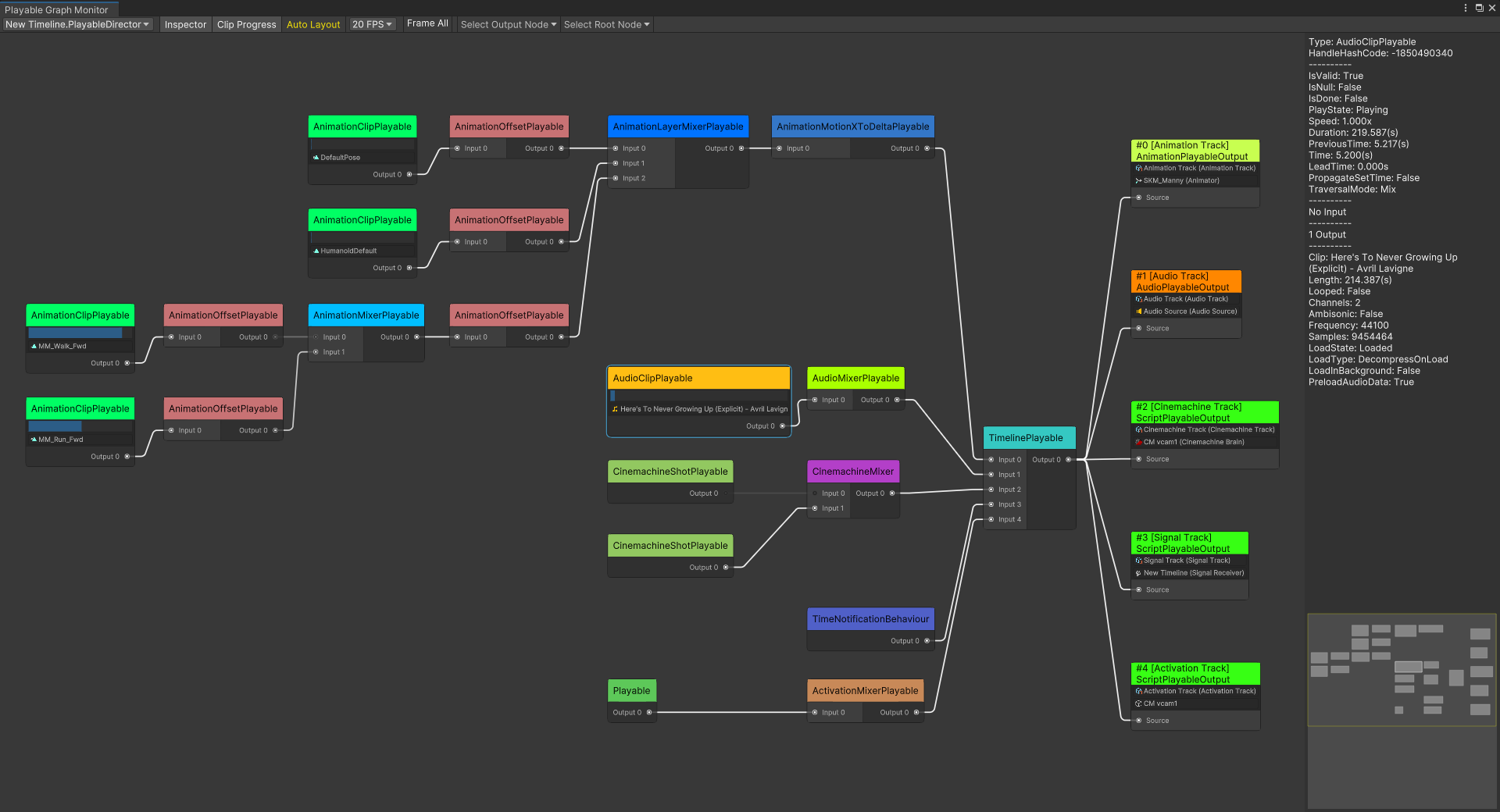

Monitor and visualize PlayableGraphs in real-time within the Unity Editor. This tool displays graph topology, node details, and playback progress for animation and audio clips, with support for manual layout adjustment and large graph optimization. Essential for debugging complex animation systems and understanding PlayableGraph structures.
Add to Unity Package Manager
Paste this URL into Unity's Window › Package Manager › + › Add package from git URL,
or click Install.
https://www.pkglnk.dev/crazyshader-playablegraphmonitor.git README
Rendered from GitHubUnity PlayableGraph Monitor
A tool for monitoring the PlayableGraph in real-time within the Unity Editor.
Features
- Display the topology of the selected PlayableGraph (supports large PlayableGraphs)
- Use the left mouse button to click on a node to display its detailed data
- Use the middle mouse button to drag the view
- Use the mouse scroll wheel to zoom in/out the view
- Display the assets and playback progress of AnimationClip and AudioClip nodes
- Display the animation job type of AnimationScriptPlayable nodes
- Supports to add extra text labels to Playable nodes
- Supports to set the maximum refresh rate of the view
- Supports to manually drag nodes to adjust the layout
- Supports to display PlayableGraphs with circular references (manually adjust the node layout required)
Supported Unity Version
Unity 2019.4 and later.
Installation

Install this package for free via OpenUPM
or
Buy this package from Unity Asset Store to support this project.
How to use
Open the PlayableGraph Monitor in Unity Editor menu Window/Analysis/PlayableGraph Monitor. In the top-left popup list, select a PlayableGraph to view its topology. Use the left mouse button to click on a node to display its details in the embedded Inspector.
Adding extra labels to Playable nodes
Use the PlayableGraphMonitorWindow.Open(IReadOnlyDictionary<PlayableHandle, string>) or PlayableGraphMonitorWindow.TrySetNodeExtraLabelTable(IReadOnlyDictionary<PlayableHandle, string>) method to add additional text labels to Playable nodes.
Manually dragging nodes to adjust the layout
After disabling the Auto Layout option in the toolbar of the monitor window, you can manually drag nodes to adjust the layout.
PlayableGraph with circular references
When there are circular references in the nodes of a PlayableGraph, the monitoring tool cannot automatically calculate the node layout. If you find that the monitoring tool fails to layout nodes properly, check the console log to see if it indicates circular references in the PlayableGraph. In this case, you can disable the Auto Layout option, and then manually drag nodes to identify the circular references in the PlayableGraph.
It should be noted that if there is a group of Playables where each Playable serves as an input to another one or more Playables in the group (i.e., there is no root Playable), and none of them are connected to a PlayableOutput, then this group of Playables will not appear in the graph view and may not trigger any error messages.
Improve the display performance of large PlayableGraph
The following methods can significantly improve performance when displaying a large PlayableGraph:
- Disable the Inspector option(or do not select any nodes)
- Disable the Clip Progress option
- Decrease the maximum refresh rate
- Disable the Keep updating edges when mouse leave GraphView option in the context menu(when disabled, the color of edges will no longer change according to their weight when the mouse leaves the graph area)
Versions 1
- v2.5.9 current
Dependencies 0
No dependencies.
Changelog 0 releases
No changelog entries yet. Run the admin Changelog & Version Scanner to pull from the repository's CHANGELOG.md.
README Markdown
Copy this to your project's README.md

## Installation
Add **PlayableGraph Monitor!** to your Unity project via Package Manager:
1. Open **Window > Package Manager**
2. Click **+** > **Add package from git URL**
3. Enter:
```
https://www.pkglnk.dev/crazyshader-playablegraphmonitor.git
```
[](https://www.pkglnk.dev/pkg/crazyshader-playablegraphmonitor)Embed badge README snippet
[](https://www.pkglnk.dev/pkg/crazyshader-playablegraphmonitor)<a href="https://www.pkglnk.dev/pkg/crazyshader-playablegraphmonitor"><img src="https://www.pkglnk.dev/badge/crazyshader-playablegraphmonitor.svg" alt="pkglnk installs"></a>https://www.pkglnk.dev/badge/crazyshader-playablegraphmonitor.svgComments
No comments yet. Be the first!
Sign in to join the conversation
Sign In