Lyon Tessellation

Tessellate vector paths in Unity using the lyon library. Supports both fill and stroke rendering with an intuitive API for path building and tessellation. Features multithreaded processing via Unity's Job System and Burst compiler, memory reuse, and prebuilt binaries for Windows, Linux, macOS, iOS, and Android.
com.gilzoide.lyon-tessellation Unity Compatibility
Unity 6 Supported
2023.2 Supported
2023.1 Supported
2022.3 LTS Supported
2021.3 LTS Supported
2020.3 LTS Unsupported
2019.4 LTS Unsupported
Install via UPM
Add to Unity Package Manager using this URL
https://www.pkglnk.dev/lyon-tessellation.git 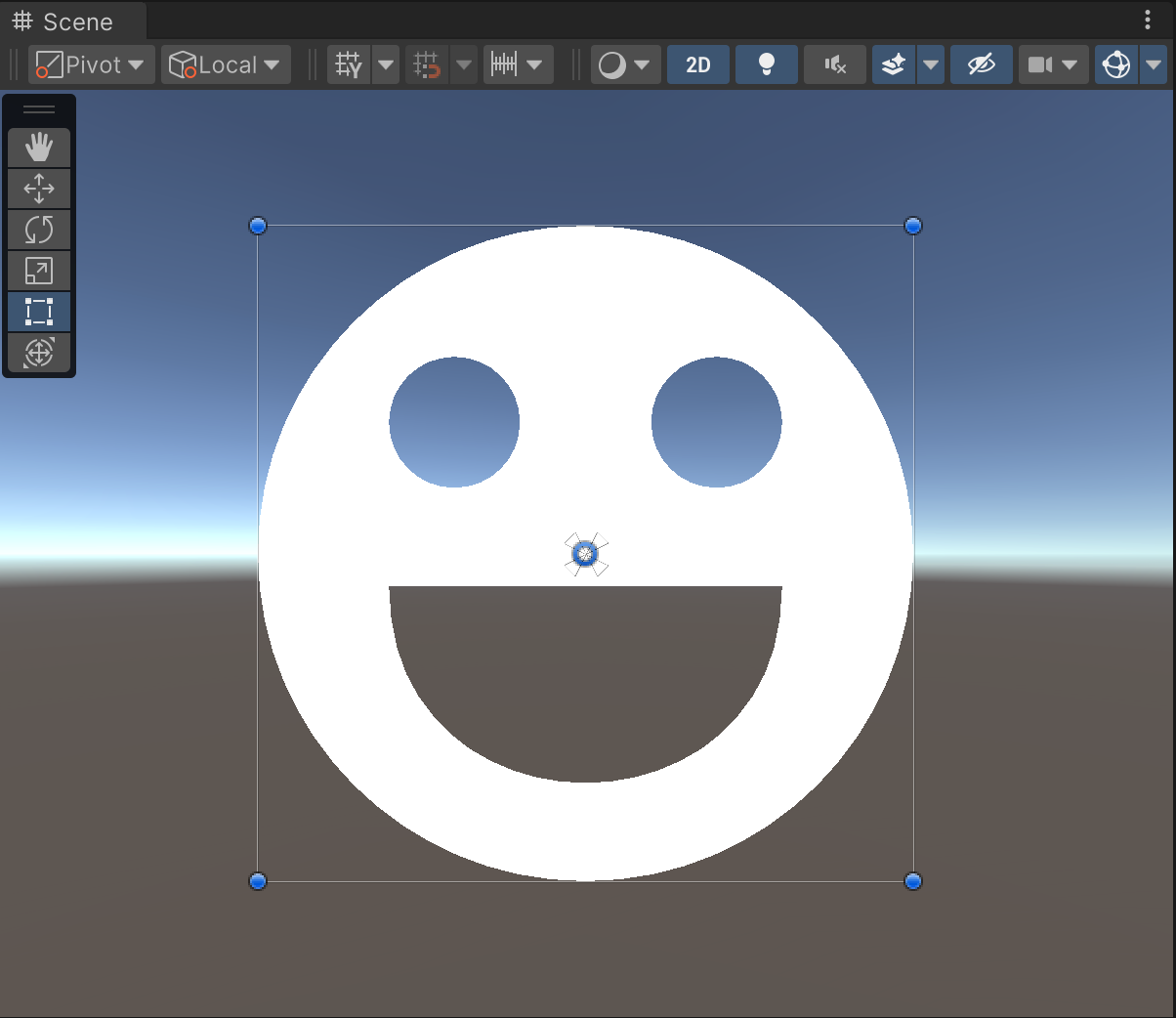
README Markdown
Copy this to your project's README.md
Style
Preview 
## Installation
Add **Lyon Tessellation** to your Unity project via Package Manager:
1. Open **Window > Package Manager**
2. Click **+** > **Add package from git URL**
3. Enter:
```
https://www.pkglnk.dev/lyon-tessellation.git
```
[](https://www.pkglnk.dev/pkg/lyon-tessellation)Dependencies (2)
README
Lyon Tesselation
(WIP) Tessellation of vector paths in Unity, powered by lyon.
Features
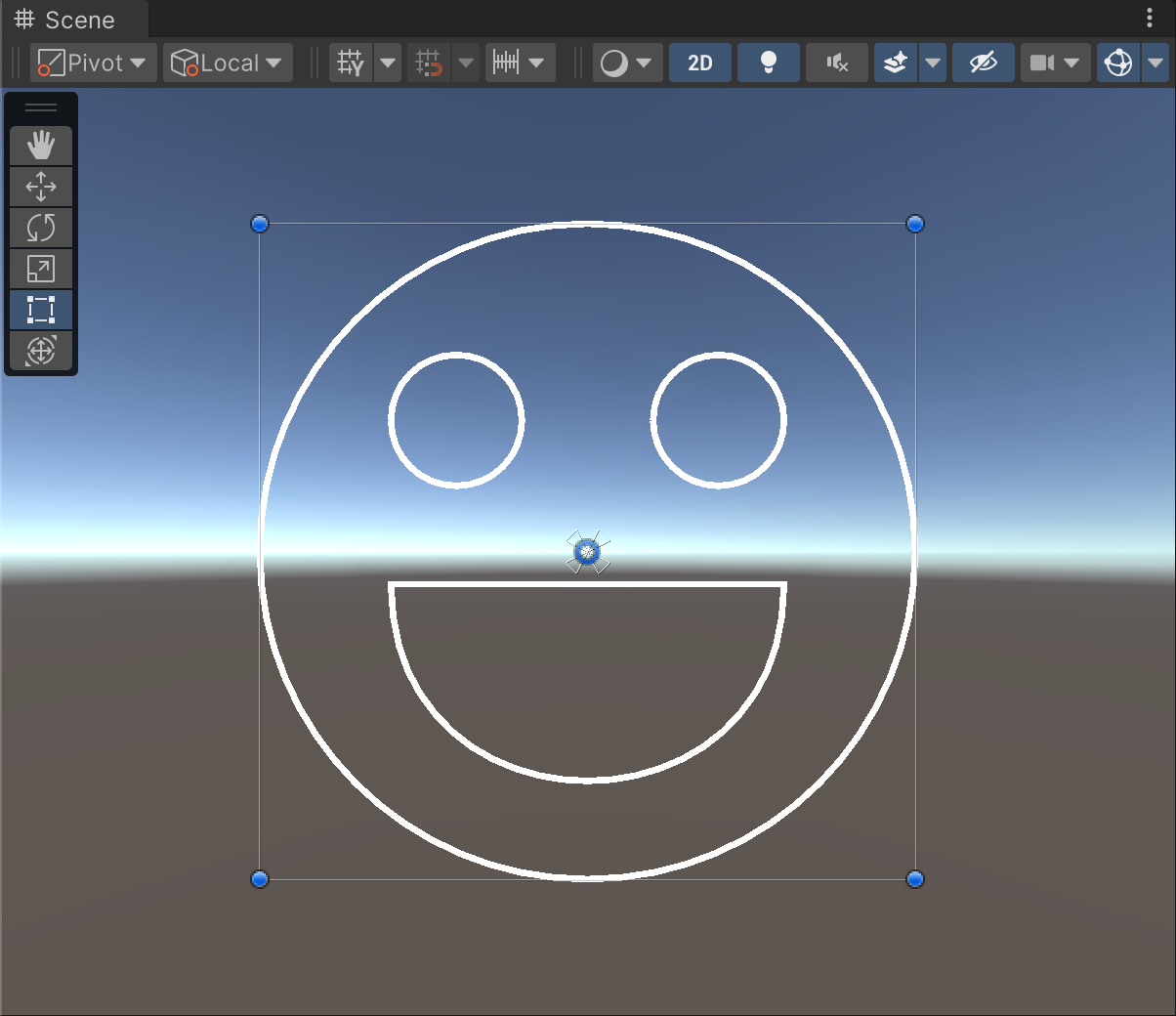
- Supports both Fill and Stroke tessellation, with several configurations provided by lyon
- Easy to use PathBuilder API for drawing paths that will be passed to the Tessellator
- Run multithreaded tessellation with the Job System and Burst by leveraging the
Create*Jobmethods fromTessellator - Both
PathBuilderandTessellatorsupport reusing memory, just callClear()instead of disposing of them and allocating new instances - Prebuilt for the following platforms: Windows (x86_64), Linux (x86_64), macOS (x86_64, arm64), iOS (arm64), Android (arm32, arm64, x86, x86_64)
Samples
This package include the following sample scenes:
- Graphic: a smiley path being tessellated into a Unity UI Graphic.
Usage example
using Gilzoide.LyonTesselation;
using UnityEngine;
using UnityEngine.Jobs;
using UnityEngine.UI;

// 1. Create a path
var path = new PathBuilder();
path.AddCircle(Vector2.zero, 100)
    .AddCircle(new Vector2(20, 20), 20)
    .AddCircle(new Vector2(20, 20), 20)
    .BeginAt(new Vector2(30, 5))
        .CubicBezierTo(
            new Vector2(30, 45),
            new Vector2(30, 45),
            new Vector2(30, 5)
        )
    .Close();

// 2. Create a Tessellator
// The type parameters represent the Vertex and Index types:
// - Vertex type must contain at least 2 floats, for the position
// - Index type should be an integer of at least 16 bits (ushort, int...)
// In this example, we'll use UIVertex for building meshes for Unity UI.
var tessellator = new Tessellator<UIVertex, int>();

// 3. Tessellate! This will fill the tessellator's internal buffers
// 3.a) AppendPathFill will triangulate the path's fill
tessellator.AppendPathFill(path);
// Alternatively, schedule the path fill using Unity's Job System
JobHandle fillJob = tessellator.CreatePathFillJob(path).Schedule();
// 3.b) AppendPathFill will triangulate the path's stroke
tessellator.AppendPathStroke();
// Alternatively, schedule the path stroke using Unity's Job System
JobHandle strokeJob = tessellator.CreatePathStrokeJob(path).Schedule();

// 4. Fetch the vertex buffer and index buffer for whatever
// If you used jobs for fill/stroke, make sure to complete them first.
fillJob.Complete();
strokeJob.Complete();
NativeArray<UIVertex> vertices = tessellator.Vertices;
NativeArray<int> indices = tessellator.Indices;

// 5. If you are using UIVertex, there is a helper job that fills
// vertices color and UVs. You can use job dependencies to run it
// right after tessellation ends.
JobHandle dependency = JobHandle.CombineDependencies(fillJob, strokeJob);
JobHandle uiVertexJob = tessellator.CreateUIVertexJob(color, rect).Schedule(dependency);
// at some point, e.g. inside Graphic.OnPopulateMesh
uiVertexJob.Complete()
NativeArray<UIVertex> coloredVertices = tessellator.Vertices;
NativeArray<int> indices = tessellator.Indices;
// Check out the "Graphic" sample for an example of usage

// 6. Dispose of paths and tessellators when not needed anymore.
tessellator.Dispose();
path.Dispose();
Comments
No comments yet. Be the first!
Sign in to join the conversation
Sign In