Macaca APIs
A native API wrapper to some iOS/Android feature e.g. AlertDialog, Toast
com.macacagames.macacaapi 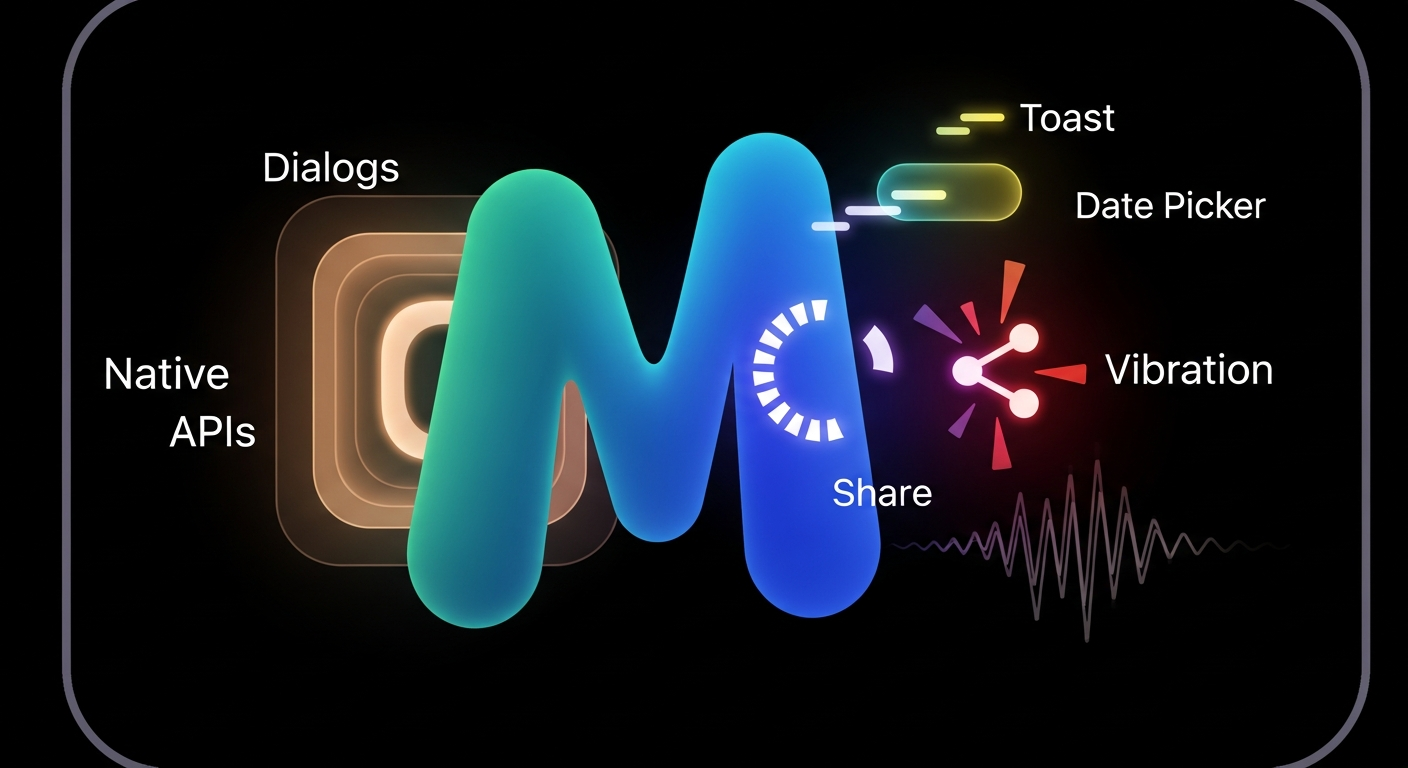
Install via UPM
Add to Unity Package Manager using this URL
https://www.pkglnk.dev/macacaapi.git README Markdown
Copy this to your project's README.md

## Installation
Add **Macaca APIs** to your Unity project via Package Manager:
1. Open **Window > Package Manager**
2. Click **+** > **Add package from git URL**
3. Enter:
```
https://www.pkglnk.dev/macacaapi.git
```
[](https://www.pkglnk.dev/pkg/macacaapi)README
Welcome to MacacaAPI
See Document for more detail.
Macaca API is a mobile native library for iOS and Android.
Feature
- Native share (text, image, video, gif)
- Native Dialog (with callback)
- Native DatePicker
- Rate Us Dialog
- Vibration
- Toast
- Runtime Permission (Android Only)
System Requirement
iOS 10 or later
Android 4.4 or later
This package require External Dependency Manager to make sure native dependency is resolve correctlly.
Installation
Option 1: Installation via OpenUPM (Recommend)
openupm add com.macacagames.macacaapi
Option 2: Unity Package file
Add it to your editor's manifest.json file like this:
    {
    "dependencies": {
        "com.macacagames.macacaapi": "https://github.com/MacacaGames/MacacaAPI.git",
    }
}
Example
- Import MacacaAPI
- open the sence file in Test folder. (Test.unity)
- Build and Run!
For Android User
Android Native Shard require one more step to complete.
Modify your AndroidManifest.xml in Plugins/Android folder and add this in
Remember replace the {your authorities} into your Package name. (usually looks like com.xxxx.yyy)
  <provider
    android:name="com.CloudMacaca.AndroidNative.UnityShareContentProvider"
    android:authorities="{your authorities}"
    android:exported="false"
    android:grantUriPermissions="true" />
Usage
Full example code in CloudMacacaAPITest
Show Toast Message
CM_APIController.ShowToastMessage("Hello World");
Vibration
    // The haptic engine pop vibrate
    CM_APIController.VibrationAsPop();

    // The haptic engine Peek vibrate
    CM_APIController.VibrationAsPeek();

    // The haptic engine Nope vibrate
    CM_APIController.VibrationAsNope();

    // Vibrate device in milesecond (Android only)
    CM_APIController.Vibration(1000);
Dialogs
    // Show rate us
    CM_APIController.ShowRateUsDialog();

    // Show a system dialog
    CM_APIController.ShowAlertDialog(
        "title",
        "msg",
        "Ok",
        "No",
        new CMDialogCallback(
            () =>
            {
                CM_APIController.ShowToastMessage("Positive");
            },
            () =>
            {
                CM_APIController.ShowToastMessage("Negative");
            }
        )
    );

    // Show System datetime picker
    CM_APIController.ShowDatePickerWithCallback(
            "Ok",
            "No",
            new CMDatePickerCallback(
                (date) =>
                {
                    CM_APIController.ShowToastMessage(date);
                }
            )
        );
Share
For share MacacaAPI only helps you to call a native share UI. you need to make the screenshot, gif, video yourself in Unity3D and save to a readable path. (Usually Application.persistentDataPath )
A sample to share a Screenshot
    public string ScreenshotName = "screenshot.png";

    public void ShareScreenshotWithText(string text)
    {
        string screenShotPath = Application.persistentDataPath + "/" + ScreenshotName;
        if (File.Exists(screenShotPath)) File.Delete(screenShotPath);

        ScreenCapture.CaptureScreenshot(ScreenshotName);
        StartCoroutine(delayedShare(screenShotPath, text));
    }

    //CaptureScreenshot runs asynchronously, so you'll need to either capture the screenshot early and wait a fixed time
    //for it to save, or set a unique image name and check if the file has been created yet before sharing.
    IEnumerator delayedShare(string screenShotPath, string text)
    {
        while (!File.Exists(screenShotPath))
        {
            yield return new WaitForSeconds(.05f);
        }
        CM_APIController.Share(screenShotPath, text, text, CM_APIController.ShareType.Image);

        //CM_APIController.Share(text, screenShotPath, "", "", "image/png", true, "");
    }
To share text message
CM_APIController.Share("title","content");
Android Runtime Permission
    // Request a permission
    CM_APIController.RequestPermission(CM_APIController.AndroidPermission.WRITE_EXTERNAL_STORAGE);

    // Check a permission state
    AndroidPermissionState result = CM_APIController. CheckPermissionState(CM_APIController.AndroidPermission.WRITE_EXTERNAL_STORAGE);

    // Check app have a Permission or not
    bool result = CM_APIController.CheckPermission(CM_APIController.AndroidPermission.WRITE_EXTERNAL_STORAGE);
more in Document
No comments yet. Be the first!