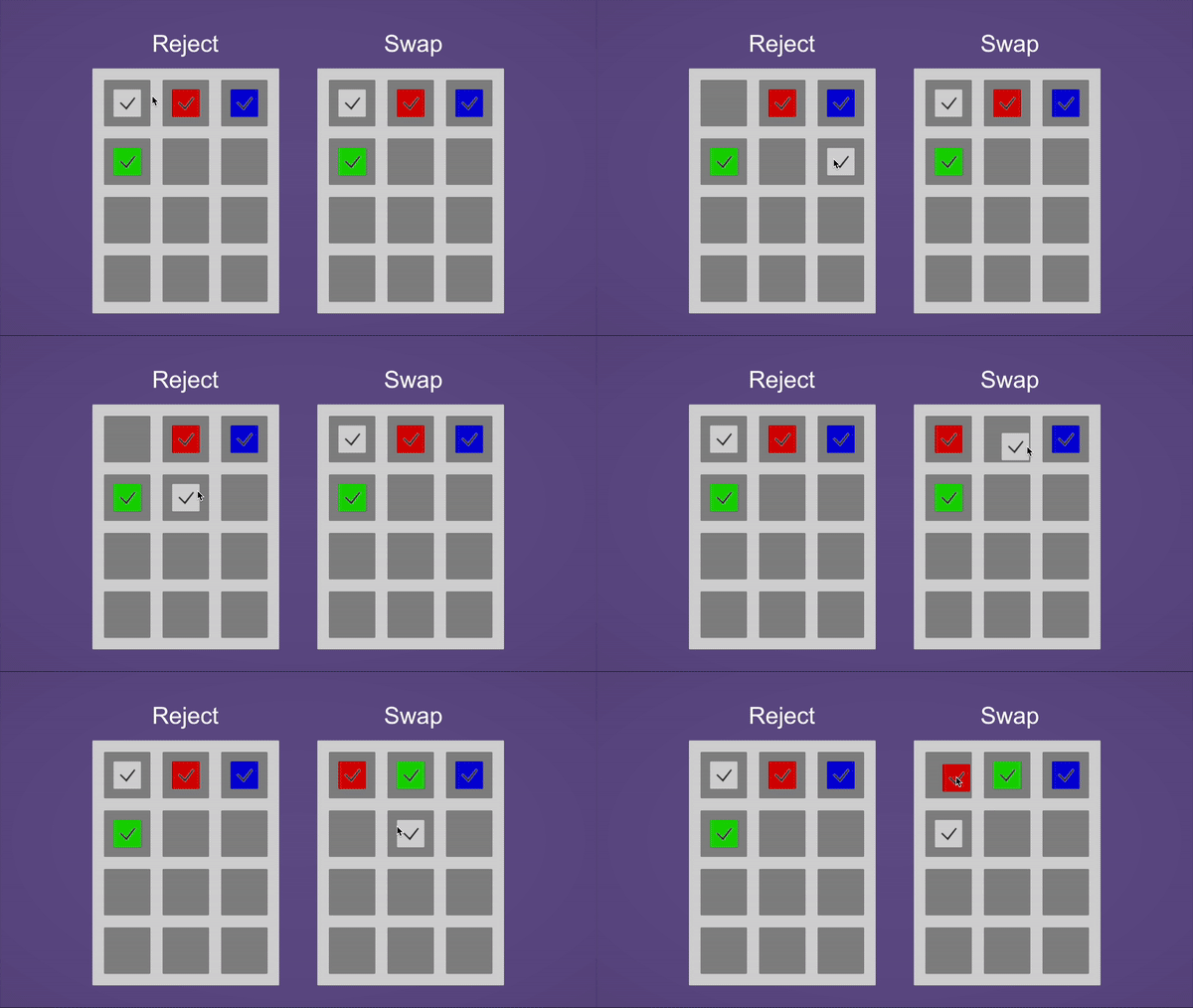

Simple Item Slot UI is a lightweight Unity package for creating draggable item slots in your UI.
Unity Project
Built with Unity 6000.0.35f1 · download the source from GitHub
README
Rendered from GitHubSimple-Item-Slot-UI
Overview
Simple Item Slot UI is a lightweight Unity package for creating draggable item slots in your UI. This package provides two core components—ItemSlot and DraggableItem—that let you drag items between slots and optionally swap them if a slot is already occupied. It’s designed to be minimal and straightforward, making it easy to integrate or modify for your own projects.
Installation
1. Git or Package Manager
- Clone or download this repository.
- In your Unity project, open the Package Manager.
- Click the
+button in the upper-left corner, select Add package from disk..., and browse to thePackages/SimpleItemSlotUIfolder in the cloned repository. - Click Add to install.
Alternatively, you can add this repository as a Git URL:
Open the Package Manager.
Click the
+button, select Add package from git URL....Paste the repository URL (for example):
https://github.com/kwan3854/Simple-Item-Slot-UI.git?path=/Packages/SimpleItemSlotUIClick Add.
Repository & Sample
This repository may include a sample scene demonstrating how to set up and use the two main components (ItemSlot and DraggableItem). To try it out:
- Clone this repository.
- Open the Unity project containing the package.
- Open the sample scene under the
SamplesorExamplefolder (if provided) to see how the item slots and draggables are configured.
Usage
1. Setting up in the Editor
- Create a UI slot:
- Add an empty
GameObject(e.g.,Slot1) to your Canvas. - Attach the
ItemSlotcomponent to it. - Choose a
SlotBehaviourin the Inspector:- Reject: The slot will reject an incoming item if it’s already occupied.
- Swap: The slot will swap the existing item with the dragged one.
- Add an empty
- Create a draggable item:
- Add a UI element (e.g., an
Image) to your Canvas. - Attach the
DraggableItemcomponent to it. - In the Inspector, assign a Parent to move the object to when dragging (Can be None).
- If none is assigned, it defaults to the root of the scene or the root canvas.
- Add a UI element (e.g., an
- Place the draggable item inside the slot:
- In the Hierarchy, make the
DraggableItema child of anItemSlot.
- In the Hierarchy, make the
- Adjust visuals (optional):
- Modify the
Imageon theDraggableItemfor your desired look. - Set up additional UI elements (like borders, texts, etc.) under the same hierarchy if needed.
- Modify the
Once set up, you can click and drag the item to another ItemSlot. If both slots have SlotBehaviour = Swap, the two items will swap places.
Script Reference
1. ItemSlot Component
- Namespace:
SimpleItemSlotUI.Runtime - Implements:
IDropHandler - Key Property:
behaviour(SlotBehaviourenum): Determines how the slot handles incoming items.Reject: Ignores drops if the slot is already occupied.Swap: Swaps existing item with the incoming item if occupied.
- Key Method:
OnDrop(PointerEventData eventData): Triggered when a draggable item is dropped onto the slot.SwapItems(Transform currentItem, DraggableItem draggableItem): Handles swapping items between slots.
2. DraggableItem Component
- Namespace:
SimpleItemSlotUI.Runtime - Implements:
IBeginDragHandler,IDragHandler,IEndDragHandler - Key Property:
SnapTo: Internal property that determines where the item should return (parent slot) after dragging ends.
- Key Methods:
OnBeginDrag(PointerEventData eventData): Sets the initial parent toSnapToand moves the item to a temporary parent (such as a root canvas) so it can be dragged freely.OnDrag(PointerEventData eventData): Updates the position of the item to follow the pointer.OnEndDrag(PointerEventData eventData): Returns the item toSnapToand re-enables raycast targeting.
- Notes:
- Automatically searches for
MaskableGraphiccomponents (e.g.Image) to toggleraycastTargeton drag events.
- Automatically searches for
License
(Add your license information here, e.g., MIT License, or remove this section if not applicable.)
This project is licensed under the MIT License.
Versions 0
No versions tracked yet.
Dependencies 43
Changelog 0 releases
No changelog entries yet. Run the admin Changelog & Version Scanner to pull from the repository's CHANGELOG.md.
Comments
No comments yet. Be the first!
Sign in to join the conversation
Sign In